Customizing WordPress Dashboard Icons: Two Practical Approaches
Many WordPress professionals find that personalizing the administrative interface enhances both workflow and client experience. When managing websites for clients or developing long-term projects, subtle modifications like custom dashboard icons can create a more refined and distinctive environment.
While the standard WordPress icons function adequately, they often lack individuality. If you've implemented custom post types or designed a specialized administrative interface, those generic icons may not align with your site's branding or specific purpose.
Various techniques exist for modifying administrative icons, ranging from straightforward to more technical solutions. Whether you prefer a plugin-based approach or a coded method, this guide will walk you through both options systematically.
This guide is designed for website administrators, developers, and independent professionals seeking to customize their WordPress dashboard to match their site's front-end appearance.
Understanding WordPress Administrative Icons
Administrative icons are the small visual elements displayed alongside each item in the WordPress dashboard navigation. They facilitate quick identification of different site sections, including Posts, Pages, Plugins, and Settings.
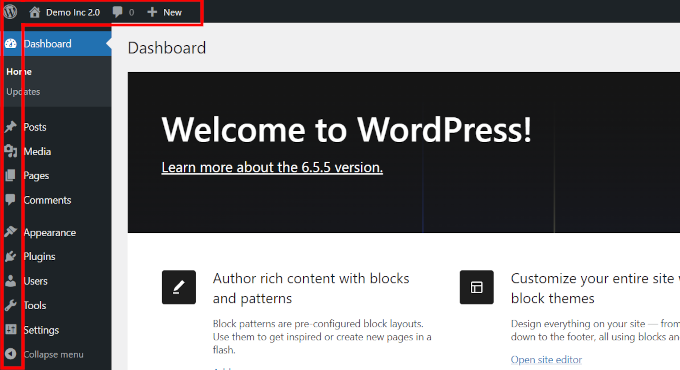
WordPress utilizes a built-in icon font called Dashicons by default. This system has been in place since 2013 and has seen limited updates since its introduction. While functional, it can appear somewhat dated or generic, particularly when building customized websites.
Modifying these icons refreshes the administrative interface's appearance. You can adjust them to complement your brand identity, streamline navigation for clients, or simply inject personality into your site.
For websites designed for WordPress newcomers, customized icons can improve navigation efficiency. This minor adjustment significantly impacts the dashboard's overall user experience.
Now let's examine two practical methods for modifying administrative icons—one utilizing a plugin and another employing custom code.
- Method 1: Modify Administrative Icons Using a Plugin
- Method 2: Customize Administrative Menu Icons with Code
- Bonus: Implementing Icons for Custom Post Types
- Additional Administrative Interface Customization Options
Method 1: Modify Administrative Icons Using a Plugin
This approach utilizes the Admin Menu Editor plugin. As its name indicates, this tool enables straightforward customization of WordPress administrative menus.
Begin by installing and activating the Admin Menu Editor plugin. Once activated, navigate to the Settings » Menu Editor section. Here you'll find your WordPress administrative menu presented within an organized interface where modifications can be made.
The interface features a top toolbar providing options to add or remove menu items, insert separators, copy and paste elements, and perform additional adjustments.
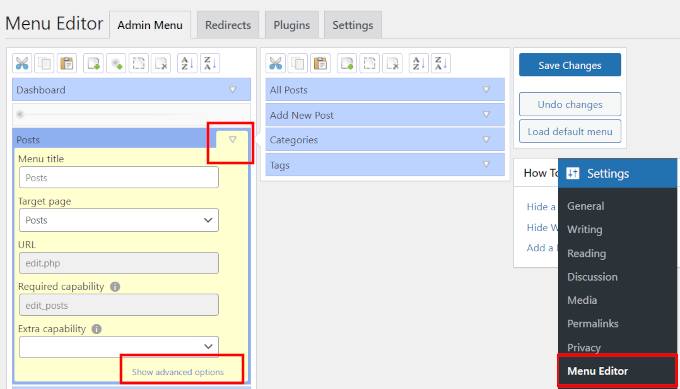
Below the toolbar, clicking any menu item reveals its configuration settings. For demonstration, we've expanded the Posts menu item.
When expanding any menu element, additional options become visible. For parent menu items, any subordinate elements appear in the right column.
To add, replace, or remove a menu icon, select the 'Show advanced options' link at the bottom.
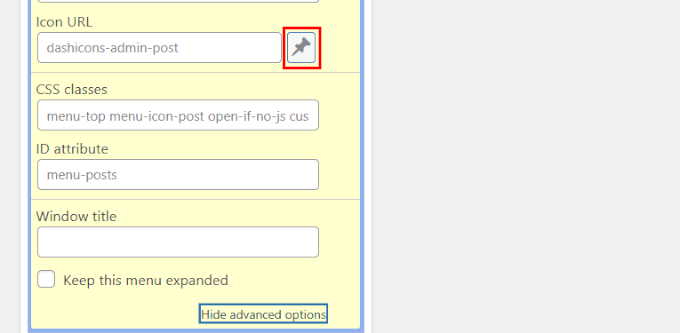
Next, click the button adjacent to the 'Icon URL' field.
This action opens a dialog displaying all available Dashicons. Alternatively, select the 'Media Library' button to upload custom image icons.
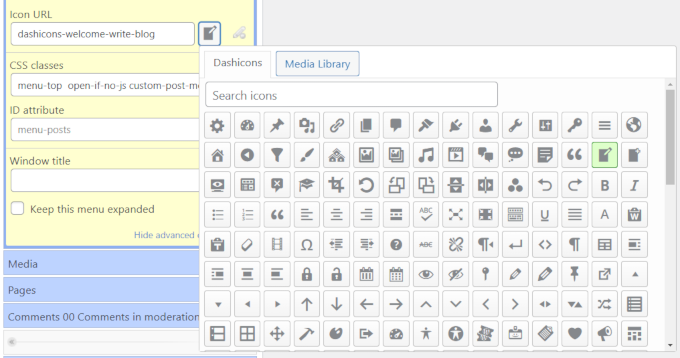
When uploading custom image icons, 32×32 pixel transparent PNG files are recommended.
After selecting your icon, click the 'Save Changes' button to store your configuration.
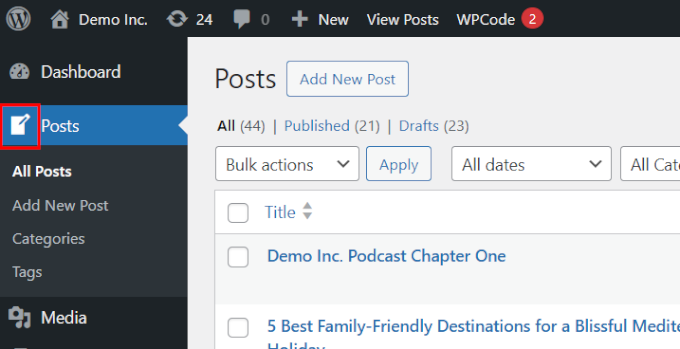
Your customized menu icon will now appear in the administrative navigation.
Method 2: Customize Administrative Menu Icons with Code
This alternative method requires adding custom code to modify icons.
If you're unfamiliar with this process, consider reviewing fundamental guidelines for implementing custom code in WordPress.
The most secure approach for adding custom code involves using a dedicated code snippets plugin. This method prevents accidental site disruptions while allowing safe implementation of custom code, CSS, and HTML.
Example 1: Replacing Icons Using Default Dashicons
This example demonstrates using default Dashicons to replace existing icons.
WordPress automatically loads Dashicons, which are optimized for performance, so their use won't affect page loading speed.
Before implementing code, identify the following information:
- The target menu item's URL
- The desired icon name
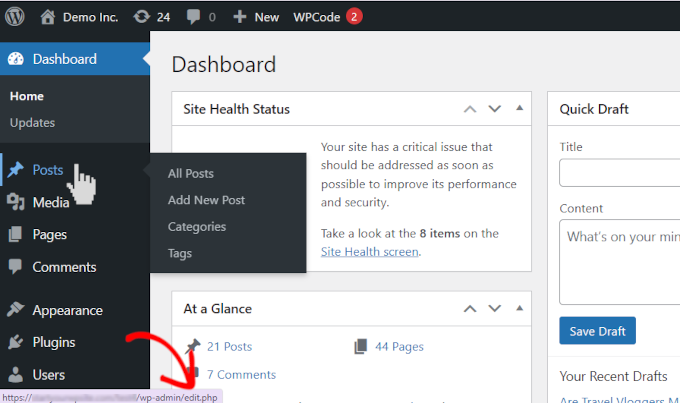
First, locate the page URL for the menu item you wish to customize. For instance, to modify the 'Posts' menu icon, position your cursor over the Posts menu and observe the linked URL in your browser's status bar. You'll need the URL's final segment, which in this case is edit.php.
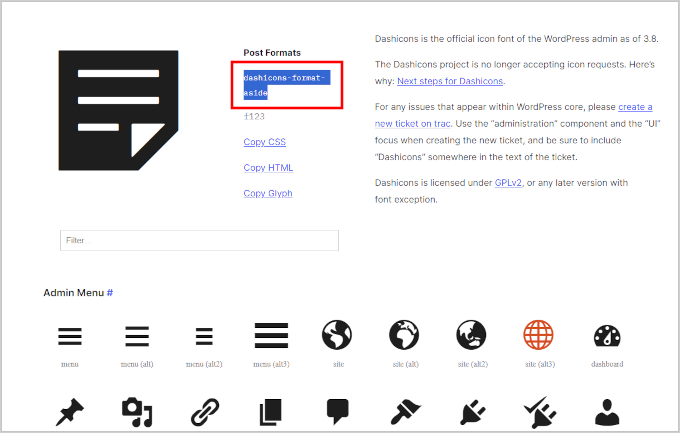
Next, visit the Dashicons website and select your preferred icon.
Clicking any icon displays its name and slug at the top. Copy the slug for use in subsequent steps.
After gathering this information, navigate to your code snippets management section and create a new custom code snippet.
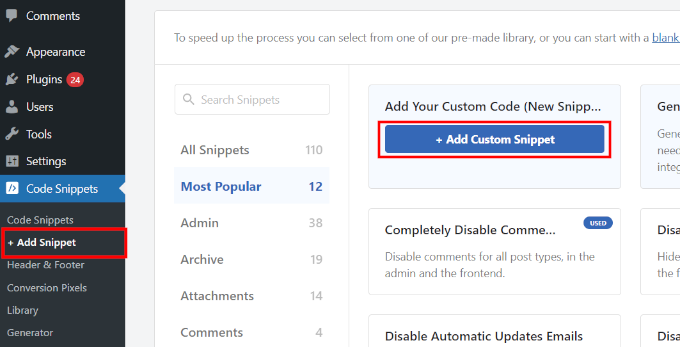
On the configuration screen, assign a descriptive title to your snippet and select PHP Snippet as the code type.
Then insert the following code into the editor:
function modify_post_menu_icon() { global $menu; // Iterate through menu items foreach ($menu as $key => $menu_item) { // Identify "Posts" menu item (default URL: 'edit.php') if (isset($menu_item[2]) && $menu_item[2] == 'edit.php') { // Apply custom Dashicon $menu[$key][6] = 'dashicons-edit-page'; break; } } } add_action('admin_menu', 'modify_post_menu_icon');Replace 'dashicons-edit-page' with your selected icon slug. Update 'edit.php' if targeting different menu items.
Save your snippet and activate it. The modified icon will now appear in your administrative menu.
Example 2: Implementing Custom Image Icons
For custom image icons, use this alternative code structure:
function implement_custom_menu_icon() { global $menu; foreach ($menu as $key => $menu_item) { if (isset($menu_item[2]) && $menu_item[2] == 'edit.php') { // Specify custom image URL $menu[$key][6] = 'https://yourdomain.com/path/to/icon.png'; break; } } } add_action('admin_menu', 'implement_custom_menu_icon');Replace the URL with your custom image's location. Ensure the image is appropriately sized and formatted.
Bonus: Implementing Icons for Custom Post Types
When registering custom post types, you can specify icons during the registration process. Include the 'menu_icon' parameter in your register_post_type() function:
register_post_type('portfolio', array( 'labels' => array( 'name' => 'Portfolio Items', 'singular_name' => 'Portfolio Item' ), 'public' => true, 'menu_icon' => 'dashicons-portfolio', // Additional parameters ));This approach ensures custom post types display appropriate icons from their initial implementation.
Additional Administrative Interface Customization Options
Beyond icon modification, several other methods exist for personalizing the WordPress administrative environment:
- Administrative color scheme adjustments
- Login page customization
- Dashboard widget management
- Administrative toolbar modifications
- Custom CSS implementation for specific administrative elements
These customization possibilities enable creation of distinctive administrative experiences tailored to specific user requirements.


