Effective Methods to Conceal Product Pricing in Your WooCommerce Store
By default, WooCommerce displays product prices to all visitors of your online store. While this approach suits most retail operations, certain business models require more selective visibility of pricing information.
Through extensive work with e-commerce store owners, several scenarios have emerged where concealing prices becomes essential for business operations.
For instance, wholesale distributors often need to restrict pricing visibility to verified business clients. Similarly, business-to-business companies may prefer discussing client requirements before presenting pricing to ensure appropriate solutions.
After evaluating multiple approaches, three reliable techniques have been identified for hiding prices in WooCommerce. These methods accommodate various business types, from wholesale suppliers to premium brands.
Important Considerations Before Concealing Product Prices
Several business situations justify operating a WooCommerce store without visible pricing.
Wholesale suppliers frequently hide prices to prevent retail customers from accessing bulk discount rates. Custom manufacturers often remove pricing because each item involves unique material and labor costs.
Premium brands sometimes create exclusive shopping experiences by revealing prices only to qualified buyers.
While WooCommerce lacks built-in functionality for hiding prices, three effective methods have been identified through testing.
Use these quick links to navigate to your preferred approach:
- Method 1: Conceal Product Prices and Cart Buttons Using Custom Code
- Method 2: Restrict Price Visibility to Wholesale Customers
- Method 3: Establish a Professional Online Catalog Without Pricing
Let's explore these methods in detail.
Method 1: Conceal Product Prices and Cart Buttons Using Custom Code
This approach demonstrates how to hide product prices and cart buttons either for your entire store or specific items. This method proves useful when you want customers to contact you directly for pricing or log into their accounts to view prices.
During testing, many plugins designed for hiding prices were found to be either expensive or overly complex. A straightforward code solution has been developed that accomplishes the task efficiently.
This method suits those comfortable with a simple, one-time setup who don't require the extensive management features of dedicated wholesale or catalog plugins.
While the term "code solution" might seem intimidating, this approach remains beginner-friendly.
We'll utilize a code management plugin that simplifies adding code to your site through simple copy-and-paste operations. This plugin has been tested extensively and proven reliable.
The free version works perfectly for hiding prices. The premium version offers additional features like AI code generation for custom solutions.
First, install and activate the free code management plugin. If you need assistance, consult documentation on installing WordPress plugins.
Next, follow one of the tutorials below.
Option 1: Hide Pricing and Cart Buttons for Specific Products (Non-Logged-In Users)
The simplest approach involves using a pre-made code snippet from the plugin's library. This code hides prices and cart buttons from specific products when users aren't logged in.
If you're familiar with the plugin, locate the appropriate snippet in its library.
Otherwise, access the snippet through the plugin interface.
Then, click the appropriate button to begin implementation.
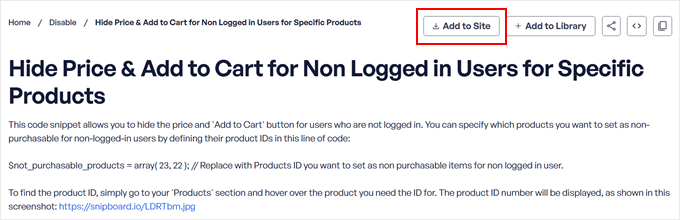
At this stage, you'll need to create a free account or log in if you already have one.
During registration, you'll be asked to connect your WordPress website with the plugin library.

After logging in, select which website should receive the snippet.
Then, click the deployment button.
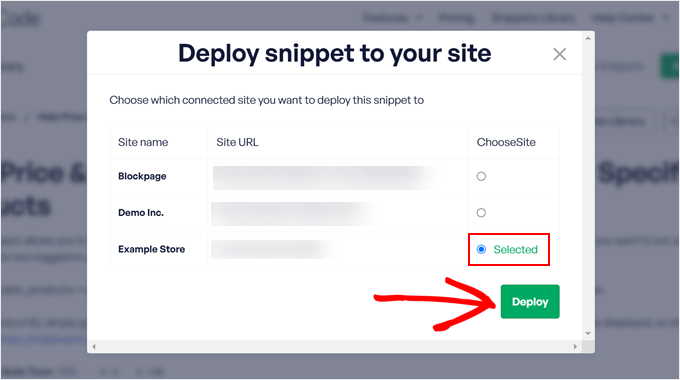
The system will redirect you to your WordPress admin area to complete setup.
Here, click the confirmation button.
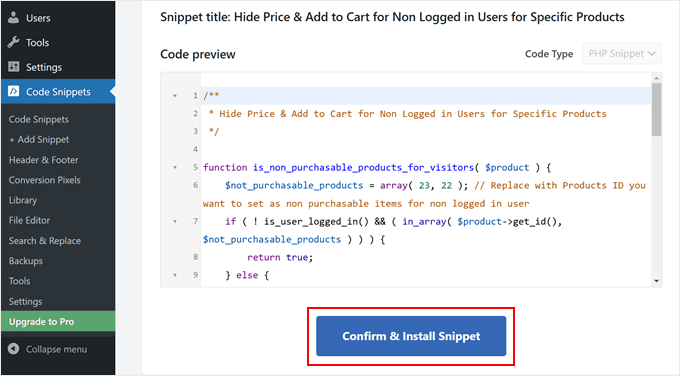
This brings you to the code snippet editor, where you'll make two simple customizations.
First, modify the product IDs. Locate this line of code:
$not_purchasable_products = array( 23, 22 );
Replace these numbers with your specific product IDs.
If you're unsure how to find product IDs, consult documentation on locating product identifiers in WooCommerce.
For example, to hide prices for products 63, 64, and 65, you would write:
$not_purchasable_products = array( 63, 64, 65 );
Next, customize the message displayed instead of the price.
Locate this section of code:
function wws_hide_price_not_logged_in( $price_html, $product ) { if ( is_non_purchasable_products_for_visitors( $product ) ) { $price_html = '<div><a href="' . get_permalink( wc_get_page_id( 'myaccount' ) ) . '">' . __( 'Login with wholesale account to see prices', 'wws' ) . '</a></div>'; } return $price_html;You can modify the text 'Login with wholesale account to see prices' to your preferred message, such as 'Login to view prices' or 'Contact for pricing information.'
Here's an example:
function wws_hide_price_not_logged_in( $price_html, $product ) { if ( is_non_purchasable_products_for_visitors( $product ) ) { $price_html = '<div><a href="' . get_permalink( wc_get_page_id( 'myaccount' ) ) . '">' . __( 'Login to see prices', 'wws' ) . '</a></div>'; } return $price_html;When users click this link, they'll be directed to the WooCommerce login page.
Finally, switch the toggle from 'Inactive' to 'Active.' Then, click 'Update.'
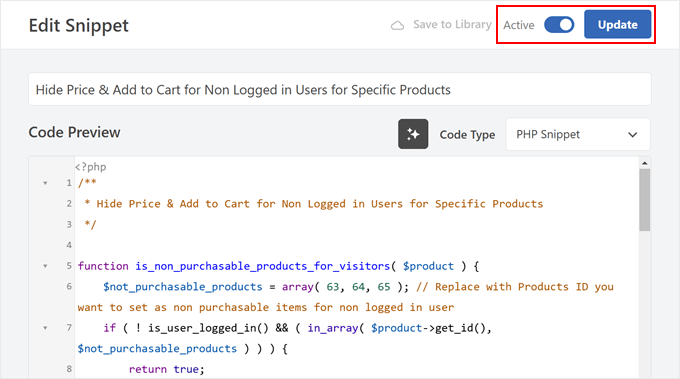
Now, visit your product pages to observe the changes.
You'll notice prices and cart buttons are hidden and replaced by your custom message.
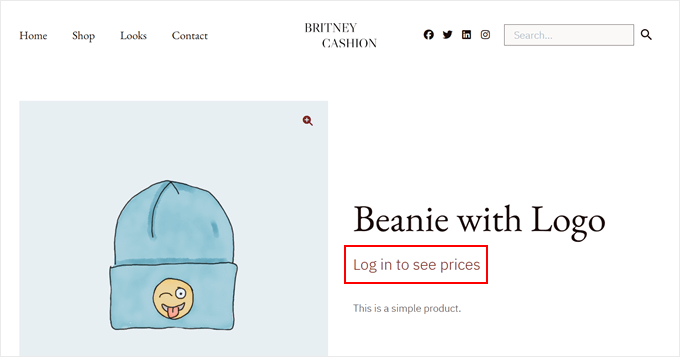
Your customized message will now appear on the selected product pages.