
Automatically Export WordPress Form Submissions: A Step-by-Step Guide
If you frequently gather form submissions on your WordPress site, manually exporting that data can quickly become tedious. Whether you're monitoring leads, processing orders, or collecting user feedback, downloading entries individually consumes valuable time and increases the risk of overlooking important information.
While WordPress lacks a native feature for automatic form entry exports, many users have discovered that certain form plugins offer built-in automation capabilities. With the right tools, you can streamline the entire process without installing additional extensions or writing custom code.
Rather than repeatedly downloading CSV files or copying data from your dashboard, automated solutions can save entries in organized, structured files according to your preferred schedule.
This guide will demonstrate how to configure automatic form exports using a popular form plugin, enabling you to maintain organized submissions without ongoing manual effort.
Benefits of Automating WordPress Form Entry Exports
Setting up automatic exports for WordPress form entries allows you to systematically save and organize submission data without manual intervention.
Instead of regularly logging in to download submissions each time someone completes a form, you can configure the system to automatically deliver data to your email, cloud storage service, or connected applications.
This approach provides a straightforward method to keep information sorted, backed up, and accessible without requiring constant attention.
Most WordPress site operators depend on forms to capture leads, process orders, gather feedback, or manage bookings. As submissions accumulate, manual management becomes increasingly time-consuming. This is where automation proves particularly valuable.
With automated exports, you can:
- Create backups of form entries in controlled locations
- Reduce repetitive administrative tasks
- Maintain organized, easily accessible data
- Prevent missed or overlooked submissions
- Streamline reporting and follow-up procedures
Once configured, automated export systems operate continuously in the background, allowing you to concentrate on activities that advance your website's objectives.
Now, let's explore how to implement automatic form entry exports using a dedicated form plugin:
- How to Automatically Export WordPress Form Entries
- Step 1: Install and Activate the Form Plugin
- Step 2: Configure Your Form for Automatic Exports
- Step 3: Establish Automatic Export for Form Submissions
- Step 4: Select Form Fields and Apply Entry Filters Before Exporting
- Step 5: Schedule WordPress Form Entry Exports
- Step 6: Configure Automatic Entry Deletion After Export (Optional)
- Step 7: Monitor Operations Through the Automation Dashboard
- Advanced Automation Options with Additional Tools
- Common Questions About WordPress Form Entries
How to Automatically Export WordPress Form Entries
The most effective method for automating WordPress form entry exports involves using a comprehensive form plugin with dedicated automation features.
Many premium form plugins include specialized entry automation extensions designed specifically for this purpose.
Whether you need to email regular reports, back up submissions to cloud storage services, or automatically remove entries after processing, these extensions handle all operations in the background without manual intervention.
Many experienced WordPress developers utilize form plugins to create various form types, from basic contact forms to detailed surveys and registration systems.
These tools have been thoroughly tested by the WordPress community and offer reliable functionality that saves significant time through automation.
Getting started with these solutions is typically straightforward and accessible for users at different experience levels.
Step 1: Install and Activate the Form Plugin
Begin by installing and activating your chosen form plugin. If you need assistance with plugin installation, numerous online resources provide step-by-step guidance for installing WordPress plugins.
After activating the plugin, you'll typically need to activate your license key. Navigate to the plugin's settings page in your WordPress dashboard and enter your license information.
You can obtain this information from your account section on the plugin provider's website. This activation typically unlocks all features included in your subscription, including premium extensions like entry automation tools.
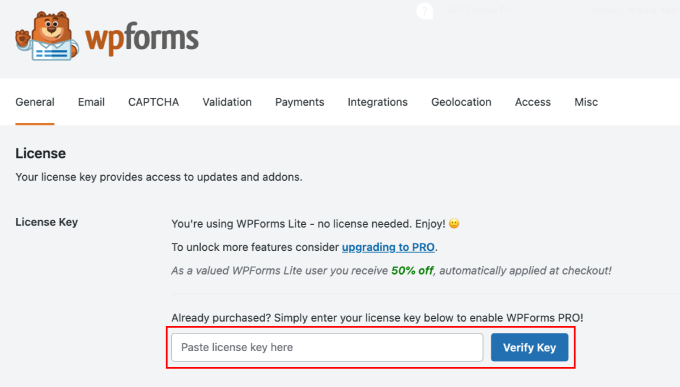
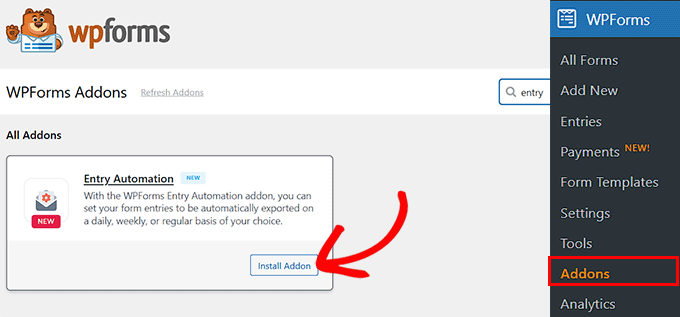
With your license activated, proceed to the plugin's addons page from your WordPress admin sidebar.
Locate the entry automation extension in the available addons list. Once identified, click the installation button to activate it on your website.
Step 2: Configure Your Form for Automatic Exports
With your form plugin and entry automation extension active, you can now create the form containing entries you wish to export automatically.
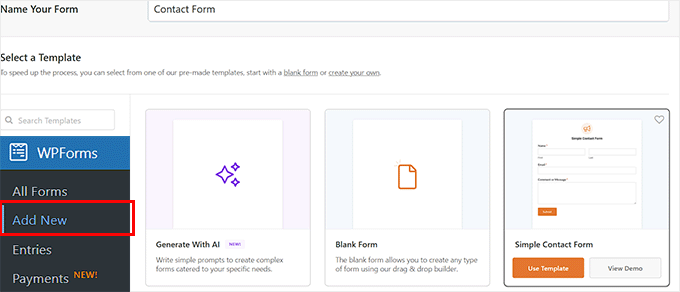
Start by visiting the plugin's form creation page in your WordPress dashboard and assigning a descriptive name to your form.
You can select from pre-designed templates such as contact forms, registration forms, or feedback forms—or construct a custom form using the drag-and-drop interface.
Some form plugins include AI-assisted form builders that can generate complete forms based on simple prompts. For example, entering "customer feedback form" might automatically create a form with appropriate fields, layout, and structure.
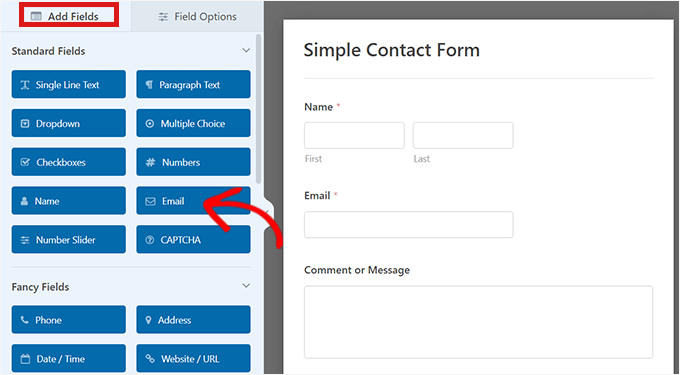
You'll then access the visual builder where you can customize your form by dragging fields from the available panel into your form layout.
Add relevant fields including Name, Email, Dropdown menus, Checkboxes, File Upload options, and other elements based on the specific information you need to collect.
Numerous online tutorials provide detailed guidance for creating different form types, including contact forms, user registration forms, order forms, and forms with conditional logic or payment integration.
After configuring your form's appearance and confirmation settings, save your changes using the appropriate button.
Step 3: Establish Automatic Export for Your Form Submissions
With your form prepared, you can now automate exports to eliminate manual entry downloads.
Navigate to the Settings section and locate the Entry Automation tab within your form builder interface. This area manages all aspects of automatic exporting and entry deletion.
Begin by selecting the option to create a new automation task.
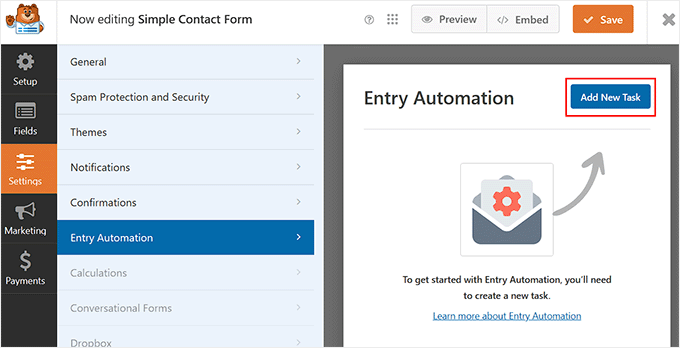
A configuration window will appear where you can assign a descriptive name to your task. Consider using clear identifiers like "Weekly Contact Form Export to Email" for easy future reference.
This task establishes a workflow for your form. You can create multiple tasks for a single form, such as one task for weekly email reports and another for cloud storage backups.
After naming your task, proceed to the next configuration step.


