Implement Single Device Login Restrictions for WordPress Users
By WordPress Experts |
Online streaming platforms frequently encounter issues with account sharing among multiple users. To address this challenge, many digital services have implemented policies that restrict simultaneous access from multiple devices using the same credentials.
Numerous WordPress site administrators operate membership platforms and digital course websites. They express concerns about users distributing their login information, as this practice can negatively impact revenue generation. Consequently, these administrators seek methods to establish comparable access limitations.
This comprehensive guide will demonstrate how to configure your WordPress website to permit each user account to maintain only one active login session. Following these instructions will enable you to safeguard your premium content and ensure that only authorized subscribers can access it, thereby maintaining fairness and profitability for your digital enterprise.
Benefits of Implementing Single Device Login Restrictions
Digital entertainment services commonly face credential sharing challenges. Recent industry reports indicate that millions of households worldwide participate in password sharing arrangements, representing substantial potential revenue loss.
WordPress-powered websites, particularly those offering subscription-based content and educational materials, encounter similar difficulties. The default WordPress configuration permits unlimited simultaneous logins from various devices and browsers.
While users may perceive this flexibility as convenient, it can substantially affect website revenue and user management capabilities. Consider these scenarios:
- Membership websites provide exclusive content to paying subscribers. When users share credentials, fewer individuals purchase memberships, resulting in decreased income for the site operator.
- Educational platforms face challenges when students distribute course access credentials. This practice reduces course enrollment numbers and complicates personalized learning tracking and completion verification.
Implementing single device login restrictions enables accurate user counting, enhances revenue potential, and preserves the value of your digital offerings. Additionally, this approach ensures equitable access for all paying users and strengthens website security measures.
Login limitations should not be interpreted as distrust toward users. Rather, they represent a practical approach to maintaining platform integrity and sustainability, benefiting both website operators and legitimate subscribers.
Configuring Single Device Login Restrictions
Begin by installing and activating the complimentary Loggedin – Limit Active Logins extension. For installation assistance, consult standard WordPress plugin installation documentation.
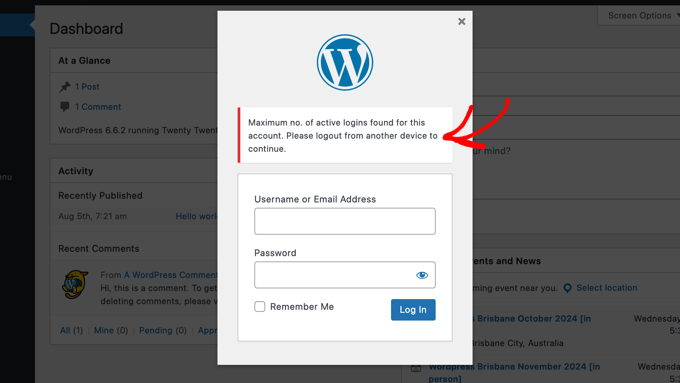
Following activation, the extension automatically initiates functionality, restricting each user to three concurrent login sessions.
Depending on configuration settings, users may encounter access restrictions on new devices once reaching this threshold until they terminate sessions on existing devices. Detailed configuration options follow.
Access the extension configuration panel by navigating to Settings » General within your WordPress administration area, then locate the 'Loggedin Settings' section.
Within this interface, modify the numerical value in the 'Maximum Active Logins' field to establish your preferred concurrent session limit.
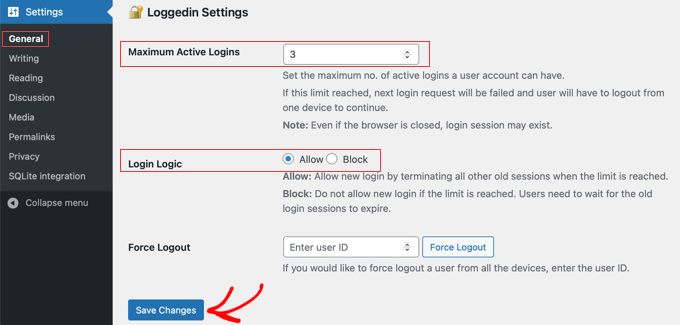
The 'Login Logic' parameter determines system behavior when users reach maximum active login capacity:
- Allow: Users may establish new device sessions while automatically terminating all previous device connections.
- Block: Users cannot initiate new device sessions until existing login sessions naturally expire.
To enforce strict single device access, configure 'Maximum Active Logins' to 1 and select 'Block' for the 'Login Logic' parameter.
For scenarios where device flexibility is acceptable provided only one concurrent session exists, set 'Maximum Active Logins' to 1 and choose 'Allow' for 'Login Logic'.
Remember to select the 'Save Changes' button to preserve your configuration adjustments.
The extension additionally provides administrative capability to forcibly terminate all active sessions for specific users. Simply input the relevant user identification number and select the 'Force Logout' option.