
A Step-by-Step Guide to Adding Dropdown Fields to WordPress Forms
By WordPress Experts |
It's a common scenario: a visitor begins completing your contact form only to abandon it before submission. This frustrating experience can result in lost opportunities for engagement and conversion.
Lengthy, complex forms often discourage users from completing them, creating unnecessary barriers in your conversion funnel.
Many experienced developers have found that incorporating dropdown fields can significantly improve form completion rates. These compact elements conserve valuable screen space while guiding users to provide precisely the information you need.
This tutorial will demonstrate a straightforward approach to creating WordPress forms with dropdown fields that users are more likely to complete.
Understanding Dropdown Fields and Their Benefits
A dropdown field presents users with a list of predefined options from which they can select one. Users simply click the field to view all available choices.
Website administrators can implement dropdown fields in various web forms, including contact forms, event registration forms, newsletter subscriptions, and product order forms.
Dropdown fields enhance form functionality in several ways:
- Data Consistency. Predefined options ensure collected data remains uniform and prevents invalid entries, leading to more accurate data analysis.
- Dynamic Functionality. Dropdown fields simplify the implementation of conditional logic. The structured list of options allows you to display additional fields based on user selections without complicating the user experience.
- Compact Design. Consolidating multiple options into a single dropdown menu reduces visual clutter, making forms appear less intimidating and improving overall user experience.
Now let's explore how to create forms with dropdown fields in WordPress. Below is a summary of the steps covered in this guide:
- Step 1: Installing a Contact Form Plugin
- Step 2: Creating a New Form
- Step 3: Adding the Dropdown Field to Your Form
- Step 4: Configuring Dropdown Options and Conditional Logic
- Step 5: Customizing Form Notifications and Confirmations
- Step 6: Embedding Your Form in WordPress
- Step 7: Publishing the Form on Your WordPress Site
- Bonus Tip: Creative Applications for Dropdown Fields
- FAQs: Using Dropdown Fields in WordPress Forms
Let's begin the implementation process.
Step 1: Installing a Contact Form Plugin
WPForms is a widely used contact form plugin for WordPress that offers numerous templates and features to streamline form creation.
Many WordPress professionals utilize this plugin for various form types, including contact forms, surveys, and data collection forms.
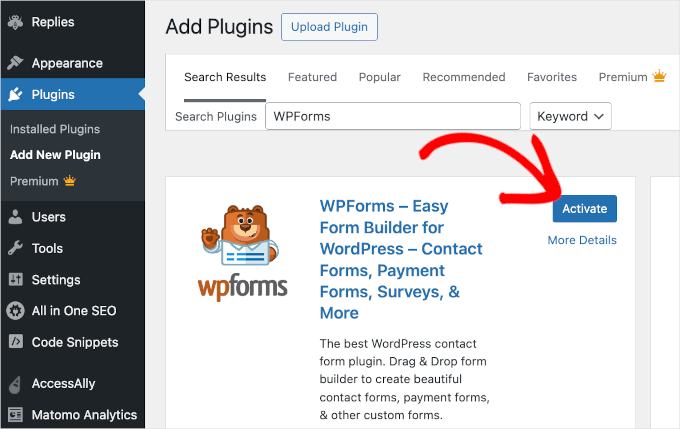
To install and activate the WPForms plugin, navigate to Plugins » Add New Plugin from your WordPress dashboard.
On the subsequent screen, use the search function to locate the WPForms plugin. Once found, select 'Install Plugin' followed by 'Activate.'
Step 2: Creating a New Form
After activation, you will notice a WPForms menu in your WordPress administration area.
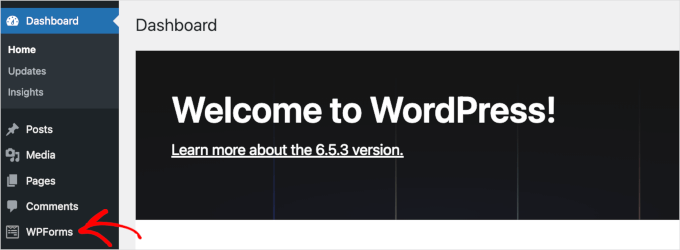
You can now access the WPForms builder interface to create forms with dropdown fields.
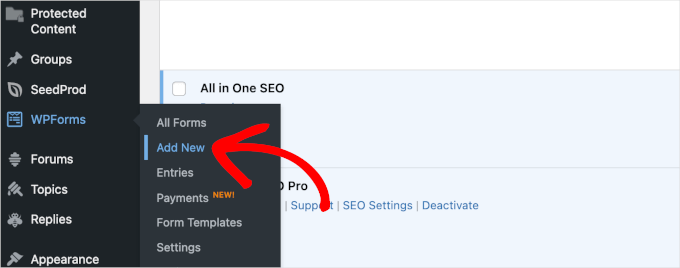
To initiate a new form, navigate to WPForms » Add New.
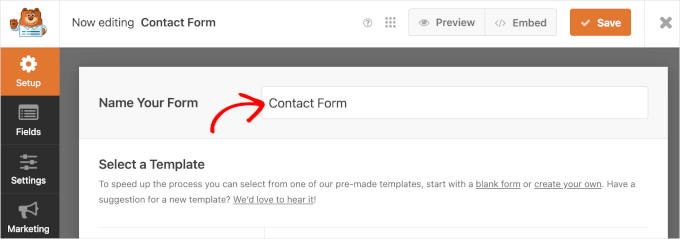
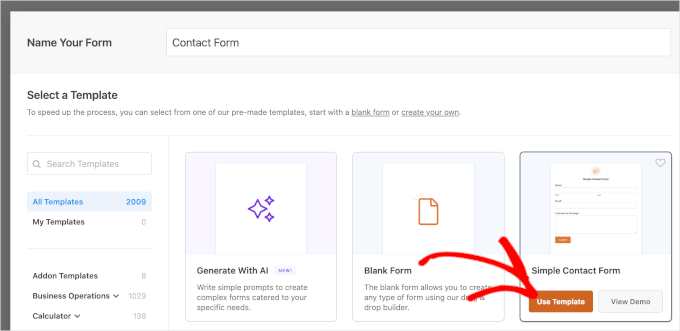
The 'Setup' panel within the WPForms form builder will appear. Begin by naming your form in the 'Name Your Form' field, such as 'Contact Form' or 'Inquiry Form.'
Next, select your preferred method for building the WordPress form. Options include starting from scratch, selecting a pre-designed template, or utilizing AI-powered form generation.
For this demonstration, we will use the 'Simple Contact Form' template. Hover over your chosen template and select 'Use Template.'
Step 3: Adding the Dropdown Field to Your Form
Upon completing the setup, you will be directed to the form builder interface, which displays available fields on the left and a live preview on the right.
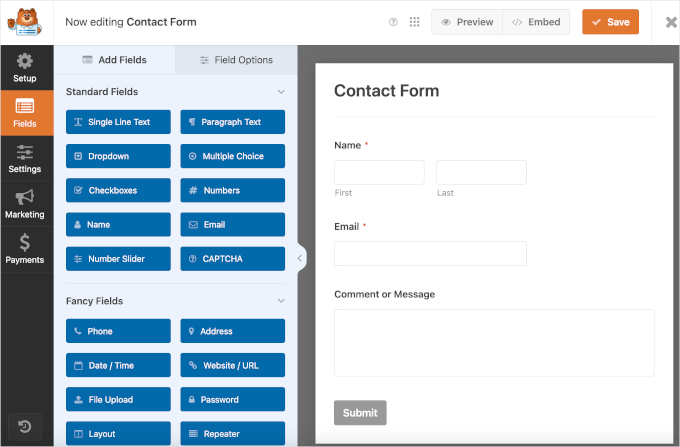
To incorporate a dropdown field into your contact form, locate the 'Dropdown' option in the fields panel and drag it to the desired position on the form preview.
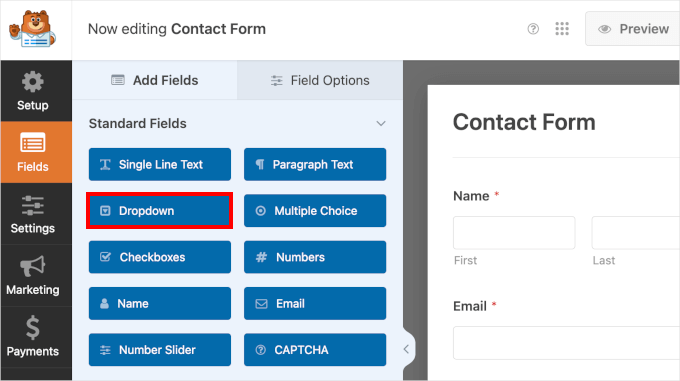
The right panel will display the newly added dropdown field within your contact form.


