Implementing OAuth Social Login in WordPress: A Comprehensive Guide
Many experienced developers have discovered that simplifying the login process significantly increases user engagement and membership activity on WordPress websites.
OAuth authentication provides a solution by enabling visitors to access your site using their existing social media accounts from platforms like Google, Facebook, or X with a single click.
While the concept appears straightforward, proper implementation requires careful attention to detail. After evaluating multiple plugins and approaches across various WordPress installations, a reliable method has been identified.
This guide presents a proven approach for integrating OAuth login functionality into WordPress. You'll learn how to configure it properly, circumvent common implementation challenges, and ensure seamless operation on your website.
Advantages of Implementing OAuth Authentication in WordPress
Integrating OAuth login addresses several common user authentication challenges, including forgotten credentials and weak password practices.
Users frequently struggle to recall login information, leading to repeated password recovery requests that create friction in the user experience.
OAuth mitigates these issues by leveraging established authentication systems from major technology providers. Rather than generating new passwords, visitors can authenticate using accounts they already maintain with trusted services like Google, Facebook, or GitHub.
Many of these platforms incorporate additional security measures such as two-factor authentication, providing enhanced protection.
This streamlined authentication process results in quicker access and reduced registration abandonment. Users demonstrate higher completion rates when signup procedures are simplified.
The approach also helps minimize spam registrations and fraudulent accounts. Since authentication occurs through verified third-party services, automated systems face greater difficulty creating illegitimate profiles.
Overall, implementing OAuth authentication creates a more efficient and secure experience for website visitors.
The following sections will demonstrate how to properly configure this functionality within WordPress.
- Implementing OAuth Social Login in WordPress
- Additional Option: Implement Passwordless Authentication with Login Links
- Common Questions About OAuth Authentication
Implementing OAuth Social Login in WordPress
Configuring OAuth authentication in WordPress is more accessible than many anticipate. With appropriate plugin selection, you can enable social account authentication within minutes.
The Nextend Social Login plugin is recommended for this purpose. This widely-used social authentication extension integrates login options from providers including Google, Facebook, and X directly into your website.
Once configured, visitors will encounter social authentication buttons on your login and registration interfaces. This simplifies access without requiring new account creation.
Step 1: Install and Activate the Nextend Social Login Plugin
Begin by installing and activating the Nextend Social Login plugin. For installation guidance, consult standard WordPress plugin installation documentation.
Following activation, navigate to the Settings » Nextend Social Login section within your WordPress administration panel.
This tutorial focuses on Google authentication implementation. The Nextend Social Login plugin also supports authentication through Facebook, X (formerly Twitter), Reddit, and additional providers. Configuration details may vary slightly depending on your selected service.
Step 2: Create a Google Application
First, select the 'Getting Started' button within the Google configuration area of the plugin.
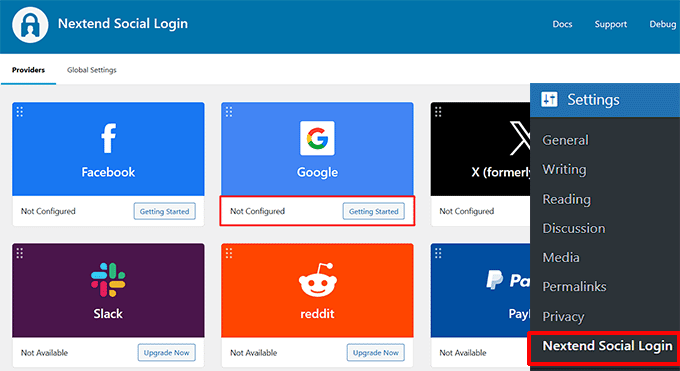
This action directs you to a page containing setup instructions for creating your Google application.
After reviewing the instructions, select the provided link to access the Google Cloud Console.
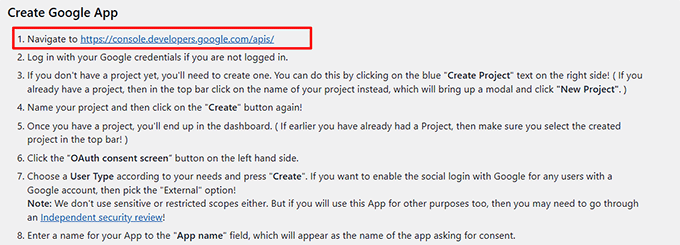
You may need to authenticate using your Google account credentials at this stage.
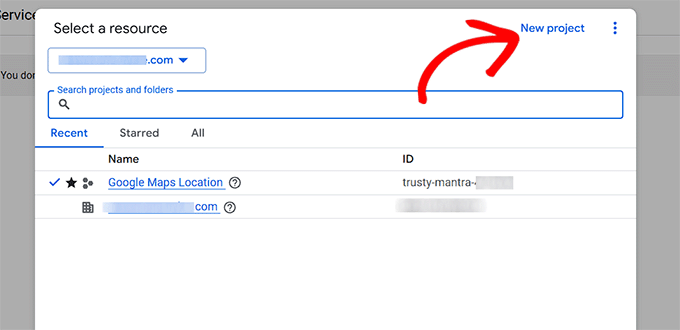
Within the console interface, select the button at the top to open a dialog window and choose 'New project'.
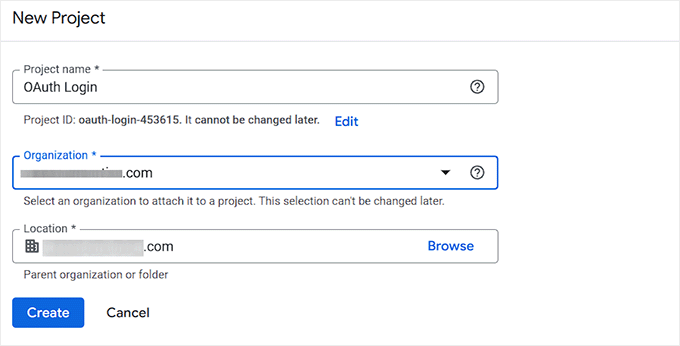
Next, assign a descriptive name to your project.
You may optionally specify organization and location details before selecting the 'Create' button.
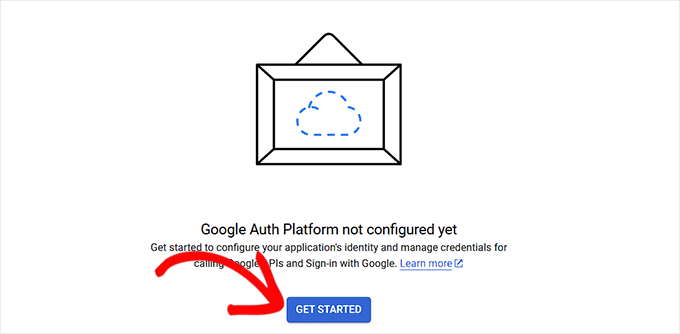
Following project creation, you'll return to the dashboard. From here, navigate to the 'OAuth consent screen' section in the left navigation panel.
Proceed by selecting the 'Get Started' button.
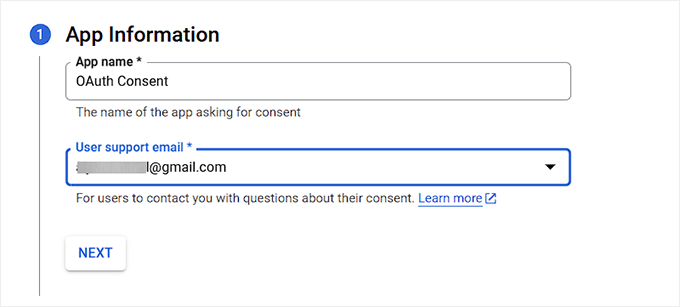
Now, provide a name for your application. This identifier will appear to users during the consent authorization process.
Enter your business email address in the 'User support email' field to facilitate user inquiries.
Select the 'Next' button to continue configuration.
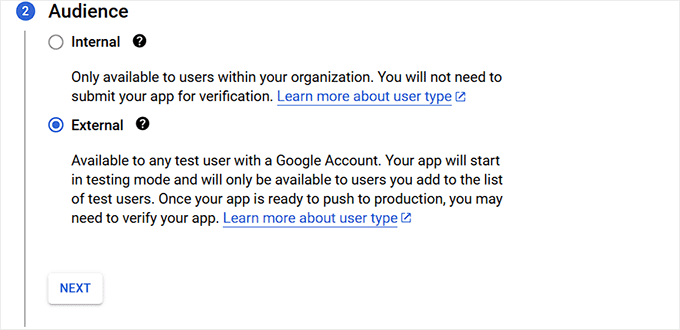
Next, define the audience scope for your OAuth implementation.
The 'Internal' option is appropriate for applications intended exclusively for users within a Google Workspace organization, restricting access to your company domain.
The 'External' option suits publicly accessible websites and applications, permitting authentication by any Google account holder.
Initially, your application will operate in testing mode, limiting access to manually designated test users.
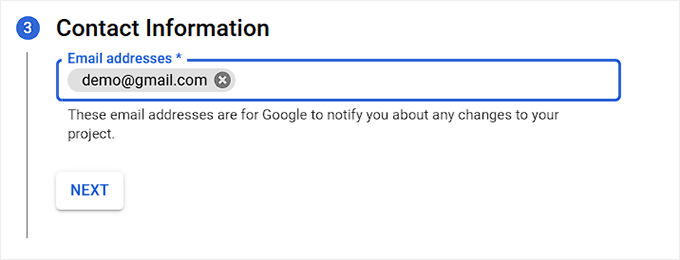
Subsequently, re-enter your contact email address.
Google will utilize this address for project-related notifications. Multiple email addresses may be specified if needed.
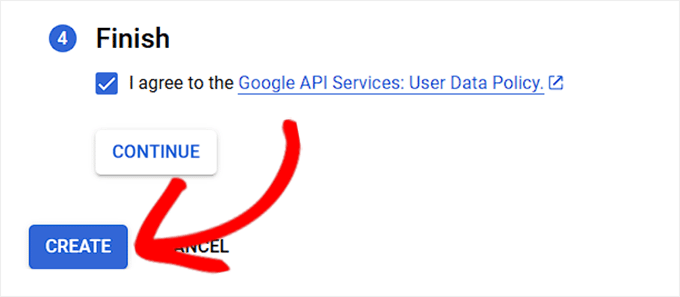
Finally, acknowledge acceptance of the Google API services policy.
Complete the process by selecting the 'Create' button.