Implementing Phone Number Login with OTP Verification for WordPress Sites
Many WordPress experts have observed a significant shift in user authentication preferences. While email and password combinations were once standard, contemporary users increasingly expect the option to log in using their mobile phone numbers.
Based on extensive experience configuring phone-based authentication systems across various WordPress installations, several reliable methods have emerged. This guide consolidates practical knowledge from testing multiple solutions, ranging from specialized plugins to custom implementations.
This comprehensive tutorial demonstrates how to integrate phone number authentication with one-time passcode verification into WordPress. Whether managing a small business website or a large membership platform, you'll discover approaches suitable for different technical requirements and user bases.
Benefits of Phone Number Authentication for WordPress Users
Implementing one-time passcode authentication through phone numbers has become increasingly common. This approach eliminates the necessity for users to memorize complex passwords while maintaining account security.
Consider these advantages when evaluating phone authentication for your WordPress installation:
- Enhanced Security: Unlike static credentials, OTP codes expire after single use, significantly improving login security.
- Streamlined Authentication: Users avoid typing lengthy passwords, receiving verification codes directly on their mobile devices for immediate access.
- Reduced Password Recovery: Community-driven sites experience fewer password reset requests, decreasing administrative overhead and support inquiries.
- Improved User Experience: Simplified authentication processes contribute to higher user satisfaction and increased return visits.
- Mobile Optimization: With growing mobile browsing, phone-based authentication provides seamless access for smartphone users.
Now let's explore practical methods for implementing phone number authentication with OTP verification in WordPress.
Configuring Phone Number Authentication with OTP Verification
The Login with Phone Number plugin provides a straightforward method for implementing this functionality. Since WordPress doesn't include native SMS capabilities, you'll need to integrate a third-party service such as Firebase or Twilio for OTP delivery.
Begin by installing and activating the Login With Phone Number plugin. After activation, navigate to Login Settings » General within your WordPress dashboard and enable the phone number login option.
Country codes are preconfigured for global accessibility. Maintaining these default settings ensures your site remains available to international users.
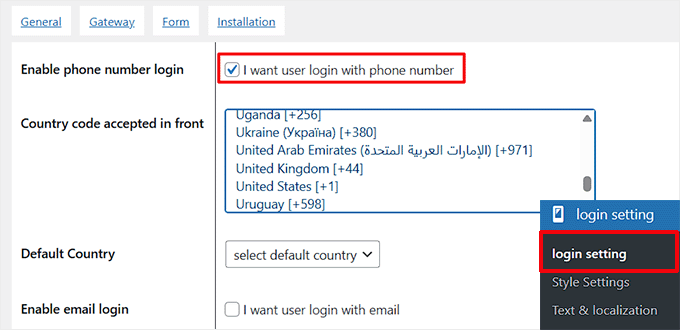
Enable email authentication if your existing user base currently utilizes email credentials. This maintains accessibility during the transition period.
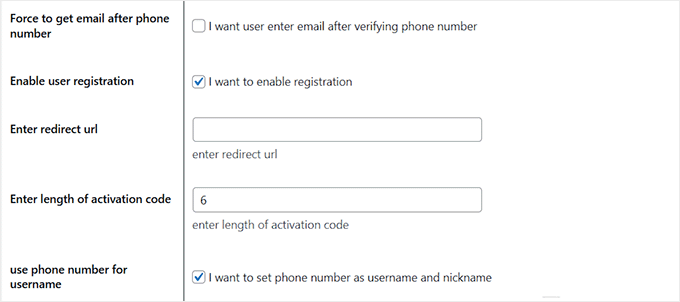
Consider activating the email collection requirement for new registrations. This setting prompts users to provide email addresses during registration, facilitating communication and list building.
Configure user registration with phone numbers and specify your preferred OTP code length according to security requirements.
Navigate to the timer configuration section and enable OTP expiration. Establish a reasonable time limit for code entry, such as 60 seconds, before codes become invalid. Save your configuration changes.

Access the Gateway configuration tab to select your SMS service provider. Firebase represents a popular choice, offering Google-powered OTP delivery services. Review current pricing structures before implementation, as costs may vary. Alternative providers include Twilio, WhatsApp, and Alibaba SMS, though some features may require premium subscriptions.
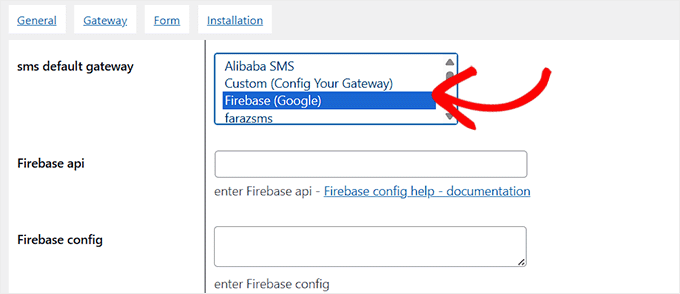
Selecting Firebase requires API key and configuration integration. Begin by accessing the Firebase Console and initiating a new project.

Assign a descriptive project name for identification purposes and proceed through the setup wizard.
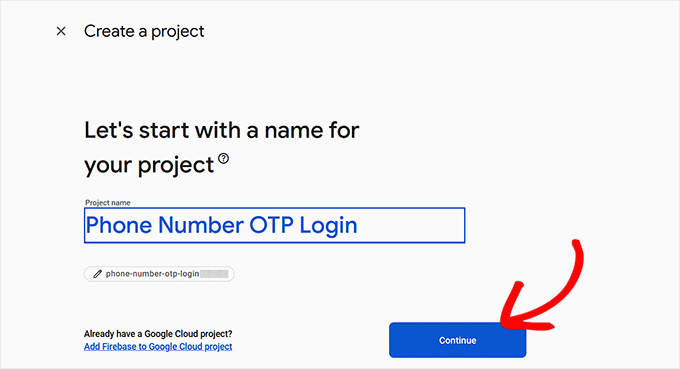
Configure Google Analytics integration according to your tracking preferences, select the appropriate Firebase account, and finalize project creation.

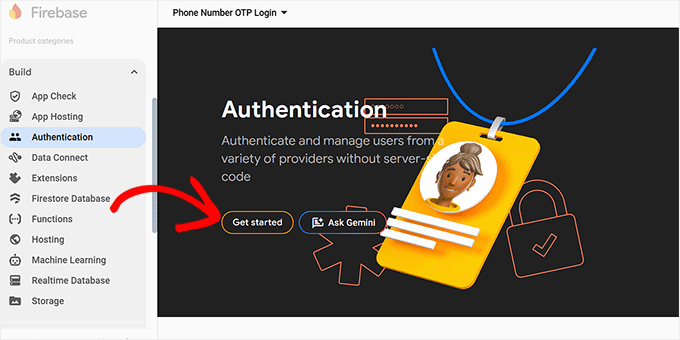
Navigate to the Project Overview section and access Build » Authentication from the navigation panel. Initiate authentication services.
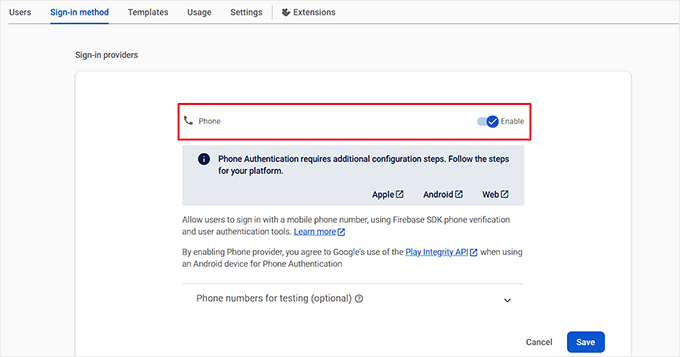
Locate phone authentication within available sign-in methods, activate this provider, and save your configuration. This enables mobile phone verification through Firebase's authentication system.
Access the Settings section and navigate to authorized domains. Add your website domain to restrict authentication requests exclusively to your site, implementing important security controls.


