Implementing Phone Number Login with OTP Verification in WordPress
Gone are the days when email and password combinations were the sole method for accessing websites. Modern users increasingly expect the option to authenticate using their mobile phone numbers, offering both convenience and enhanced security.
Based on extensive testing and implementation experience across various WordPress sites, this guide outlines effective methods for integrating phone-based login systems. The following steps provide reliable solutions suitable for small business websites to large membership platforms.
Benefits of Phone Number Authentication for WordPress Sites
One-time passcode (OTP) verification through mobile numbers has become standard practice, eliminating the need for complex password memorization while maintaining account security.
Consider these advantages of implementing phone login functionality:
- Enhanced Security: OTPs provide single-use authentication that expires quickly, significantly reducing unauthorized access risks compared to static passwords.
- Streamlined Authentication: Users can log in rapidly with codes delivered directly to their devices, bypassing lengthy password entry.
- Reduced Support Requests: Community sites experience fewer password reset requests, decreasing administrative overhead and support ticket volume.
- Improved User Experience: Simplified login processes increase user satisfaction and encourage return visits.
- Mobile Optimization: With increasing mobile browsing, phone-based authentication provides seamless experiences for on-the-go users.
Now let's explore practical implementation methods for phone number OTP login in WordPress.
Setting Up Phone Number Authentication in WordPress
The Login with Phone Number plugin offers a straightforward solution for adding this functionality. Since WordPress doesn't include native SMS capabilities, you'll need to integrate with third-party services like Firebase or Twilio for OTP delivery.
Begin by installing and activating the Login With Phone Number plugin. After activation, navigate to Login Settings » General in your WordPress dashboard and enable the phone number login option.
The plugin automatically includes international country codes for global accessibility. Maintaining this default setting ensures your site remains available to international users.
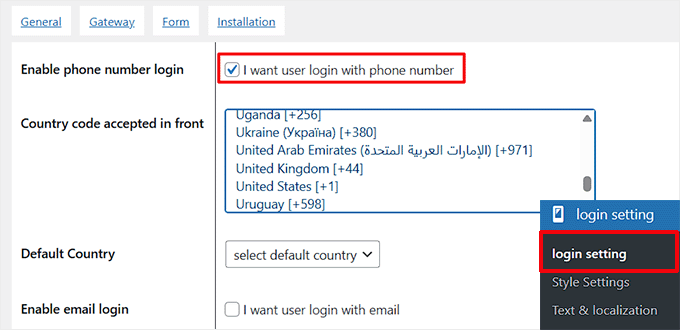
Enable email login alongside phone authentication to accommodate existing users accustomed to traditional login methods. This prevents frustration during the transition period.
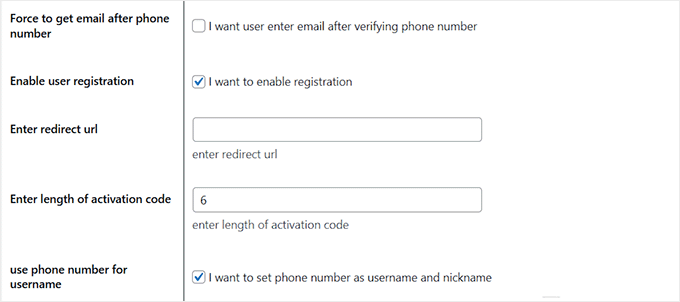
Consider activating the 'Force to get email after phone number' option, which requires new users to provide email addresses during registration. This proves valuable for maintaining email lists and collecting contact information from new registrants.
You can also enable user registration via phone number and specify the length of activation codes users will receive.
Scroll to the 'Enable Timer' section and activate it, then set the time limit for OTP entry. For instance, setting this to 60 seconds gives users one minute to input their code before expiration. Save your configuration changes.

Navigate to the 'Gateway' tab to select your SMS service provider. Firebase serves as a reliable Google service for delivering one-time passcodes to user devices. Review current pricing details for any service you consider. Alternative options include Twilio, WhatsApp, and Alibaba SMS, though some features may require premium plans.
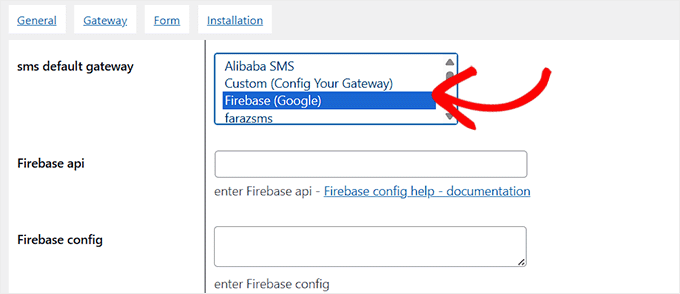
After selecting Firebase, you'll need to configure API keys and settings. Visit the Firebase Console and create a new project, assigning a descriptive name for easy identification.
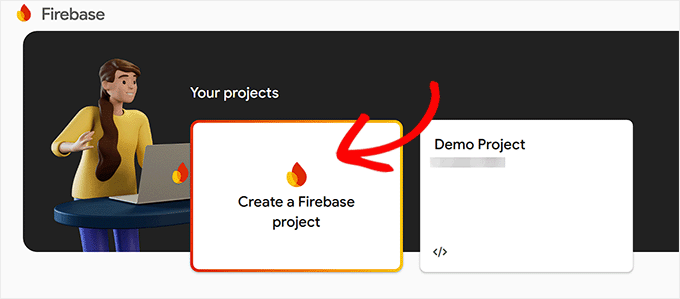
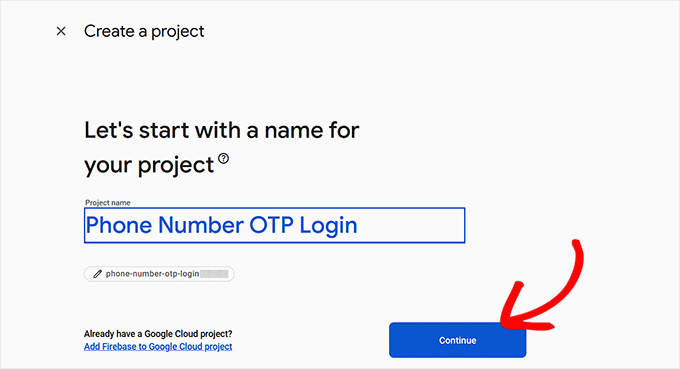
You'll encounter a prompt for project naming. Choose a name that clearly indicates the project's purpose, then proceed to the next step.
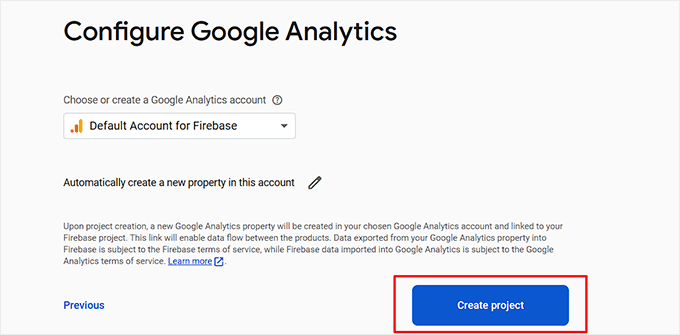
Firebase will request permission to enable Google Analytics for your project. After granting this permission, select 'Default Account for Firebase' from the dropdown menu and create your project.
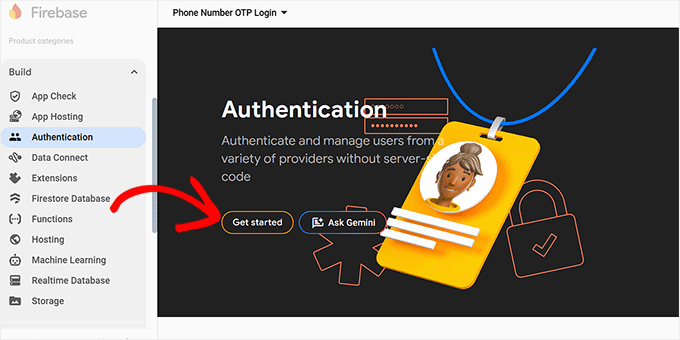
Access the Project Overview page and navigate to Build » Authentication in the left sidebar. Click the 'Get started' button to begin configuration.
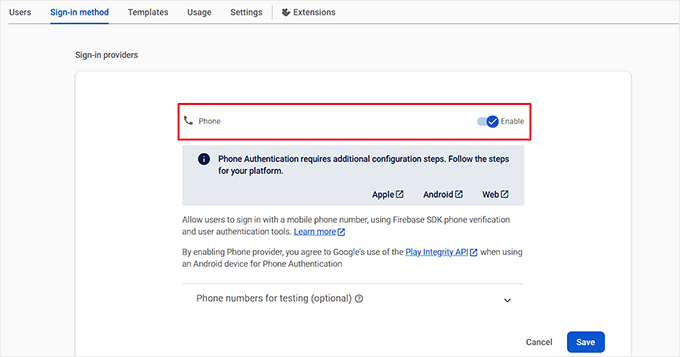
New configuration options will appear. Locate 'Phone' in the sign-in provider list, select it, and toggle the enable switch. This activates mobile phone number authentication using Firebase SDK verification. Save your changes.
Switch to the 'Settings' tab and select 'Authorized domains' from the navigation. Click 'Add domain' and enter your website's domain name. This security measure restricts authentication to your specific website.


