Integrating GrabPay Payment Solutions in WordPress: Two Practical Approaches
Many businesses expanding into Southeast Asian markets discover the necessity of supporting regional payment methods like GrabPay. This widely adopted digital wallet has become a standard expectation among customers throughout the region, making its integration a valuable consideration for online operations.
During our exploration of various integration methods, we examined solutions suitable for both WooCommerce storefronts and simpler payment forms for service-oriented websites. The implementation process proved remarkably straightforward across different scenarios.
This guide presents two effective methods for enabling GrabPay payment acceptance on WordPress platforms.
Benefits of Implementing GrabPay on WordPress Sites
For websites targeting Southeast Asian audiences, incorporating GrabPay functionality represents a strategic decision. This approach provides access to millions of active users who regularly utilize this digital payment system. Key advantages include:
- Enhanced Credibility: As a recognized regional brand, GrabPay's presence can increase perceived legitimacy and security.
- Streamlined Checkout: The payment process typically requires minimal interaction, often just smartphone taps or QR code scanning, reducing checkout friction.
- Customer Retention: Integration with GrabRewards encourages repeat purchases through point accumulation.
- Convenient Funding: Users can easily replenish their wallets through multiple channels, ensuring payment readiness.
The following sections detail two implementation approaches:
- Method 1: Creating GrabPay Payment Forms in WordPress
- Method 2: Configuring GrabPay as a WooCommerce Payment Method
Method 1: Creating GrabPay Payment Forms in WordPress
This approach suits websites requiring GrabPay functionality without full e-commerce implementation. It's particularly useful for accepting donations, service payments, or single transactions outside WooCommerce environments.
Many WordPress professionals recommend specialized payment form plugins for this purpose. These tools typically offer intuitive form builders with preconfigured templates, including options for GrabPay integration.
Step 1: Install and Configure Payment Plugin
Begin by installing your preferred payment form plugin through the standard WordPress plugin installation process. After activation, most plugins present a configuration wizard to guide initial setup.

Step 2: Connect Payment Gateway
Most payment form plugins require connection with a payment processing service. During setup, you'll typically encounter an option to link your plugin with a payment gateway account.
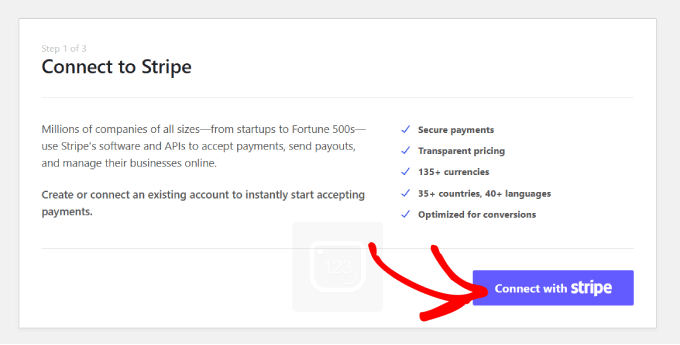
Complete the connection process according to your plugin's instructions, then proceed through any remaining configuration steps, including email notification settings.

Step 3: Generate Payment Form
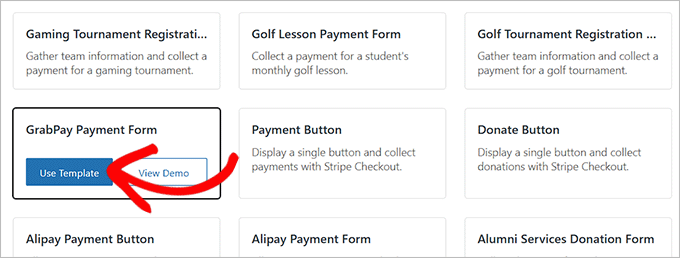
Navigate to your plugin's form management section and select the option to create a new payment form. Most plugins provide template libraries where you can locate GrabPay-specific form designs.
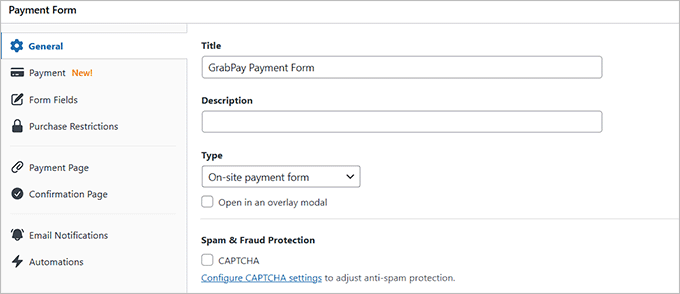
When configuring your form, provide appropriate titles and descriptions, select on-site payment form types, and enable any available spam protection features.
Step 4: Configure Payment Settings
Access the payment configuration section to establish pricing, tax settings, and currency options. For GrabPay compatibility, select single payment options rather than subscription models, and ensure you choose Southeast Asian currencies like SGD or MYR.

Method 2: Configuring GrabPay as a WooCommerce Payment Method
For established WooCommerce stores, integrating GrabPay directly into the checkout process provides seamless customer experience. This method requires WooCommerce extension installation and configuration through the Stripe payment gateway.
Begin by installing the WooCommerce Stripe Payment Gateway extension. After activation, navigate to WooCommerce settings and access the payment gateway configuration section. Enable the Stripe payment method and connect your Stripe account using the provided authentication process.
Within the Stripe settings, locate the GrabPay configuration options. Enable GrabPay as an available payment method and ensure proper currency settings are applied. Save your configuration and test the checkout process to verify GrabPay appears as a payment option.
Both methods provide reliable pathways to integrate this popular Southeast Asian payment solution, expanding your website's accessibility to regional customers while maintaining professional transaction processing standards.