
How to Preview WordPress Backups Locally: A Step-by-Step Guide
By WordPress Experts |
Consider the ability to access a complete version of your WordPress site directly on your personal computer, without affecting your live website in any way.
This simple capability can significantly impact your workflow when testing updates, implementing changes, or simply gaining better control over your site management.
One effective approach involves using Duplicator to generate a comprehensive backup and Local WP to operate that backup as a functional website on your local machine.
Many experienced developers have tested this method and found it to be straightforward and efficient, even for those with limited technical background.
This guide provides detailed, sequential instructions to help you implement this solution, enabling more confident site management with reduced risk.
When to Examine WordPress Backups as Functional Sites
Regular WordPress backups represent one of the most reliable methods for protecting your online presence. Many website administrators implement this practice to safeguard their content and data.
When encountering unexpected site errors, you can typically restore functionality using a backup. However, before proceeding with restoration, you may want to verify that you're selecting the appropriate backup.
This verification process requires the ability to examine your WordPress backup as an operational website. This allows you to confirm that the backup contains correct files and functionality before applying it to your live environment.
This guide demonstrates how to efficiently back up your website and utilize a WordPress backup viewer. This approach enables thorough inspection of your backup before making restoration decisions.
Several scenarios benefit from examining backup files as functional websites:
- Following significant updates: After implementing major changes to your site, you may want to verify that your backup captured all modifications correctly.
- Before site restoration: When preparing to restore your site from a backup, confirming it's the correct version becomes essential.
- Problem diagnosis: When attempting to identify when specific issues first appeared on your site.
- Content retrieval: When needing to recover particular content from older backups without restoring the entire website.
With these considerations in mind, let's proceed through the steps for easily viewing your WordPress backup as a website. Use the following navigation links to move through this tutorial:
- Step 1: Install and Configure Duplicator
- Step 2: Create Your WordPress Backup
- Step 3: Download and Install Local WP
- Step 4: Import Your Backup to Local WP
- Common Questions About WordPress Backups
Let's begin the process.
Step 1: Install and Configure Duplicator
The initial step involves installing a WordPress backup plugin. Duplicator serves as an excellent choice due to its user-friendly interface and straightforward operation, making it suitable for WordPress users across all experience levels.
Additionally, Duplicator provides both free and premium versions. This tutorial functions with the free edition, requiring no financial investment to follow these instructions.
That said, upgrading to the premium version offers advanced capabilities including automated backups, multisite compatibility, and cloud storage integration for backup file management.
Proceed by installing the WordPress plugin on your website, then continue to the next phase.
Step 2: Create Your WordPress Backup
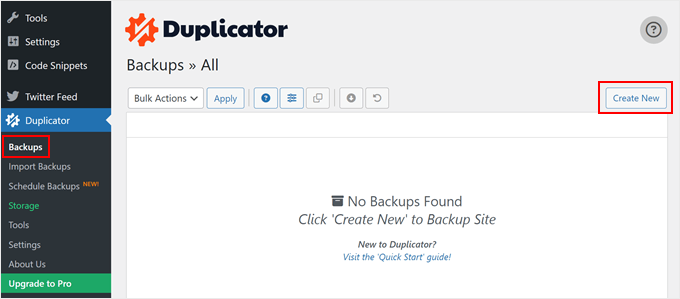
Once the plugin activates, navigate to Duplicator » Backups.
Here, select the 'Create New' button positioned at the page's top. This action initiates the site backup procedure.
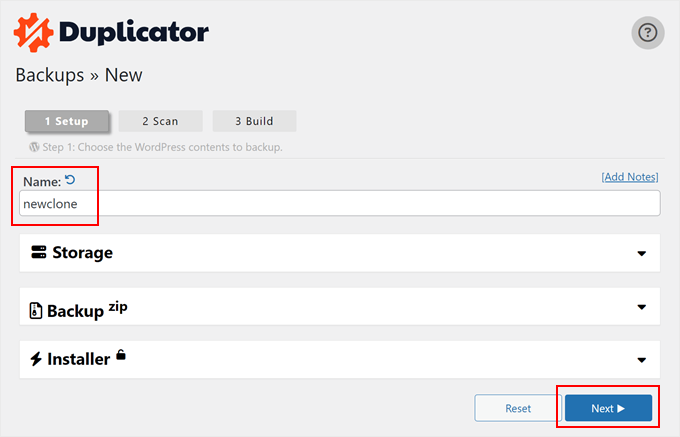
Next, assign a name to your website backup file. This serves purely for reference purposes, allowing any descriptive title you prefer.
Following this, click the 'Next' button.
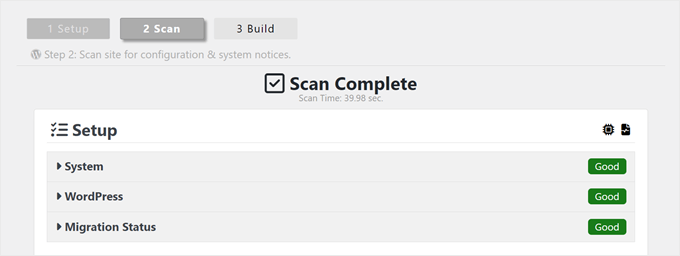
At this stage, Duplicator performs a website scan.
If Duplicator identifies website issues, you'll receive warnings with explanatory details about WordPress errors. Otherwise, you'll observe only a green indicator labeled 'Good.'
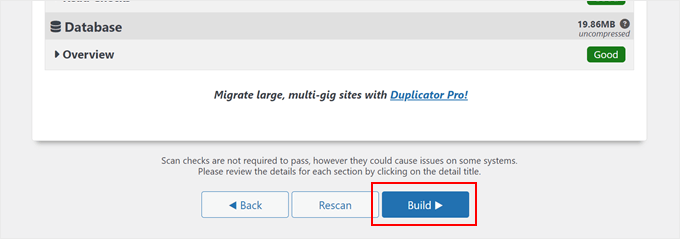
Now, proceed downward through the page.
Next, select the 'Build' button.
Duplicator now creates a complete WordPress backup containing your files, database, images, and plugins within a single downloadable package.
This process typically requires several minutes, though duration varies according to your WordPress site's size.
Premium Duplicator users can select specific backup components—database, media files, or custom configurations. This proves valuable when storage limitations exist, allowing exclusion of media files from backups.
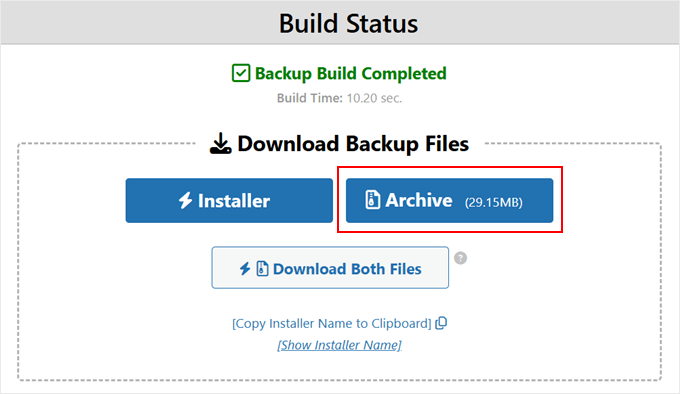
Upon backup completion, you'll see download options including 'Installer' and 'Archive' files. Standard web host restoration requires both files.
However, for viewing sites within Local WP, only the 'Archive' file becomes necessary. Select the 'Archive' button to save the backup zip file to your computer.
Step 3: Download and Install Local WP
Next, install Local WP. This complimentary tool enables WordPress installation on your local computer.
Numerous development teams utilize this application for creating demonstration sites. It also serves perfectly for testing WordPress plugins and themes.
Local WP functions as our WordPress backup viewer. Begin by visiting the website and selecting the 'Download for Free' button.
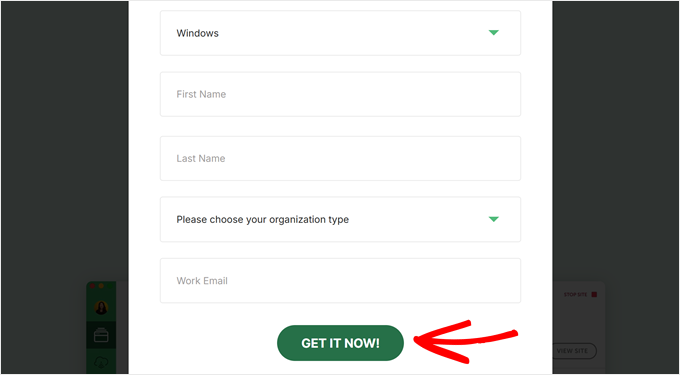
A popup window will appear requiring selection of your computer's operating system—Mac, Windows, or Linux.
You must also complete a brief form with your name and email address. After providing this information, click 'Get It Now!'
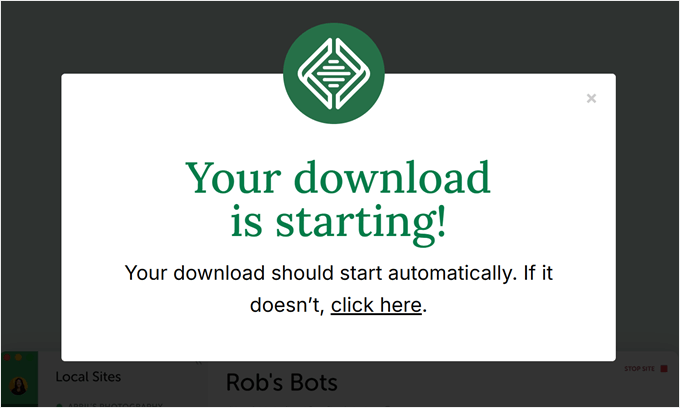
Your browser will immediately download Local WP software to your computer.
If download doesn't commence automatically, utilize the 'click here' link instead.
Once the file downloads, launch the setup wizard. Here, choose whether to install Local WP for all users or exclusively for your account.
After selecting your preference, click the 'Next' button.


