
Integrating Trustpilot Customer Reviews into Your WordPress Website
Establishing credibility with website visitors can be challenging for new online businesses. Many entrepreneurs have discovered that showcasing authentic customer feedback significantly improves visitor trust and conversion rates.
Trustpilot stands as one of the most recognized platforms for collecting and displaying consumer reviews. However, simply copying reviews isn't sufficient—proper integration and presentation are essential for maximizing their impact on your website's credibility.
This guide presents effective techniques for incorporating Trustpilot reviews into WordPress sites, helping you leverage social proof to enhance your online presence.
Understanding Trustpilot's Platform
Trustpilot operates as a consumer review website where users can evaluate businesses, provide written testimonials, and assign star ratings ranging from 1 to 5. This platform enables potential customers to research companies before making purchasing decisions.
Business owners can utilize Trustpilot to invite satisfied customers to share positive experiences. The platform also allows companies to respond to negative feedback, demonstrating their commitment to customer satisfaction.
Evaluating Trustpilot's Advantages and Limitations
Before implementing Trustpilot reviews, consider these platform characteristics:
Platform Benefits
- High recognition and reputation enhance social proof when displayed on websites
- Free tier availability makes it accessible for startups and small businesses
- Integration capabilities extend beyond WordPress to various third-party platforms
Platform Limitations
- Open platform structure may result in unverified or spam reviews on free plans
- Advertisement display on profile pages requires paid subscription removal
- Monthly limits on verified review invitations for free account holders
WordPress-Specific Review Alternatives
For WordPress product developers seeking specialized review platforms, several alternatives focus specifically on WordPress ecosystem products. These platforms offer targeted audiences interested in WordPress solutions.
Specialized WordPress review platforms typically provide these advantages:
- Focused audience: Reviews come from WordPress users specifically seeking plugins, themes, or services
- Industry relevance: Feedback addresses WordPress-specific functionality and compatibility
- Community engagement: Opportunities to connect with dedicated WordPress users
For those proceeding with Trustpilot integration, the following methods demonstrate effective implementation approaches:
- Method 1: Using Reviews Feed Pro for Trustpilot Integration
- Method 2: Implementing Trustpilot's Official Plugin
- Additional Strategy: Enhancing Credibility Through Social Proof Notifications
Method 1: Using Reviews Feed Pro for Trustpilot Integration
This approach utilizes the Reviews Feed Pro plugin, which simplifies the process of aggregating and displaying customer reviews from multiple platforms. The plugin supports various review sources including Trustpilot, Google, Yelp, and several others.
For businesses collecting feedback across multiple platforms, this solution centralizes review management within WordPress.
Step 1: Plugin Installation and Configuration
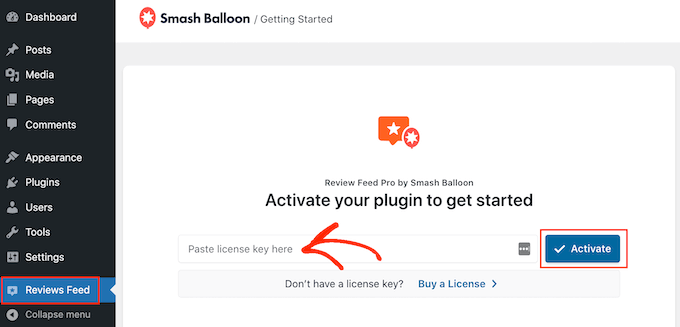
Begin by installing and activating the Reviews Feed Pro plugin. The Trustpilot integration feature requires the Plus or Elite subscription tier. Complete the installation following standard WordPress plugin procedures.
After activation, navigate to the plugin's settings to enter your license key for full functionality.
Step 2: Establishing Trustpilot Connection
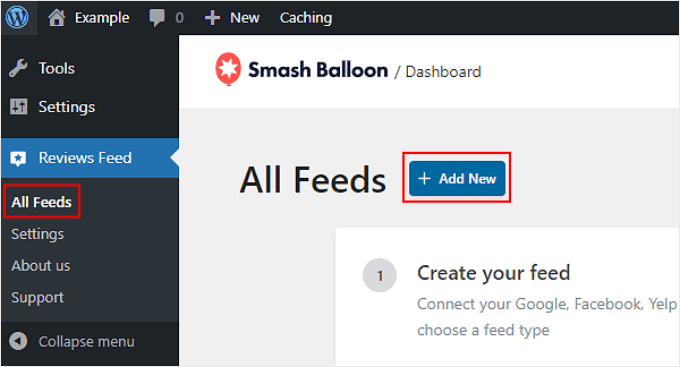
Navigate to the Reviews Feed section in your WordPress dashboard and select 'All Feeds.' Click the '+ Add New' button to begin creating your review feed.
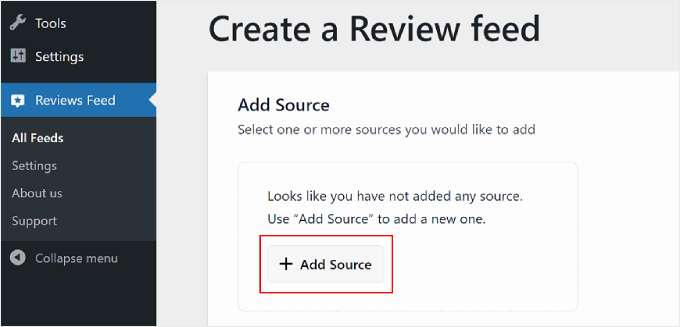
On the configuration page, select '+ Add Source' to specify your review platform. Multiple sources can be combined if desired.
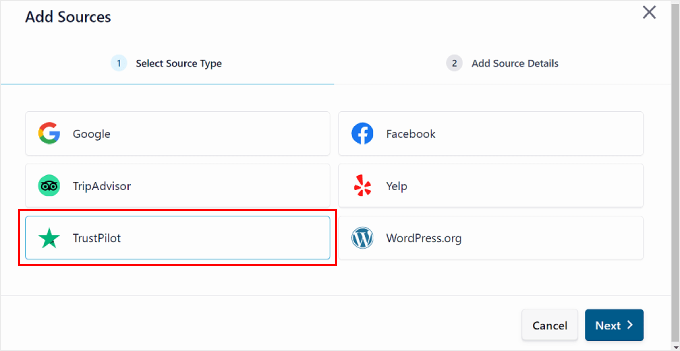
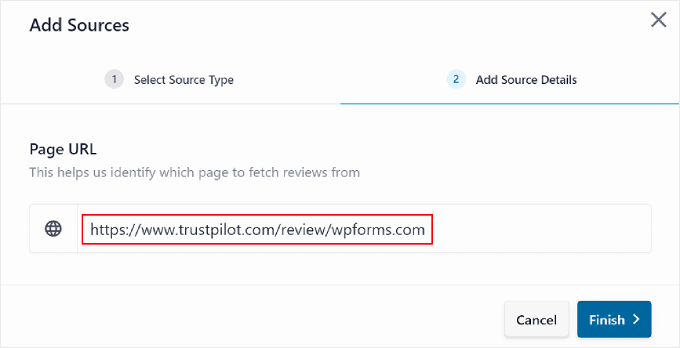
A selection window will appear presenting various review platforms. Choose 'Trustpilot' and proceed by clicking 'Next.'
Enter your Trustpilot profile URL in the provided field, then select 'Finish' to complete the connection.
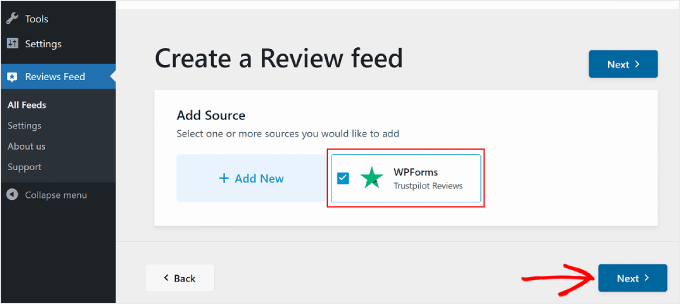
Successful connection will display your Trustpilot page in the source list. Click 'Next' to continue configuration.
Step 3: Customizing Review Display
Following setup completion, select a display template for your Trustpilot reviews. Seven template options are available including Default, Simple Cards, Masonry, Single Review, Showcase Carousel, Carousel, and Grid Carousel.
All templates offer customization options to match your website's design aesthetic. After selecting your preferred template, click 'Next' to proceed.


