
Integrating Trustpilot Reviews into Your WordPress Website: A Practical Guide
By Editorial Team |
Many business owners recall the initial difficulty of establishing credibility with website visitors.
This challenge often diminishes when authentic customer testimonials and reviews are showcased on a WordPress site. Potential customers gain confidence from seeing genuine feedback, which frequently leads to improved conversion rates.
Trustpilot stands as a widely recognized platform for consumer reviews, valued for its impartial assessments. However, incorporating these reviews into a website requires more than simple copying and pasting.
The objective is to present reviews in a manner that enhances trust and drives visitor engagement.
This guide outlines effective approaches for integrating Trustpilot reviews into WordPress websites.
Understanding Trustpilot
Trustpilot operates as a consumer review platform where users can locate businesses, submit testimonials, and assign star ratings ranging from 1 to 5.
Visitors also utilize the platform to research companies before making purchasing decisions.
For organizations, Trustpilot provides opportunities to solicit feedback from satisfied customers. Businesses can address negative reviews by responding directly to customer concerns.
Advantages and Disadvantages of Trustpilot
Before implementing Trustpilot, consider these benefits and limitations.
Benefits of Trustpilot
- Its established reputation can significantly enhance social proof when reviews are displayed.
- A free tier makes it accessible for startups and small businesses.
- Integration capabilities extend beyond WordPress to various third-party platforms.
Limitations of Trustpilot
- The open nature of the platform may result in unverified or spam reviews, particularly on free accounts.
- Advertisements appear on profile pages unless upgrading to premium plans.
- Monthly limits exist for sending verified review invitations.
Alternative Review Platforms for WordPress Products
For those specifically seeking reviews for WordPress-related products, specialized WordPress review platforms offer targeted alternatives.
These dedicated platforms focus exclusively on WordPress plugins, themes, hosting services, and related tools, providing more relevant feedback for potential customers.
Key benefits of specialized WordPress review platforms include:
- Expert evaluations: Receive detailed assessments from WordPress specialists.
- Ad-free presentation: Competitor advertisements typically don't appear on listing pages.
- Verification badges: Display platform verification to increase credibility.
For those proceeding with Trustpilot integration, the following sections detail two implementation methods:
- Method 1: Using Reviews Feed Pro for Trustpilot Integration
- Method 2: Implementing Trustpilot via Official Plugin
- Additional Strategy: Enhancing Credibility Through Social Proof
Method 1: Using Reviews Feed Pro for Trustpilot Integration
This approach utilizes the Reviews Feed Pro plugin, which simplifies the process of aggregating and displaying customer reviews from multiple sources.
Beyond Trustpilot, the plugin supports integration with various review platforms including Yelp, Google Reviews, and Facebook recommendations.
For businesses utilizing multiple review sites, this solution provides centralized management capabilities.
Step 1: Plugin Installation and Configuration
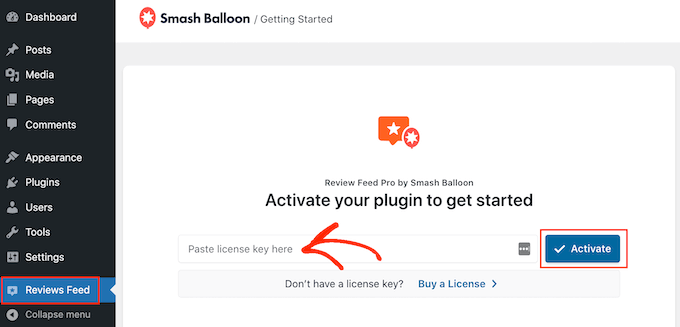
Begin by installing and activating the Reviews Feed Pro plugin. The Trustpilot feature requires at least the Plus subscription tier.
After activation, navigate to the plugin's setup wizard and enter your license key to enable full functionality.
Step 2: Establishing Trustpilot Connection
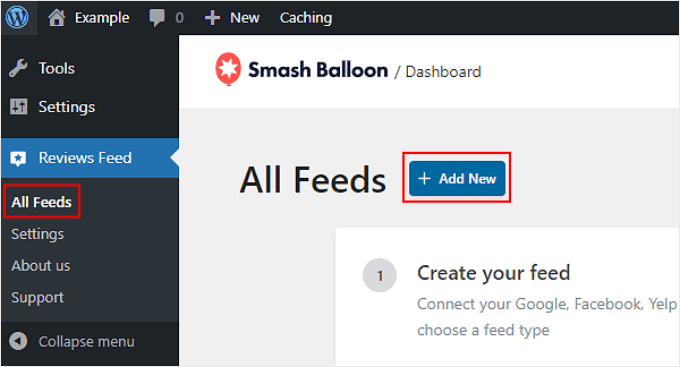
Proceed to integrate your WordPress site with your Trustpilot profile by navigating to Reviews Feed » All Feeds and selecting 'Add New.'
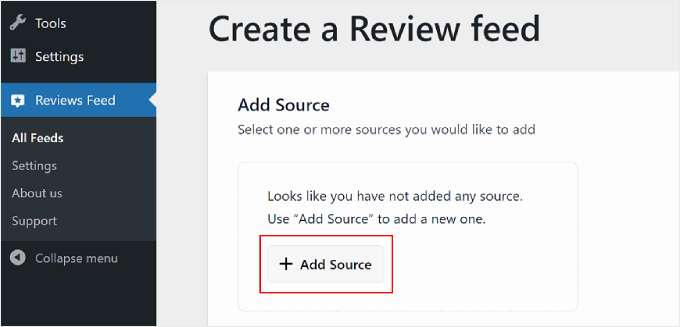
On the subsequent screen, choose 'Add Source.' Multiple review sources can be configured simultaneously.
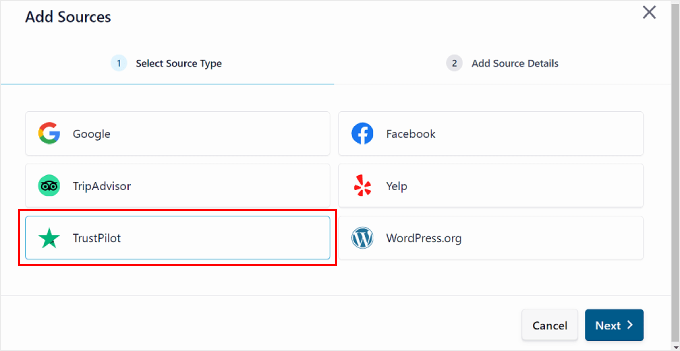
A dialog box will appear prompting selection of a review platform. Choose 'Trustpilot' and proceed by clicking 'Next.'
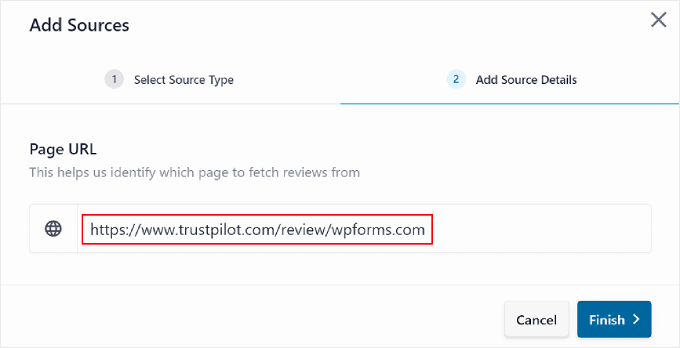
Enter your Trustpilot profile URL in the provided field, then select 'Finish' to complete the connection.
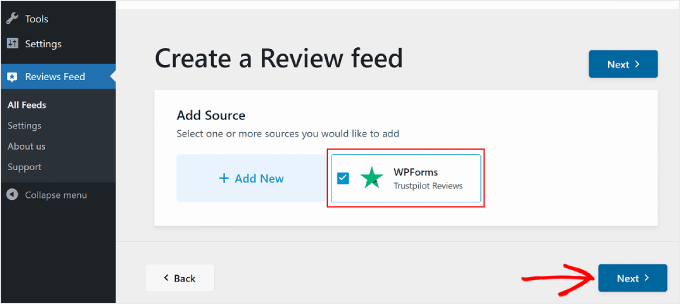
Upon successful connection, your Trustpilot source will appear in the Add Source section. Click 'Next' to continue.
Step 3: Customizing Review Display
Following setup completion, select a template for presenting Trustpilot reviews. Seven options are available including Default, Simple Cards, Masonry, and various carousel layouts.
All templates offer customization options to match your website's design requirements.
After selecting your preferred template, click 'Next' to proceed.


