Resolving the WordPress 'jQuery is not defined' Error: 6 Effective Solutions
When WordPress functionality breaks unexpectedly, it can create significant frustration, particularly when error messages appear cryptic. The 'jQuery is not defined' error represents one such perplexing issue that many site administrators encounter.
This problem frequently manifests across various site elements, from contact forms to image galleries, often catching users unaware unless they regularly monitor browser developer consoles.
Numerous WordPress professionals have successfully addressed this specific challenge. The encouraging aspect is that implementing solutions doesn't require advanced development skills.
This comprehensive guide will clarify the error's meaning, explain its common causes, and provide step-by-step resolution methods that work effectively, even for those with minimal technical experience.
Understanding the 'jQuery is not defined' Error
jQuery serves as a fundamental JavaScript library within WordPress, powering numerous interactive features across websites. Occasionally, this library may fail to load correctly, potentially disrupting various site functionalities.
The error typically appears within the Console tab of browser developer tools, meaning many users remain unaware until specific site components cease functioning properly.
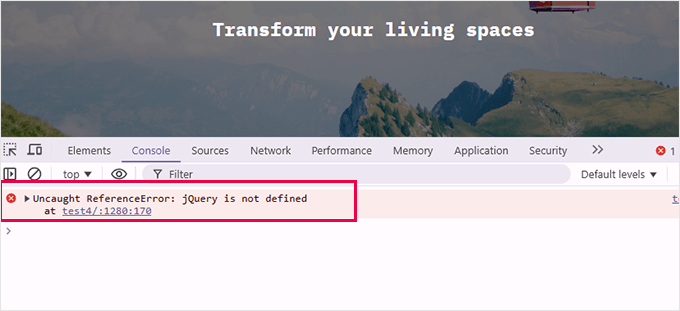
When the 'jQuery is not defined' error appears, it indicates WordPress cannot properly load the jQuery library. Based on extensive troubleshooting experience, this issue typically originates from several common sources:
- Obsolete Themes or Plugins: Many administrators encounter this error when their themes or plugins haven't been updated to maintain compatibility with the current WordPress version. This frequently occurs following significant WordPress core updates.
- Incorrect Script Loading Sequence: jQuery must load before other JavaScript files that depend on it. When this loading order becomes disrupted, dependent scripts will malfunction. This often results from themes or plugins that don't properly enqueue scripts according to WordPress standards.
- JavaScript Compatibility Issues: Other scripts operating on your website might conflict with jQuery, particularly if they aren't loaded correctly. Such conflicts can prevent jQuery from functioning properly, triggering the error message.
- Content Delivery Network Problems: Some websites utilize jQuery hosted on external Content Delivery Networks. If the CDN experiences downtime or becomes inaccessible, the website cannot load jQuery, resulting in the error.
All these potential issues can interfere with jQuery's proper operation. Fortunately, experienced WordPress professionals have developed reliable solutions to address each scenario.
Methods to Resolve the 'jQuery is not defined' Error
Several approaches exist for addressing this error when it occurs. Below are the most reliable methods that have proven effective through extensive testing.
While we recommend following these strategies sequentially, you may use the navigation links below to begin with a specific solution:
- Update WordPress Core, Themes, and Plugins
- Verify jQuery Loading Status
- Implement jQuery Fallback Mechanism
- Correct Script Loading Order (Advanced)
- Modify wp-config.php for jQuery Loading Issues
- Common Questions About the 'jQuery is not defined' Error
- Additional Resources: WordPress Error Troubleshooting
We will examine each method thoroughly before providing supplementary resources for broader WordPress troubleshooting. Let's begin the resolution process.
1.Update WordPress Core, Themes, and Plugins
Outdated software represents one of the most frequent causes of the 'jQuery is not defined' error. Themes or plugins that haven't been updated may become incompatible with the latest WordPress version, potentially creating script conflicts. To address this:
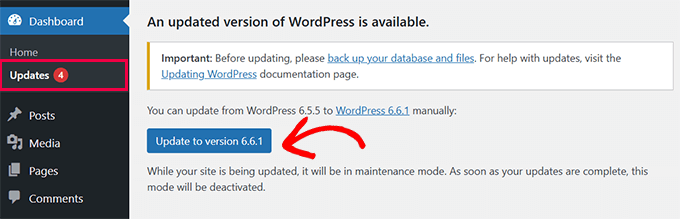
First, ensure your WordPress core installation remains current. Navigate to Dashboard » Updates and select 'Update to version X.X.X' if an update appears available.
Consult comprehensive documentation about safely updating WordPress to newer versions for additional guidance.
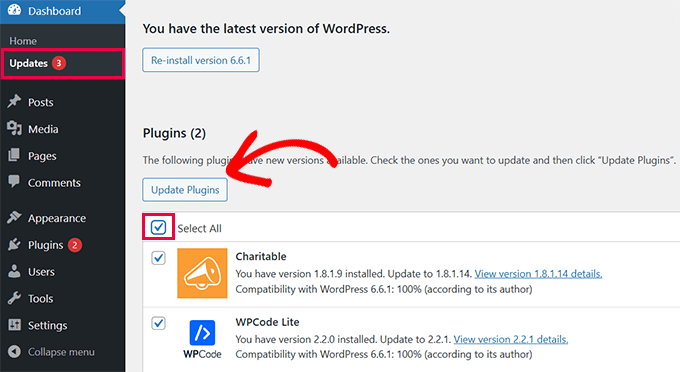
Available WordPress plugin updates will appear below the core update section.
You may select all available updates and choose 'Update Plugins.'
Finally, examine available updates for your installed WordPress themes.
Select all theme updates and choose 'Update Themes.'
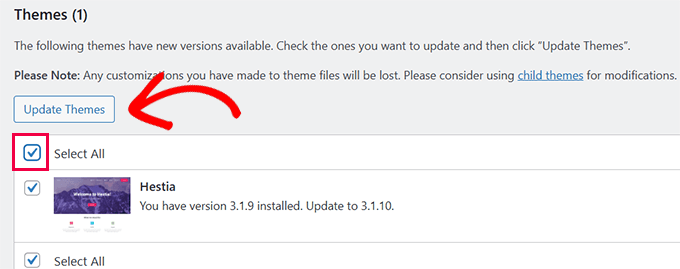
If you have concerns about preserving theme customizations, review documentation about updating WordPress themes without losing modifications.
2.Verify jQuery Loading Status
Before implementing more complex solutions, confirming whether jQuery actually loads on your website represents a crucial diagnostic step. This verification helps determine whether jQuery remains available and operational.
Right-click anywhere on your WordPress site and select 'View Page Source.'
This action displays the raw HTML and JavaScript code for your page.
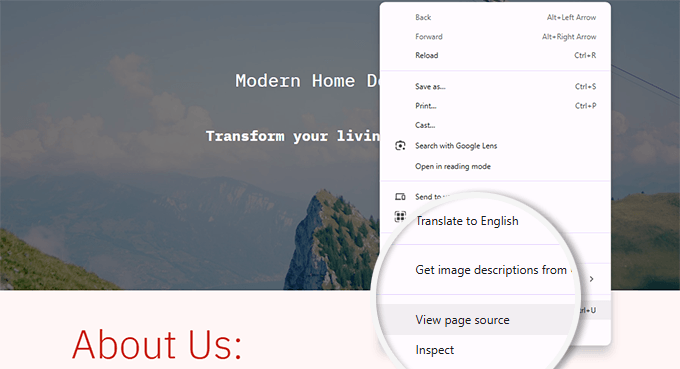
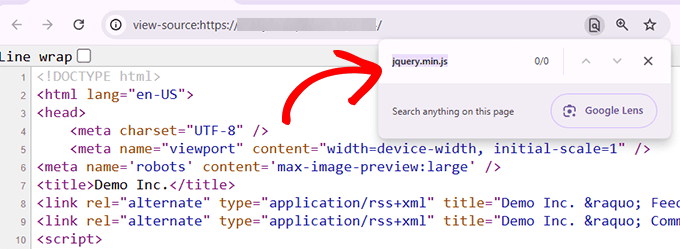
Next, press Ctrl+F (Windows/Linux) or Cmd+F (Mac) to activate the search function, then enter 'jquery.min.js.'
If jQuery loads correctly, you should locate references within the code.
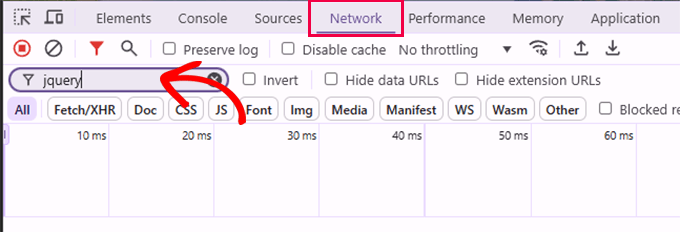
An alternative approach involves using your browser's Developer Tools. Navigate to the 'Network' tab and refresh the page.
Filter network activity by entering 'jquery' in the search field. If jQuery loads successfully, it will appear in the results.
If jQuery doesn't appear through either method, the problem likely involves how WordPress enqueues the library. Subsequent steps will guide you through resolving this configuration issue.
3.Implement jQuery Fallback Mechanism
Occasionally, scripts on your website might attempt to load jQuery from Content Delivery Networks experiencing connectivity problems. When this occurs, jQuery fails to load, triggering the error message.
To address this scenario, you can implement a jQuery fallback mechanism on your WordPress site. This ensures jQuery consistently loads regardless of external network conditions.
The fallback code should be added to your site's head section to guarantee proper loading sequence. However, directly editing theme files isn't recommended, as modifications may disappear during theme updates.
The optimal approach for adding custom code involves utilizing a dedicated code snippet management plugin. These tools enable safe implementation of custom code without risking site stability.
First, install and activate a reputable code snippet plugin. Consult plugin installation documentation for specific instructions.
Once activated, navigate to the plugin's management interface and select the option to create a new code snippet.


