Resolving WordPress Navigation Menu Overlap with Admin Bar
By WordPress Experts |
Experiencing your WordPress navigation menu disappearing behind the admin toolbar is a common frustration for many site administrators. This display problem frequently emerges after installing new themes or activating specific plugins that alter front-end layouts.
The issue typically stems from themes that don't properly allocate space for the admin bar when users are logged in. This oversight can cause your menu to become partially or completely obscured, affecting both aesthetics and functionality.
This comprehensive guide presents multiple approaches to correct the navigation menu overlap problem. Whether you prefer a straightforward non-technical solution or a precise CSS adjustment, you'll find an appropriate method for your website.
Understanding Why the Admin Bar Overlaps Navigation Menus
When your WordPress navigation menu appears hidden or partially covered by the admin toolbar, you're likely encountering a CSS positioning issue. Many experienced developers have observed this problem occurring when theme stylesheets fail to accommodate the admin bar's height properly.
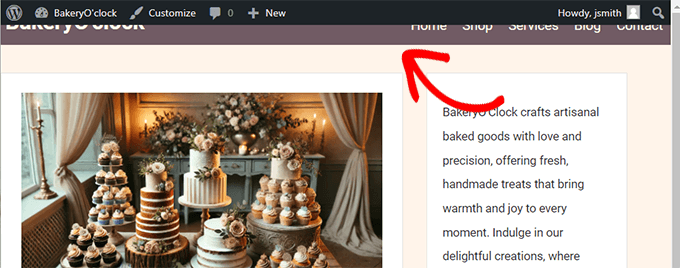
You might notice menu items becoming difficult to select or entire navigation sections appearing covered when viewing your site. This can create significant usability challenges for both administrators and visitors.
Several common factors contribute to this display problem:
- Theme Compatibility Issues: Some themes lack proper CSS declarations to accommodate the admin bar's fixed positioning, resulting in menu displacement.
- Plugin Interference: Plugins that modify front-end design elements, such as mega menu builders or header customization tools, can inadvertently cause overlap conflicts.
- Custom Style Conflicts: User-added CSS modifications might interfere with proper menu positioning relative to the admin toolbar.
This overlapping issue can negatively impact site navigation and user experience. Fortunately, multiple resolution methods exist, beginning with a simple approach that requires no coding knowledge.
Below is an overview of the solutions we'll explore. Select the method that best matches your technical comfort level:
- Solution 1: Disable the Admin Bar Through User Profile Settings
- Solution 2: Implement Custom CSS Adjustments
- Solution 3: Identify and Resolve Plugin Conflicts
Solution 1: Disable the Admin Bar Through User Profile Settings
This approach provides the simplest resolution for users uncomfortable with code modifications. It's particularly suitable for beginners or those without theme editing permissions.
Rather than adjusting layout positioning, this method removes the admin bar entirely, eliminating the overlap issue completely.
To implement this solution, navigate to your WordPress dashboard and access your user profile. Locate the "Show Toolbar when viewing site" option and ensure it's unchecked. This setting will hide the admin bar for your user account during front-end browsing.
While this method resolves the visual overlap, it does remove convenient admin access from the front end. Consider this trade-off when deciding whether this approach meets your needs.
Solution 2: Implement Custom CSS Adjustments
For users comfortable with CSS modifications, this method offers a more precise solution that maintains admin bar functionality while correcting the overlap issue.
Add the following CSS code to your theme's additional CSS section or through a dedicated CSS plugin:
@media screen and (min-width: 783px) { .admin-bar .your-menu-selector { margin-top: 32px; } } @media screen and (max-width: 782px) { .admin-bar .your-menu-selector { margin-top: 46px; } }Replace "your-menu-selector" with your actual navigation menu's CSS class or ID. This responsive approach adjusts spacing based on screen size, ensuring proper display across devices.
For themes with fixed or sticky headers, you may need to adjust the positioning property instead of margin. Many developers recommend using:
.admin-bar .site-header { top: 32px; }Test these adjustments thoroughly across different screen sizes to ensure consistent results.
Solution 3: Identify and Resolve Plugin Conflicts
If the overlap issue emerged after installing new plugins, a conflict may be causing the display problem. Systematic troubleshooting can help identify the source.
Begin by deactivating all plugins temporarily. If the menu displays correctly without plugins active, reactivate them one by one while checking for the overlap issue after each activation. This process will help identify which specific plugin causes the conflict.
Common culprits include plugins that modify headers, implement mega menus, or add front-end design elements. Once identified, check for plugin updates or alternative solutions that provide similar functionality without causing display conflicts.
For persistent issues, consider testing with a default WordPress theme to determine whether the problem originates from your current theme or plugin interactions.



