Step-by-Step Guide to Resolving ERR_NAME_NOT_RESOLVED Errors in WordPress
By WordPress Support Team |
When attempting to access a website, you might occasionally encounter an error message stating 'ERR_NAME_NOT_RESOLVED'. This indicates that your web browser cannot locate the IP address associated with the domain name you entered.
Think of it like trying to dial a phone number that isn't saved in your contacts. Without the correct number, you cannot establish a connection.
While this error can be frustrating, it is typically straightforward to resolve. Many WordPress experts have identified common causes for this issue and developed effective troubleshooting methods.
This guide will walk you through practical steps to diagnose and fix the 'ERR_NAME_NOT_RESOLVED' error on your WordPress site.
Understanding the 'ERR_NAME_NOT_RESOLVED' Error in WordPress
The internet relies on the Domain Name System (DNS) to simplify navigation. Every website has a unique numerical identifier called an IP address, but DNS allows you to use memorable domain names instead.
When you enter a domain name, a DNS server looks up the corresponding IP address and directs your browser to the correct location.
For instance, typing a domain like 'example.com' prompts a DNS server to find its IP address, such as '192.0.2.1', and redirects you to that site.
The 'ERR_NAME_NOT_RESOLVED' error appears when this lookup process fails, and no IP address can be found for the requested domain.
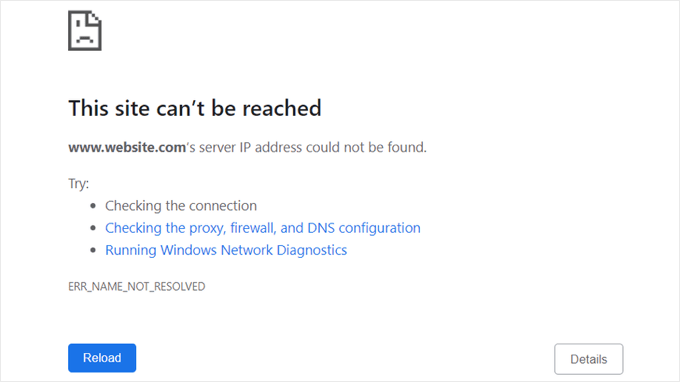
Without a valid IP address, your browser cannot locate or display the website. If this affects your own WordPress site, you may be unable to publish content, apply security updates, or perform other essential tasks.
Depending on your browser and situation, you might see similar messages like:
- This site can’t be reached
- Unable to reach the site
- Could not find the IP address of the server
- Failed to load resource
- The web page is not available
Various factors can trigger these errors, requiring systematic troubleshooting. While the issue might originate from the website itself, it often stems from local configuration problems on your computer.
Fortunately, the error message may suggest initial checks, such as verifying your internet connection, reviewing firewall settings, and examining DNS configuration.
Let's explore how to resolve the 'ERR_NAME_NOT_RESOLVED' error in WordPress. Begin with the simplest solution and proceed through the following steps:
- Verify Your Internet Connection
- Clear Your Browser Cache
- Clear Your DNS Cache
- Temporarily Disable Firewall and Antivirus Software
- Change Your Computer's DNS Server
- Disable DNSSEC for Your Domain
- Contact Your WordPress Hosting Provider
- Additional Resources on Domain Names and DNS
1. Verify Your Internet Connection
Since this error frequently results from local issues, start by confirming your internet connectivity. Try visiting a well-known site like Google.com to ensure your connection is active.
If you cannot access Google or other sites, the problem likely lies with your internet connection rather than the specific website.
Check that all cables are securely connected to your modem and router. You can also restart your network equipment by unplugging the modem and router from power, waiting at least one minute, and then reconnecting them.
If the error persists when attempting to visit the website, proceed to the next step.
2. Clear Your Browser Cache
Web browsers store temporary copies of downloaded files to speed up future visits. This stored data is known as the browser cache.
The cache can become outdated if website content changes after your initial visit. It may also become corrupted over time. In such cases, clearing the browser cache forces the browser to download fresh files from the website.
This action can sometimes resolve DNS-related issues, including the error message you are experiencing.
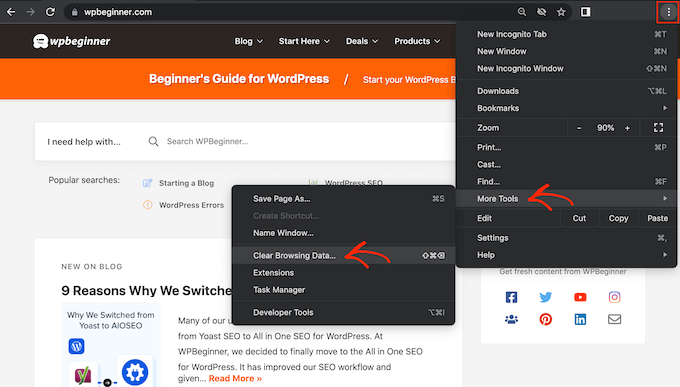
Clearing the cache is a simple process. In Google Chrome, for example, click the three-dot icon in the top-right corner, select 'More Tools,' and then choose 'Clear Browsing Data...'
In the pop-up window, ensure the box next to 'Cached images and files' is checked. Chrome will clear the entire cache by default.
You may want to adjust the 'Time Range' dropdown to delete cached data only from the period when the error began occurring.
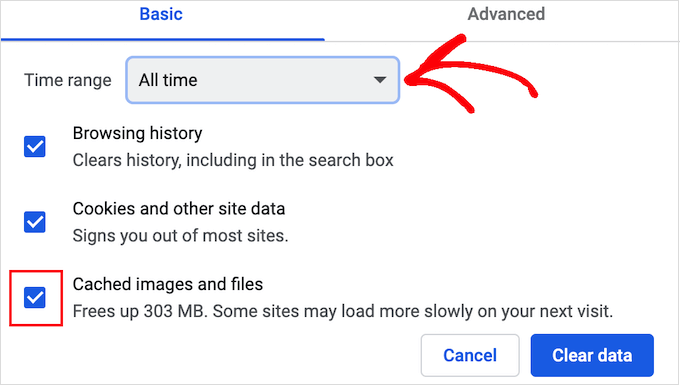
Select only the data types you wish to remove. For instance, deleting cookies and site data is often helpful, but you can uncheck 'Browsing history' if you want to retain it.
Once ready, click 'Clear data' to empty the browser cache.
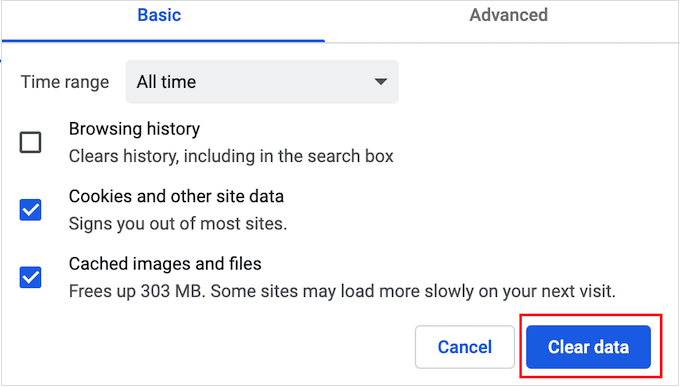
If you use a different browser, consult general guides on clearing the cache for your specific browser.
After clearing the cache, attempt to revisit the website to see if the error remains.
3. Clear Your DNS Cache
In addition to caching website content, your computer stores IP addresses for visited sites. This DNS cache speeds up future visits by avoiding repeated lookups.
However, cached DNS information can become outdated, leading to errors. This may happen if a site has migrated to a new domain or changed hosting providers.
Clearing the DNS cache forces your browser to perform a fresh lookup for the domain's IP address.
Comprehensive instructions are available for clearing the DNS cache on Mac, Windows, and Google Chrome systems.
4. Temporarily Disable Firewall and Antivirus Software
Security software, including firewalls and antivirus programs, protects your system by blocking potentially harmful sites. Occasionally, they may mistakenly block legitimate websites.
This can occur if security settings are overly restrictive or if the website's configuration triggers false alarms.
To test whether security software is causing the issue, temporarily disable these programs. If the website loads successfully afterward, the software was likely blocking the connection.
Do not leave security software disabled permanently. Instead, consider adding the website to the software's whitelist or exception list, allowing access while maintaining protection against actual threats.
Consult the software's official documentation or support resources for guidance on adjusting these settings.
5. Change Your Computer's DNS Server
The DNS server your computer uses to resolve IP addresses might be experiencing problems. Internet service providers typically assign a default DNS server, but it can become unavailable or contain incorrect records.
Switching to a public DNS server, such as Google Public DNS or Cloudflare DNS, may resolve the issue. Choose a reputable provider, as the DNS server can observe your browsing activity.
Changing DNS Server on Mac
After selecting a DNS server, add it to your network settings. On Mac, click the Apple icon in the menu bar and select 'System Preferences...'
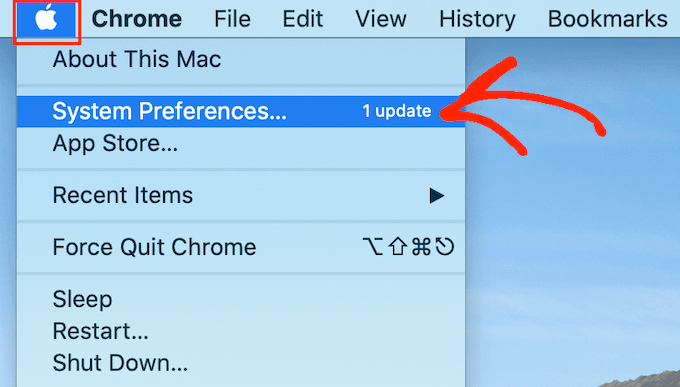
Next, choose 'Network' from the window and click the 'Advanced...' button.
Then, navigate to the 'DNS' tab.


