Streamline Your WooCommerce Checkout: How to Bypass the Cart Page
Many online store owners seek ways to simplify their checkout process. Each additional step between selecting a product and completing a purchase can contribute to cart abandonment and lost revenue.
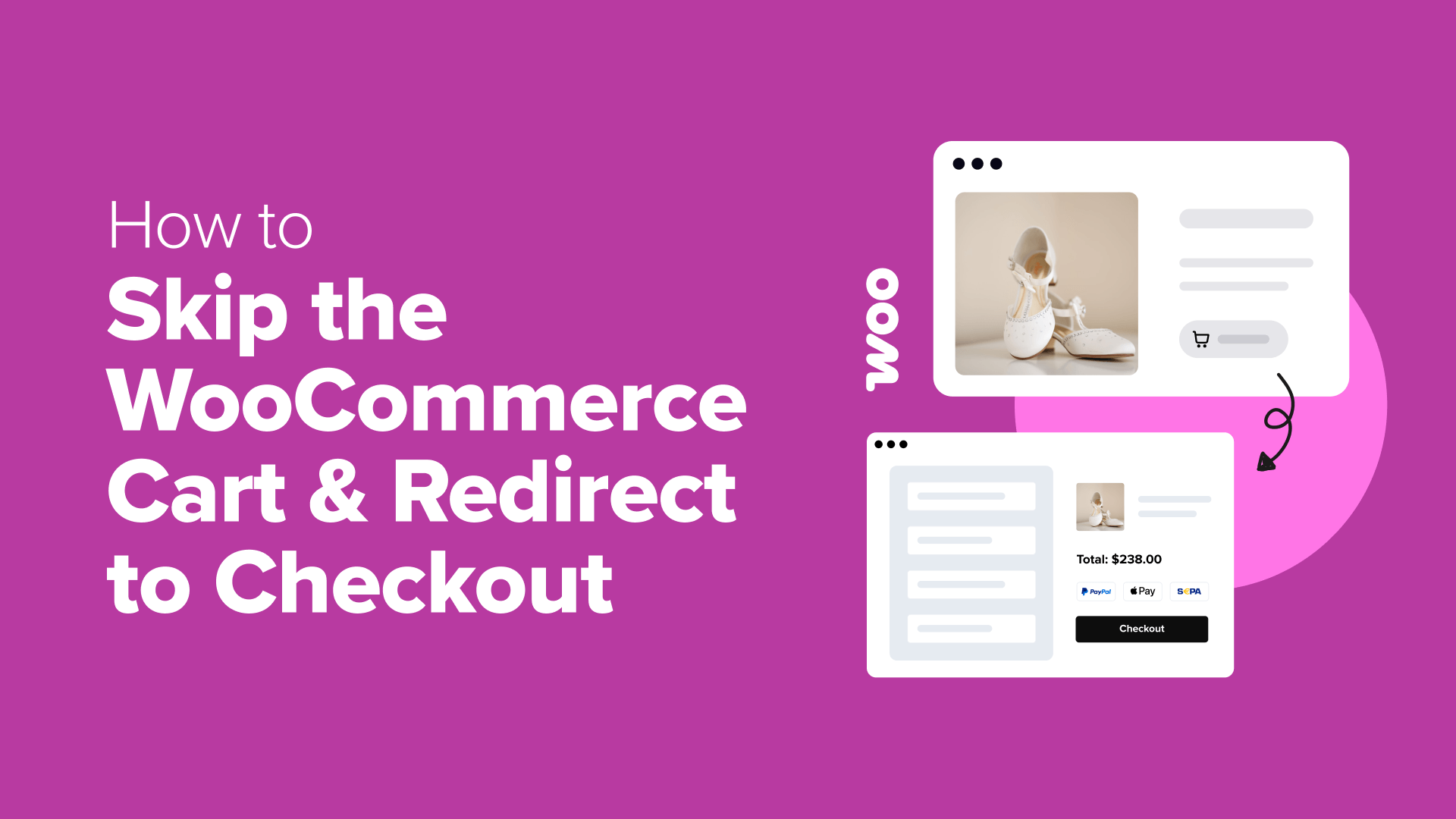
Redirecting customers directly from product pages to the checkout screen is an effective strategy for improving conversion rates. Optimizing this flow can significantly increase completed transactions.
This guide explains how to implement a direct checkout process in WooCommerce. We'll also discuss considerations for maintaining a positive customer experience while removing intermediate steps.
Evaluating Whether to Remove the Cart Page
Bypassing the cart page works particularly well for stores selling single items or services. Direct checkout can accelerate purchases in these scenarios.
For businesses offering appointments or consultations, sending customers straight to the payment page simplifies the booking process.
Stores with extensive product catalogs where customers frequently purchase multiple items might benefit from retaining cart functionality. In these cases, implementing a one-click checkout option alongside traditional cart features provides flexibility.
Another approach involves using a mini-cart display that appears without navigating away from the current page. This maintains visibility of selected items while keeping customers engaged with product browsing.
If you've determined that removing the cart page aligns with your business needs, here are two implementation methods:
- Option 1: Using FunnelKit with CartHopper Addon (Advanced Customization)
- Option 2: Using a Direct Checkout Plugin (Simpler Approach)
- Best Practices for Implementing Direct Checkout
- Common Questions About Cart Page Redirection
Option 1: Using FunnelKit with CartHopper Addon (Advanced Customization)
This method suits store owners seeking comprehensive control over their checkout experience and serious about reducing abandonment rates. The combination provides extensive customization capabilities.
Step 1: Install Required Plugins
You'll need three components for this solution:
- FunnelKit Funnel Builder Pro
- FunnelKit Funnel Builder (free version)
- FunnelKit CartHopper add-on (free)
The first two plugins work together to create optimized checkout pages. The Pro version includes advanced features for customizing the payment experience, optimizing sales funnels, and implementing upselling techniques.
The free CartHopper extension enables cart page bypass functionality, redirecting customers directly to checkout.
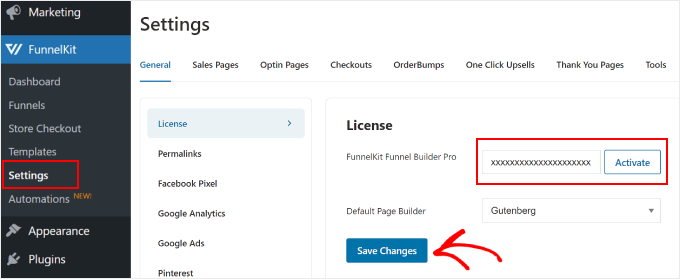
Begin by installing and activating all three plugins through your WordPress dashboard. Navigate to the FunnelKit settings area within your admin panel.
Select the 'License' tab and enter your license key, which can be obtained from the plugin provider's website. Click 'Activate' followed by 'Save Changes' to complete the setup.
Step 2: Configure Cart Bypass Settings
Navigate to the CartHopper section within the FunnelKit menu. Here you'll find settings for customizing cart functionality and implementing direct checkout.
Enable the 'SkipCart for all Products' option to redirect customers immediately to checkout when they click add to cart buttons.
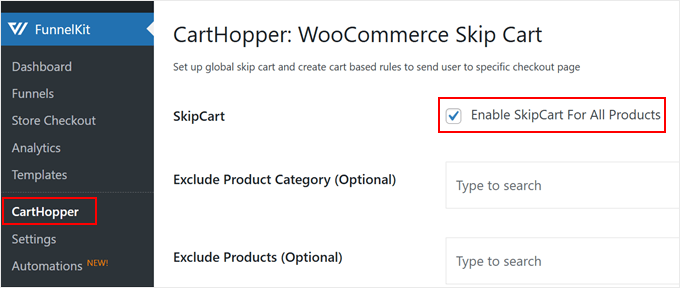
This basic configuration establishes direct checkout functionality. Additional customization options are available for refining the customer journey.
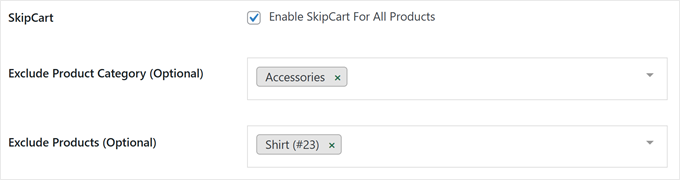
Below the primary setting, you can specify product categories or individual items where traditional cart functionality should remain. Enter the names of categories or products you wish to exclude from direct checkout.
You can modify the text displayed on add to cart buttons. While "Buy Now" is the default, alternatives like "Purchase Now" or "Checkout Immediately" might better suit your store's tone.
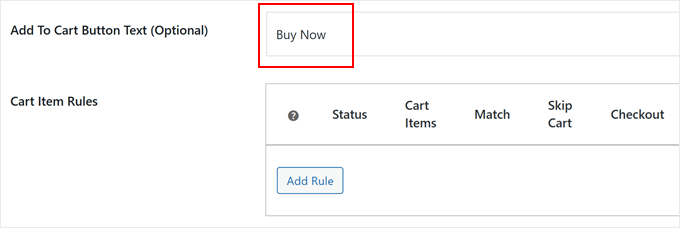
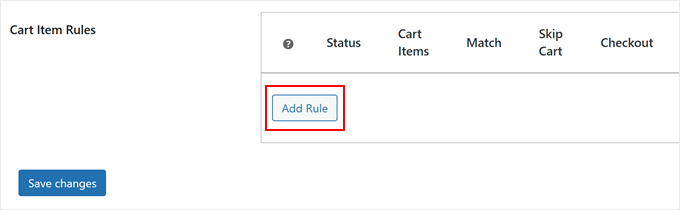
For granular control, create custom rules by selecting 'Add Rule.' A configuration window will appear.
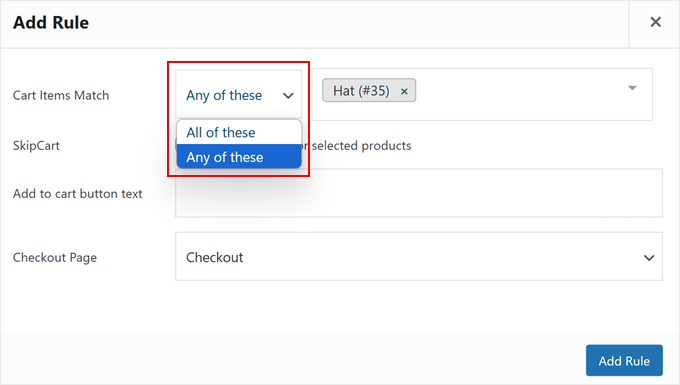
Specify whether the rule applies to 'Any of these' or 'All of these' cart items. The 'Any of these' option activates direct checkout when customers purchase specified items individually or in combination with other products.
The 'All of these' option only triggers direct checkout when customers purchase exact product combinations, such as specific item pairs.
Configure whether to enable or disable cart functionality for each rule, and customize button text for specific products. If using multiple checkout pages, select which page to use for different products. Save your configuration by clicking 'Add Rule.'
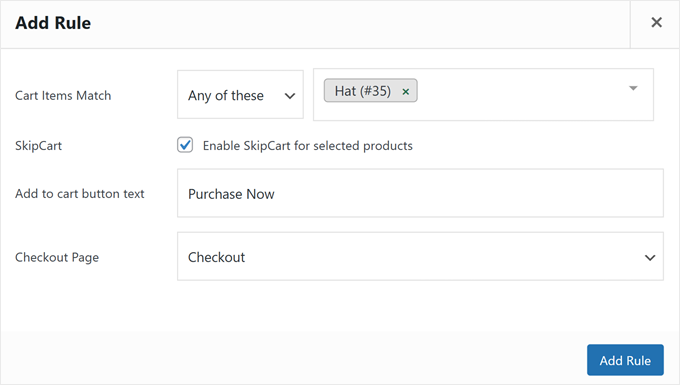
Remember to click 'Save Changes' to apply your new settings.