Two Effective Methods for Identifying WordPress Plugin Conflicts
Plugin conflicts are a common challenge for WordPress site owners. Many experienced developers have encountered issues ranging from disrupted layouts to unexpected error messages that can impact site functionality.
Consider a scenario where a recently installed newsletter popup plugin functions perfectly initially, but after a standard update, the entire website begins experiencing technical difficulties.
The encouraging news is that with proper knowledge, these conflicts can be systematically identified and resolved.
Through extensive experience assisting WordPress users, many professionals have discovered that plugin conflicts become manageable when you have reliable detection methods at your disposal.
This guide presents two proven approaches for detecting WordPress plugin conflicts. These techniques have helped numerous website administrators maintain stable, functional websites.
Understanding WordPress Plugin Conflicts
A plugin conflict occurs when one or more plugins interfere with each other's operations, your active theme, or WordPress core functionality.
These conflicts can arise from various factors including outdated plugins, incompatible software versions, coding inconsistencies, or when multiple plugins attempt to perform identical functions simultaneously.
When a plugin conflict emerges, your WordPress site typically displays recognizable symptoms. Common indicators include blank white screens, distorted or misaligned layouts, unexpected error messages, and general site instability.
This guide explores different approaches for detecting WordPress plugin conflicts on your website. You can manually investigate conflicts by deactivating plugins or utilize specialized troubleshooting plugins to isolate problematic elements.
We will examine both methodologies and provide recommendations for preventing future conflicts. Use the following navigation to access specific sections:
- Method 1: Manual Plugin Deactivation and Reactivation
- Method 2: Utilizing Troubleshooting Plugins
- Resolving WordPress Plugin Conflicts
- Preventing Future Plugin Conflicts
- Frequently Asked Questions
- Additional Resources
Let's begin the examination process.
Method 1: Manual Plugin Deactivation and Reactivation
The most straightforward approach to determine whether a plugin conflict exists involves deactivating all plugins on your site, then reactivating them individually.
Disabling plugins helps identify whether the WordPress error you're experiencing originates from plugin interactions. If it does, reactivating each plugin sequentially will help identify the specific plugin causing the issue.
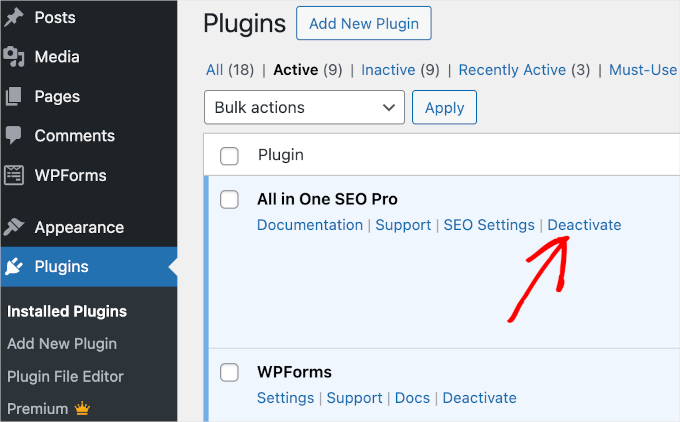
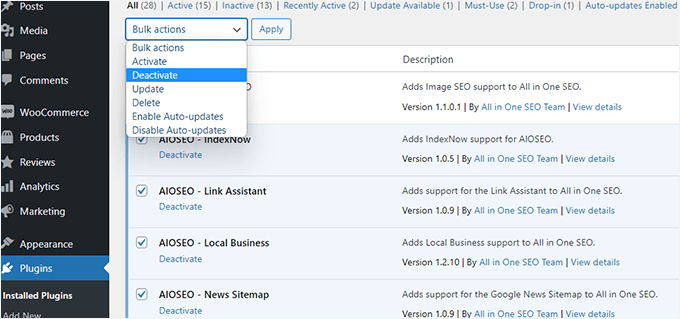
If you can access your administrative dashboard, navigate to the Plugins » Installed Plugins section. From there, select the 'Deactivate' option beneath each plugin name.
Alternatively, you can deactivate plugins in bulk.
Select the checkbox at the top to choose all installed plugins.
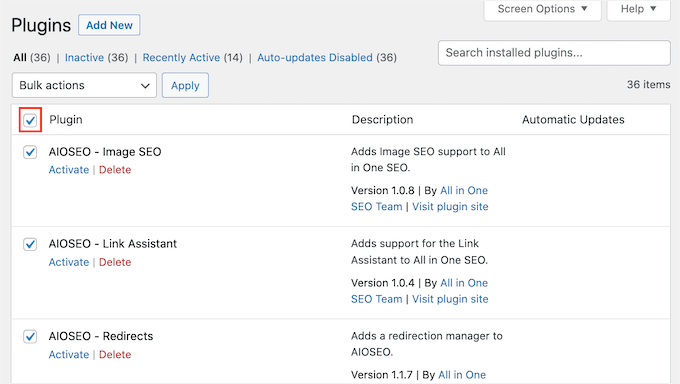
Next, click the 'Bulk actions' dropdown menu at the top of the page.
Select the 'Deactivate' option from this menu, then click the 'Apply' button to deactivate all selected plugins simultaneously.
After disabling all plugins, verify whether the website error persists.
If the error has been resolved, begin reactivating each plugin individually on your site. This systematic approach will help identify which specific plugin triggers the conflict.
If the error remains unresolved, consider investigating whether your active theme contributes to the issue. You may need to deactivate your current theme and activate one of WordPress's default themes, such as Twenty Twenty-Four, to determine if this resolves the problem.
Method 2: Utilizing Troubleshooting Plugins
An alternative approach for identifying plugin conflicts in WordPress involves using specialized troubleshooting plugins like Health Check & Troubleshooting.
This free WordPress plugin assists in error diagnosis by temporarily implementing a default theme and disabling all plugins.
The significant advantage is its ability to conduct troubleshooting within a private user session. This allows you to investigate plugin conflicts without affecting the experience of visitors accessing your live website.
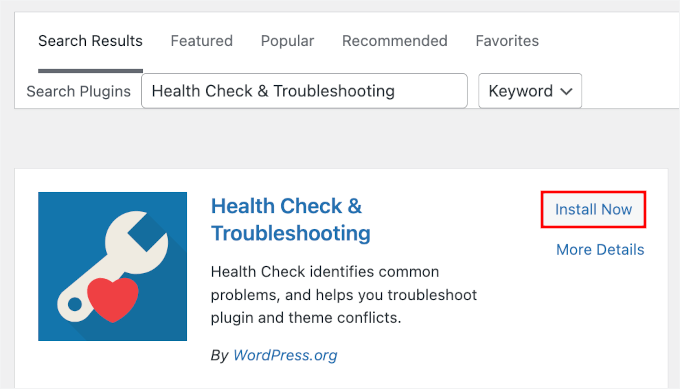
First, install and activate the Health Check & Troubleshooting plugin.
Within your WordPress administrative area, navigate to Plugins » Add New Plugin.

Use the search functionality to locate the plugin efficiently.
Once identified, click the 'Install Now' button, followed by the 'Activate' button when it appears to enable the plugin on your WordPress installation.
After activation, navigate to Tools » Site Health from the WordPress dashboard. Switch to the 'Troubleshooting' tab within this section.
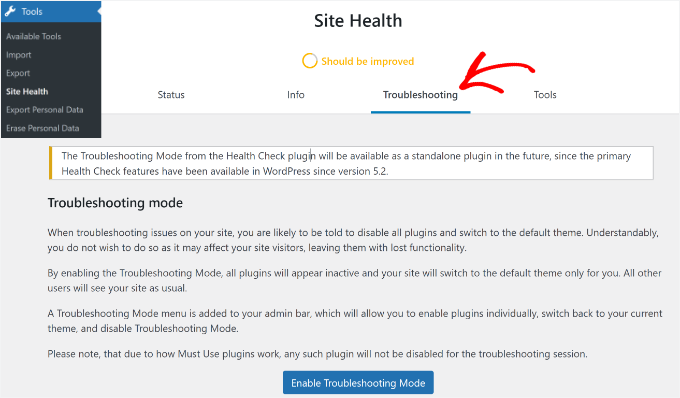
Next, select the 'Enable Troubleshooting Mode' button.
This action will deactivate all plugins for your user session and switch to a default theme. You can now investigate potential plugin conflicts causing errors and other issues while your website visitors continue to experience normal site functionality.
Resolving WordPress Plugin Conflicts
Once you have identified the problematic plugin, you'll need to address the issue. Consider these recommendations for effective resolution.
1. Keeping Plugins Current
Plugin updates frequently include bug fixes and enhancements that can resolve compatibility conflicts. Simply updating the appropriate plugin may eliminate your problem.
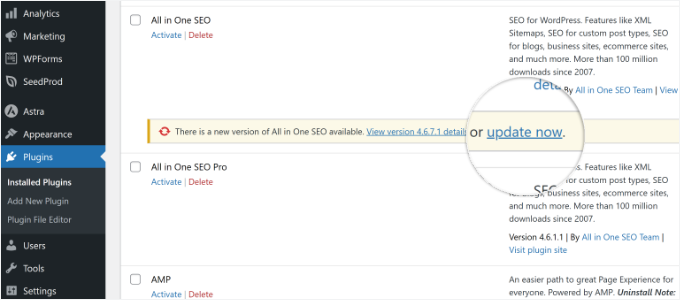
To check whether a plugin has available updates, navigate to Plugins » Installed Plugins and look for an 'update now' link beneath the plugin description.