Two Effective Methods for Implementing Animated Backgrounds in WordPress
Many WordPress experts have discovered that incorporating animated backgrounds can significantly enhance website engagement and visual appeal. This guide explores practical approaches to achieve this effect without compromising site performance.
Benefits of Animated Backgrounds for WordPress Sites
Thoughtfully designed animated backgrounds can increase visitor engagement and create memorable user experiences. These visual elements add dynamic interest to websites while maintaining content readability.
Animated backgrounds serve multiple purposes beyond aesthetic enhancement. They can create seasonal themes for holidays, establish brand personality, or provide visual feedback during page loading. Many experienced developers utilize particle-based animations for their lightweight performance characteristics.

This guide focuses on implementing particle-based animations using JavaScript libraries that offer customization options for particle size, color, shape, and movement patterns.
Understanding Particle Animation Technology
Particle animation libraries create visual effects using small graphical elements that can be customized extensively. These particles respond to user interactions and can be configured to match specific design requirements.
Two primary approaches exist for implementing these animations:
- Method 1: Implementing Animated Backgrounds Using Page Builder Tools
- Method 2: Adding Animated Backgrounds Through Custom Code Implementation
Method 1: Implementing Animated Backgrounds Using Page Builder Tools
Several WordPress page builder plugins include built-in particle background functionality. These tools typically offer pre-configured animation styles with customization options for particle density, movement patterns, and visual properties.
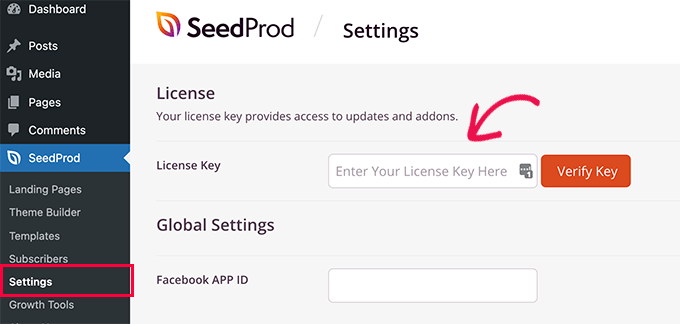
To begin using this approach, install and activate a compatible page builder plugin. After installation, access the plugin's settings area to verify licensing if required for premium features.
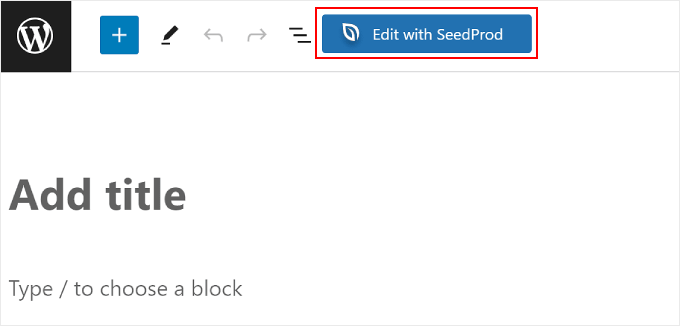
Navigate to the page editing interface and select the option to edit with your chosen page builder. This action opens the visual editing environment where you can modify page sections.
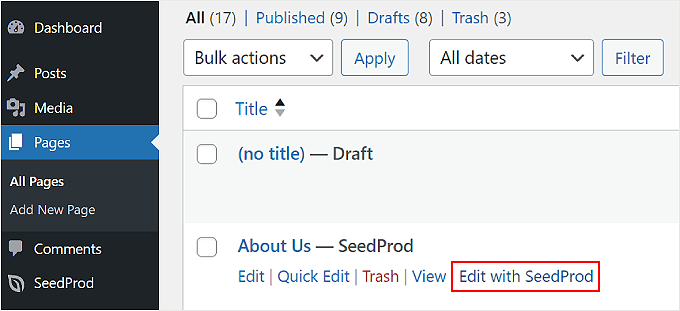
If the direct editing option isn't visible, access the standard page editor and locate the page builder integration button within the editing interface.
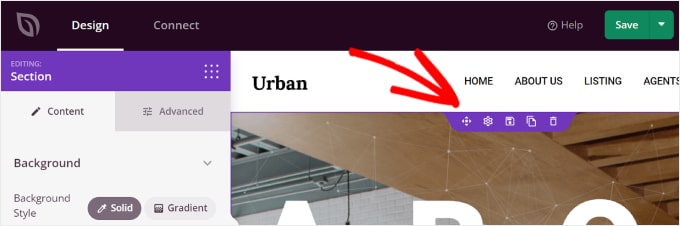
Within the page builder interface, select the section where you want to implement the animated background. Visual indicators typically appear around selected sections.
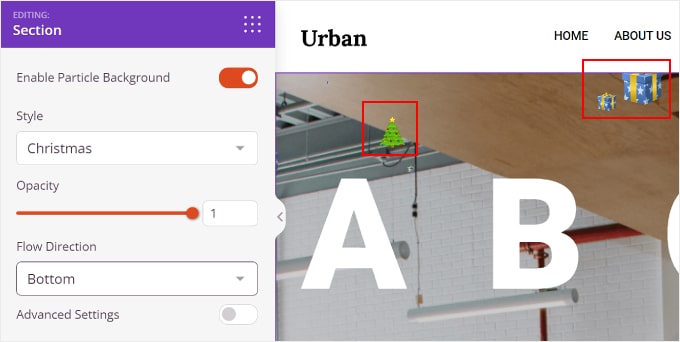
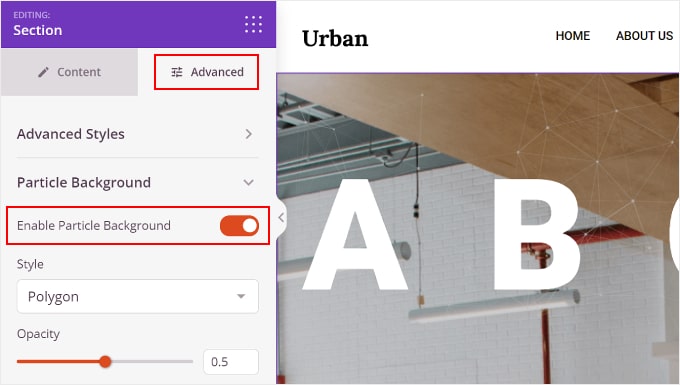
Access the section settings panel and navigate to advanced configuration options. Locate the particle background setting and activate this feature.
Configure the animation parameters according to your design requirements. Most page builders offer multiple style options including geometric patterns, seasonal themes, and custom configurations.
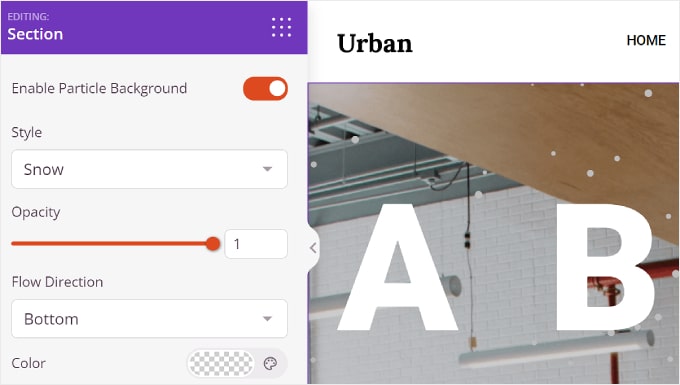
Adjust opacity settings to control visual intensity and configure movement direction parameters. Color customization is typically available for most animation styles, though some seasonal themes use predefined graphical elements.