
Two Effective Methods for Implementing HTML Forms in WordPress
By WordPress Experts |
Many WordPress users encounter challenges when attempting to integrate custom HTML forms into their websites. The platform's architecture differs from traditional HTML sites, often requiring specific approaches to ensure forms function correctly without disrupting site performance.
While numerous form builder plugins exist that simplify the process, many developers prefer custom HTML forms for their lightweight nature, complete code control, and avoidance of additional plugin dependencies.
This guide presents two straightforward approaches for successfully implementing HTML forms in WordPress, ensuring they display properly, function as intended, and maintain site integrity.
Understanding HTML Forms and Their Benefits
HTML forms function similarly to other web forms, enabling visitors to submit information including names, email addresses, feedback, orders, and various other data types.
What distinguishes HTML forms is their code-based creation method rather than reliance on visual drag-and-drop editors commonly found in form plugins. This approach requires manual definition of form elements such as text fields, checkboxes, radio buttons, and selection menus.
Key advantages of developing forms using HTML include:
- Enhanced Performance. HTML forms typically load faster and consume fewer resources due to their lightweight code structure.
- Complete Control. Developers maintain full authority over form design and functionality without being constrained by form builder limitations.
- Customization Flexibility. HTML forms can be precisely tailored to specific requirements, offering extensive customization possibilities.
While creating HTML forms from scratch provides valuable coding practice and learning opportunities, it presents certain challenges. Cross-browser compatibility issues may arise, where forms behave differently across various web browsers. Additionally, implementing form validation with JavaScript requires careful attention and thorough testing to ensure accurate collection and processing of user inputs.
Fortunately, methods exist for implementing HTML forms without encountering these complexities. Whether managing a WordPress blog, business website, or online store, you can successfully integrate HTML forms without extensive coding requirements.
The following sections detail two methods for adding HTML forms to WordPress:
- Method 1: Implementing HTML Forms Using the HTML Forms Plugin
- Method 2: Incorporating Custom HTML into WordPress Forms
- Additional Technique: Uploading Custom HTML Pages to WordPress
- Frequently Asked Questions About HTML Forms in WordPress
- Further Resources: Additional WordPress Form Guidance
Let's begin exploring these implementation methods.
Method 1: Implementing HTML Forms Using the HTML Forms Plugin
A straightforward approach for adding HTML forms to WordPress involves utilizing a dedicated form plugin such as HTML Forms. This tool facilitates creation and configuration of HTML forms within a unified interface, eliminating the need for server-side configuration.
The free version of this plugin contains all necessary components for constructing basic HTML forms.
Begin by ensuring the plugin is installed on your WordPress site. Once activated, navigate to HTML Forms » Add New within your WordPress administration dashboard to initiate form creation.
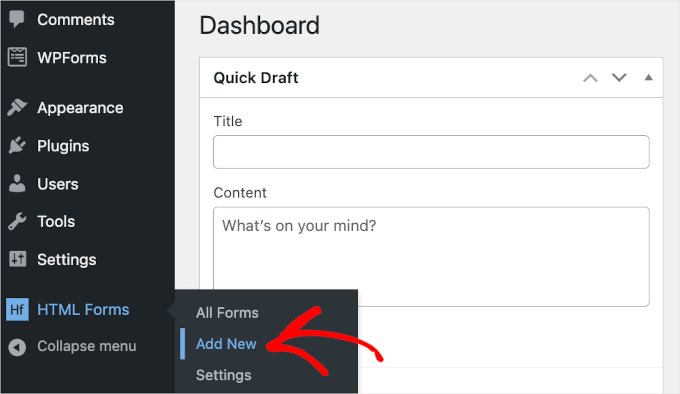
This action redirects you to the 'Add New Form' page.
First, assign a descriptive name to your form by entering it into the 'Form Title' field. For demonstration purposes, we'll name our form 'Newsletter Subscription.'
Proceed by clicking the 'Create Form' button located beneath this field.
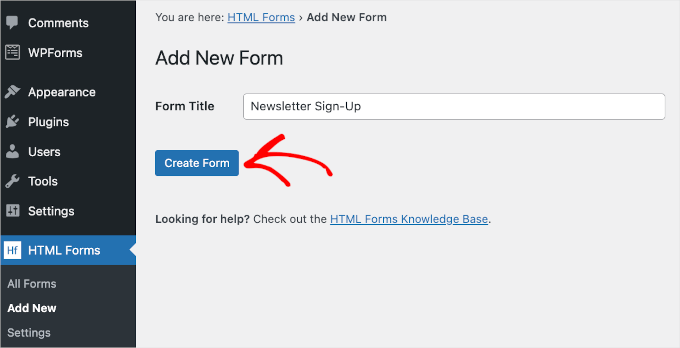
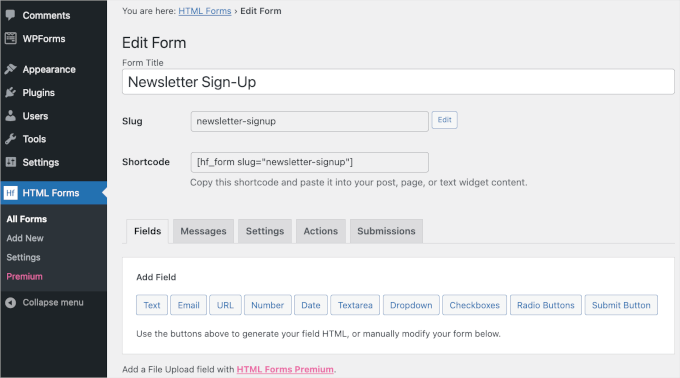
Upon completion, the 'Edit Form' page appears, enabling customization of your HTML contact form.
The page top displays form details including title, slug, and shortcode. These details remain accessible through the HTML Forms dashboard when needed.
Below this information, menu tabs become visible. The 'Fields' tab contains various field buttons such as 'Text,' 'Dates,' 'Checkboxes,' and 'Radio buttons' for form enhancement.
Scroll further down the page.
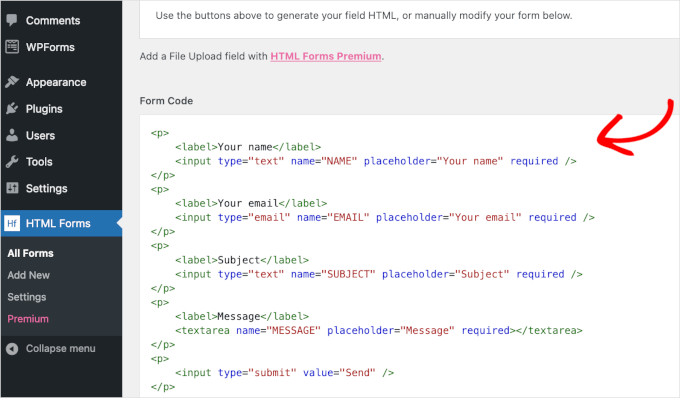
The tab bottom contains a pre-configured HTML form alongside its preview display.
This basic contact form includes four fields for user name, email address, subject line, and message content.
To add a newsletter subscription field, select one of the field buttons above the 'Form Code' section.
For this example, we'll implement a dropdown field with 'Yes/No' options for newsletter subscription.
Click 'Dropdown' to access configuration options for this field type. Complete the required details including field label and choice options.
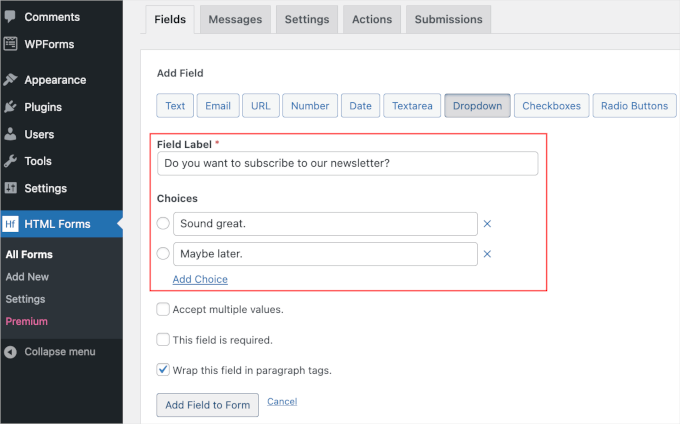
After entering configuration details, click 'Add Field to Form.'
The dropdown field tag now appears in the 'Form Code' section. Scroll down to verify its inclusion.
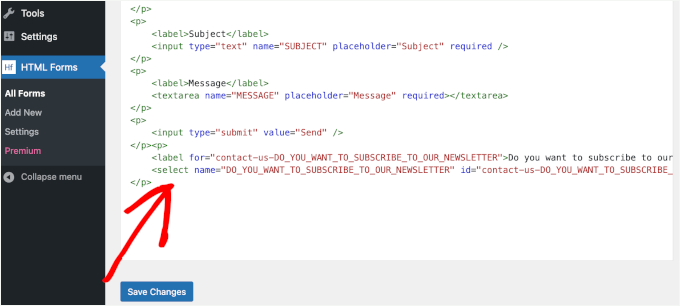
Next, reorganize the contact form structure.
For optimal flow, position the dropdown field immediately following the 'Email' field.
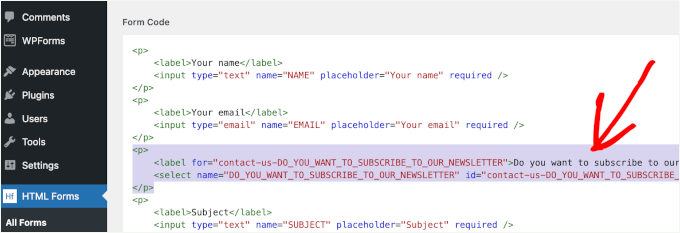
Since this plugin lacks drag-and-drop functionality, manual code adjustment is necessary. Cut the dropdown field code (including opening tag through closing tag).
Paste this code segment directly after the closing tag of the 'Email' field.
The default 'Subject' field may be unnecessary for newsletter subscription forms. Consider removing this field.
Accomplish this by deleting its tag content from the initial paragraph tag through the final closing paragraph tag.


