Two Effective Methods to Hide Shipping Options in WooCommerce
Shipping management plays a crucial role in e-commerce success, and controlling which shipping methods appear to customers can significantly impact both profitability and user experience.
Consider this scenario: providing complimentary shipping on all orders may seem appealing, but it can quickly diminish profit margins. Displaying shipping choices that are unavailable for a customer's location often leads to confusion and abandoned shopping carts.
During peak business periods, such as holiday seasons, temporarily disabling certain shipping options ensures you can fulfill orders according to promised timelines.
Many WordPress experts recommend strategically hiding shipping methods to balance business sustainability with customer satisfaction. This approach helps create an optimal checkout experience tailored to both operational needs and shopper expectations.
This guide demonstrates how to precisely control which WooCommerce shipping methods customers can access and under what conditions.
When to Conceal Shipping Methods in WooCommerce
Several common situations justify hiding specific shipping methods to address practical business challenges and potentially improve conversion rates:
- Profit Protection: If free shipping on low-value orders isn't financially viable, simply hide that option until orders reach a predetermined threshold.
- Geographic Restrictions: For international customers, display only shipping methods available for their region to prevent confusion.
- Seasonal Management: During high-volume periods, temporarily remove expedited shipping options to maintain delivery commitments.
- Checkout Optimization: Presenting fewer, more relevant shipping choices can reduce decision fatigue and increase completion rates.
Beyond hiding shipping methods, experienced developers often suggest implementing shipping information displays to clearly communicate available options and qualification requirements.
The following sections outline two proven approaches for managing WooCommerce shipping visibility:
- Method 1: Configure Free Shipping Settings in WooCommerce (Built-in Solution)
- Method 2: Utilize Hide Shipping Method for WooCommerce Plugin (Enhanced Control)
Method 1: Configure Free Shipping Settings in WooCommerce (Built-in Solution)
This approach requires no additional plugins and works well for stores needing to hide free shipping until customers meet specific order requirements.
Note that this method only controls free shipping visibility. Other paid shipping options will remain visible even when free shipping becomes available. For more comprehensive control, proceed to Method 2.
Begin by accessing your shipping configuration. Navigate to your WordPress administration panel and select WooCommerce » Settings. Locate the 'Shipping' tab at the top of the settings page.
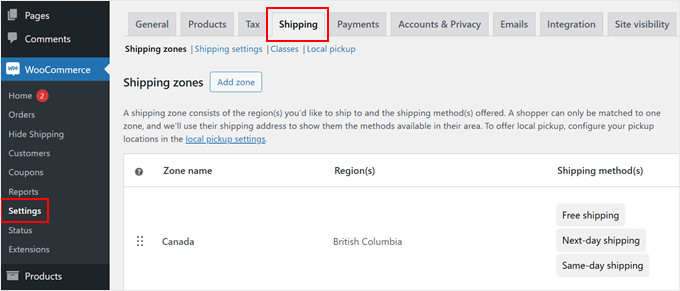
You'll find options for managing shipping zones. Either modify an existing zone or create a new one by clicking 'Add zone.' This demonstration will guide you through creating a new shipping zone.
 " alt="Adding a shipping zone in WooCommerce" class="wp-image-325108 perfmatters-lazy" data-src="https://www.wpbeginner.com/wp-content/uploads/2025/01/woocommerce-add-zone-min.png" data-srcset="https://www.wpbeginner.com/wp-content/uploads/2025/01/woocommerce-add-zone-min.png 680w, https://www.wpbeginner.com/wp-content/uploads/2025/01/woocommerce-add-zone-min-300x98.png 300w" data-sizes="(max-width: 680px) 100vw, 680px">
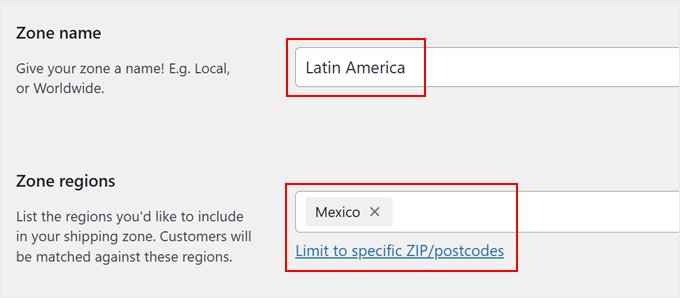
Assign a descriptive name to your shipping zone that reflects its coverage area, such as 'North America,' 'European Union,' or 'Asia Pacific.'
Next, define the zone's geographic scope by selecting specific countries, states, or metropolitan areas.
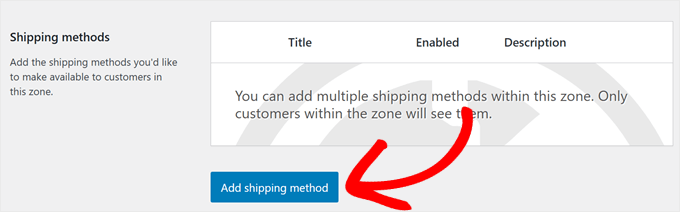
After configuring the zone, locate the 'Add shipping method' button and click it to view available shipping options.
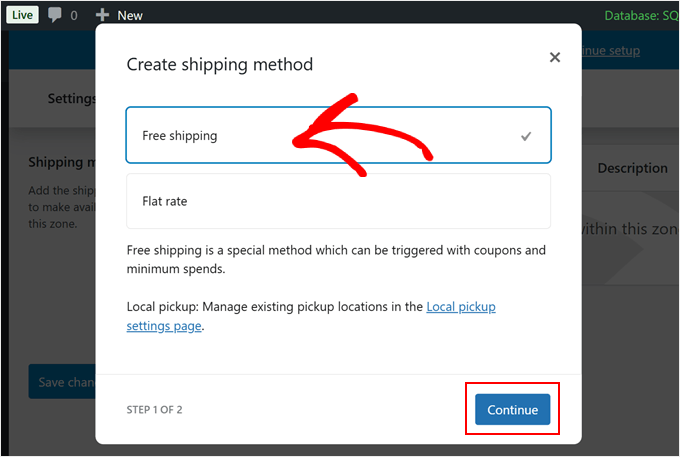
The system will present basic shipping choices. Select 'Free shipping' from the available options and proceed by clicking 'Continue.' This action opens a configuration window where you can define when free shipping becomes available.
Configure the qualification criteria for free shipping. The dropdown menu provides several options, including no requirements, coupon-based access, minimum order thresholds, or combined conditions.
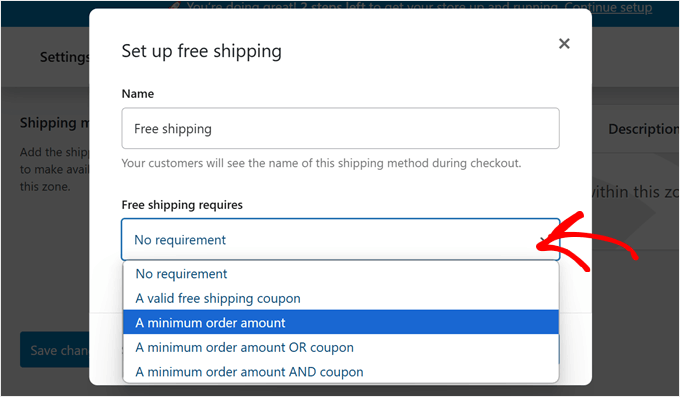
To hide free shipping until customers reach a specific cart value, select 'Minimum order amount' and enter your target figure, such as $75 or $150.
Optionally, enable the 'Apply minimum order rule before coupon discount' setting if you want the threshold calculated before applying promotional discounts.
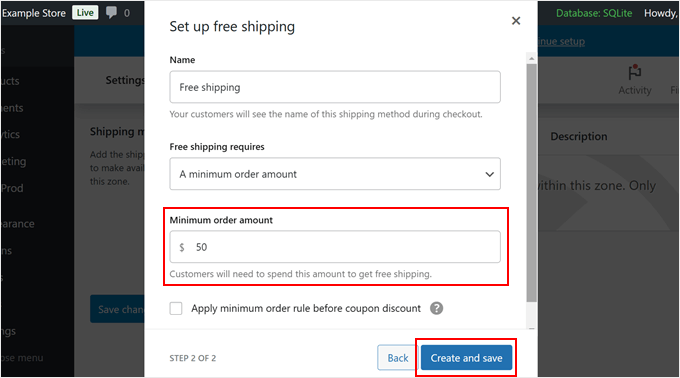
Complete the configuration by clicking 'Create and save.'
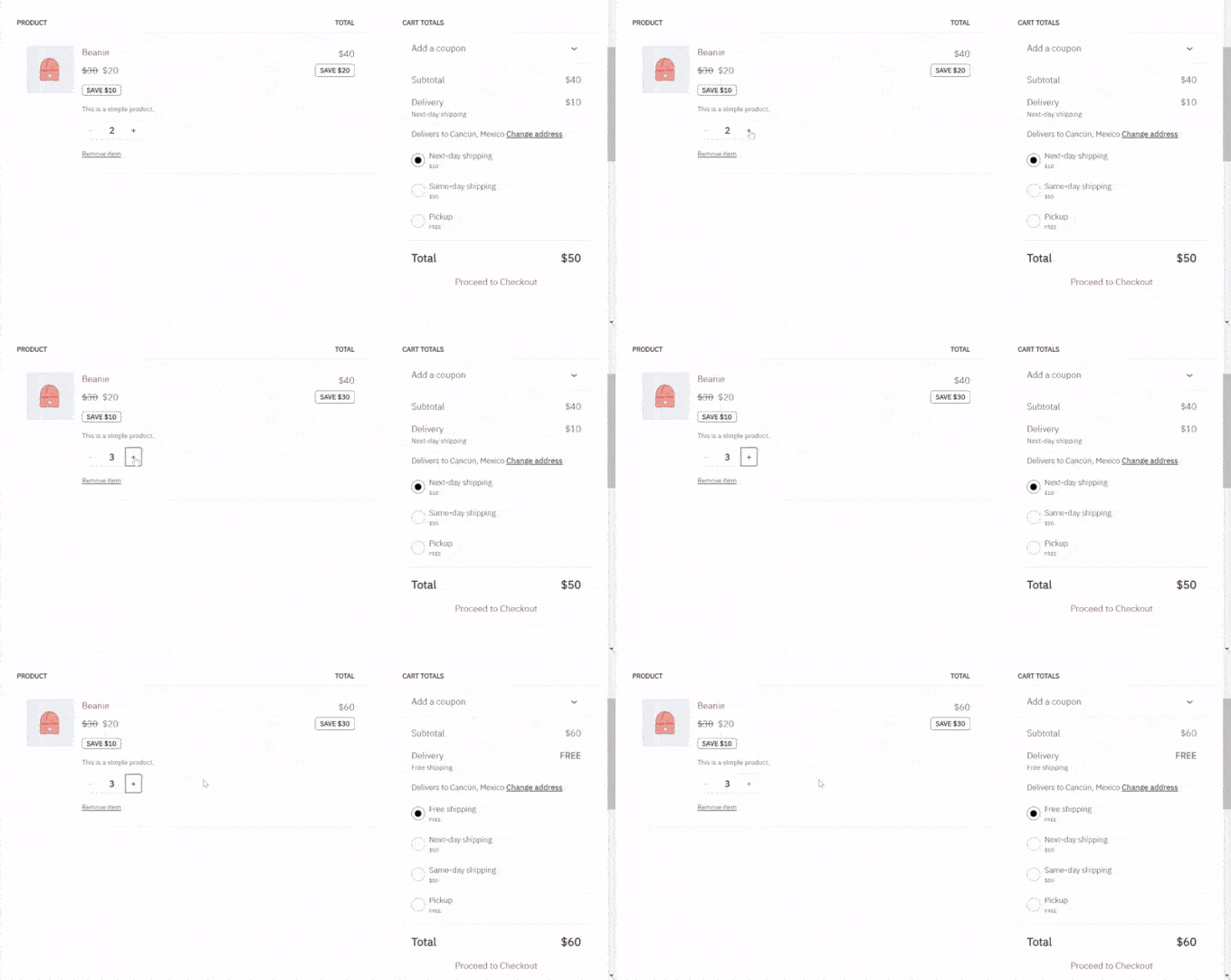
The free shipping method will now remain hidden until customers satisfy your specified conditions, appearing only when they qualify according to your established rules.
Method 2: Utilize Hide Shipping Method for WooCommerce Plugin (Enhanced Control)
While WooCommerce's native settings handle basic requirements, they offer limited flexibility. This method provides more granular control using a dedicated plugin that hides shipping methods based on product categories or cart contents.
The Hide Shipping Method for WooCommerce plugin enables sophisticated rule creation for managing shipping method visibility during checkout. The free version addresses common requirements, while premium upgrades offer advanced features like conditional visibility based on product identifiers or automatic hiding when free shipping becomes available.
Begin by installing and activating the Hide Shipping Method for WooCommerce plugin through your WordPress dashboard.