Two Effective Methods to Identify WordPress Plugin Conflicts
Many website administrators encounter plugin conflicts within WordPress. These issues can manifest as disrupted layouts, unexpected error messages, or general site instability.
A common scenario involves a plugin that functions correctly initially, but after an update, causes significant problems across the entire site. Understanding how to systematically identify these conflicts is essential for maintaining a healthy website.
This guide outlines two reliable techniques for detecting plugin conflicts in WordPress. These methods are widely used by experienced developers to diagnose and resolve issues efficiently.
Understanding WordPress Plugin Conflicts
A plugin conflict arises when one or more plugins interfere with each other, the active theme, or core WordPress functionality. This can occur due to outdated code, software incompatibility, poor development practices, or overlapping functionality between plugins.
When a conflict happens, typical symptoms include a blank white screen (often called the White Screen of Death), misaligned page elements, various error messages, and reduced site performance.
You can check for conflicts manually by deactivating plugins or utilize a dedicated troubleshooting plugin to isolate the problem. We will explore both approaches and provide advice for preventing future conflicts.
- Method 1: Manual Plugin Deactivation and Reactivation
- Method 2: Using a Troubleshooting Plugin
- Resolving Identified Plugin Conflicts
- Strategies to Prevent Future Plugin Conflicts
- Frequently Asked Questions
Let’s begin the diagnostic process.
Method 1: Manual Plugin Deactivation and Reactivation
A straightforward method to determine if a plugin is causing an issue is to deactivate all plugins and then reactivate them individually.
This process helps confirm whether an error is plugin-related. By reactivating plugins one at a time and checking the site after each activation, you can identify the specific plugin causing the conflict.
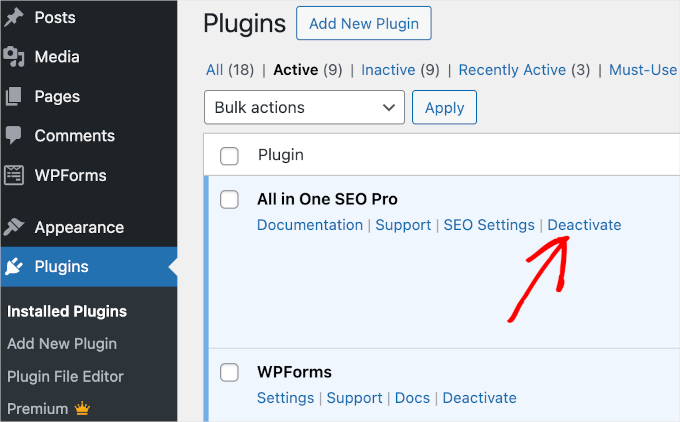
If you have access to the WordPress admin dashboard, navigate to the Plugins » Installed Plugins page. Locate each plugin and click the ‘Deactivate’ link.
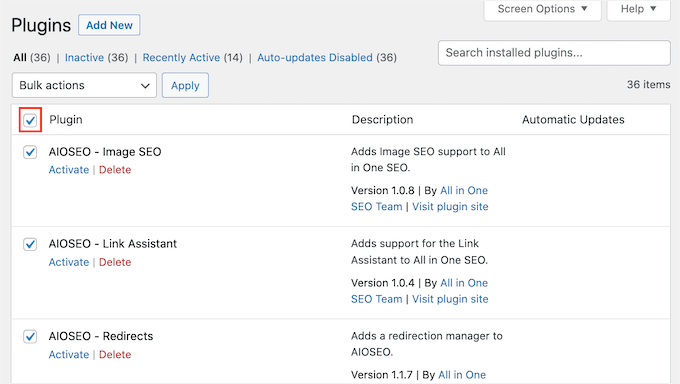
You can also deactivate all plugins simultaneously using the bulk action feature.
Select the checkbox at the top of the plugin list to choose all items.
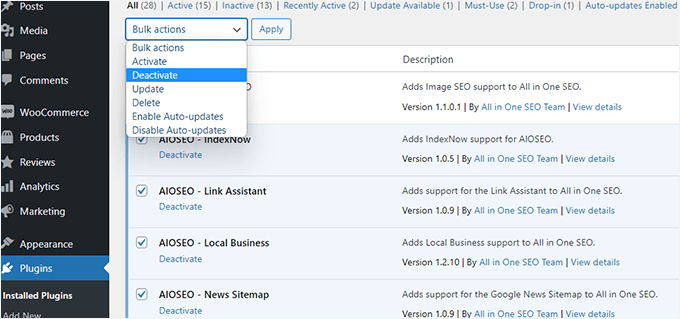
Next, click the ‘Bulk actions’ dropdown menu, select ‘Deactivate’, and then click the ‘Apply’ button.
After deactivating all plugins, check if the website error persists.
If the error resolves, begin reactivating each plugin one by one, testing the site after each activation to identify the culprit.
If the error remains after deactivating all plugins, the issue may be related to your theme. Consider temporarily switching to a default WordPress theme, such as Twenty Twenty-Four, to test this possibility.
Method 2: Using a Troubleshooting Plugin
An alternative approach is to use a dedicated troubleshooting plugin, such as Health Check & Troubleshooting.
This free tool allows you to diagnose problems by temporarily disabling plugins and switching to a default theme within a private session. This means your site visitors will not see any changes during your troubleshooting.
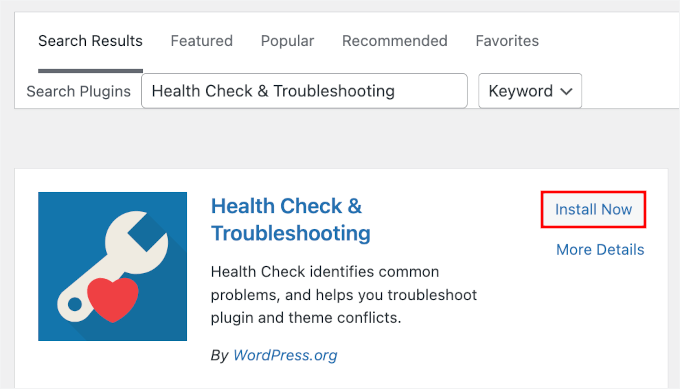
First, install and activate the Health Check & Troubleshooting plugin.
From your WordPress admin area, go to Plugins » Add New Plugin.

Use the search bar to find the plugin, then click ‘Install Now’ followed by ‘Activate’.
After activation, navigate to Tools » Site Health and select the ‘Troubleshooting’ tab.
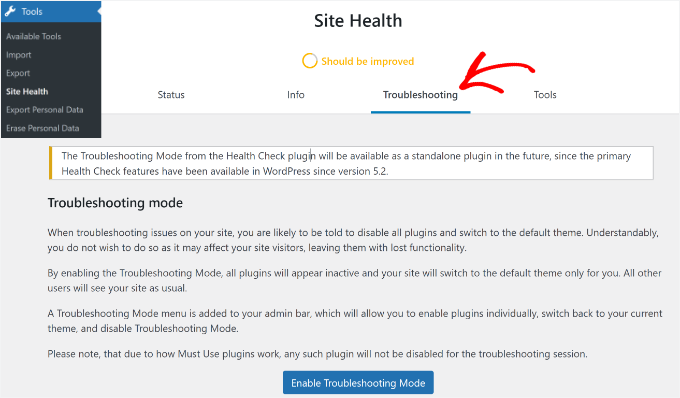
Click the ‘Enable Troubleshooting Mode’ button. This will deactivate all plugins and switch to a default theme for your user session only, allowing you to test for conflicts without affecting site visitors.
Resolving Identified Plugin Conflicts
Once you have identified the problematic plugin, you can take steps to resolve the issue. Consider the following actions.
1. Update Plugins on Your Site
Developers frequently release updates that include bug fixes and compatibility improvements. Updating the conflicting plugin may resolve the issue.
To check for updates, visit Plugins » Installed Plugins. If an update is available, you will see an ‘update now’ link below the plugin name.


