
Two Practical Methods for Accepting SEPA Payments on Your WordPress Website
Many WordPress experts have discovered that implementing SEPA payment options can significantly reduce transaction costs for businesses operating in European markets. This payment method offers substantial savings compared to traditional credit card processing.
SEPA, which stands for Single Euro Payments Area, typically involves much lower processing fees than standard credit card transactions. This can result in considerable annual savings for businesses, particularly those with high transaction volumes.
The implementation process for SEPA payment acceptance on WordPress platforms is more straightforward than many business owners anticipate. Various reliable solutions have been tested and proven effective for European-based operations.
This guide presents two distinct approaches to enable SEPA payments on WordPress sites. Both methods are secure and relatively simple to configure, allowing businesses to accommodate European customers' payment preferences while reducing processing expenses.
Benefits of Implementing SEPA Payments on WordPress
The Single Euro Payments Area initiative, established by the European Union, streamlines payment processing across 36 participating countries. This system creates a unified market for euro-denominated transactions, enabling direct bank account transfers from customers.
The primary advantage of SEPA payments lies in cost efficiency. Credit card processing fees can substantially impact profit margins, especially for high-value transactions. SEPA transactions typically involve significantly lower fees.
Here is a comparative overview of standard credit card processing versus SEPA direct debit:
| Feature | Credit Card Payments | SEPA Direct Debit |
|---|---|---|
| Transaction Fees | 1.4% – 2.9% + €0.25 | 0.8% + €0.25 (Capped at €5) |
| Payment Speed | Instant | 3-14 Days |
| Failure Rate | Higher (expired cards, limits) | Lower (direct bank connection) |
As demonstrated, the potential savings are significant. For membership platforms or e-commerce stores, these reduced fees can translate to thousands of euros in annual savings.
Additionally, SEPA integration provides access to a broad European customer base. Many European consumers prefer bank transfers over credit card payments for online transactions.
Let's explore how to implement SEPA payment acceptance on WordPress platforms. The following sections detail different methods, with quick navigation available:
- Method 1: Implementing SEPA Payments Using WP Simple Pay
- Method 2: Enabling SEPA Payments in WooCommerce via FunnelKit Stripe Payment Gateway
- Common Questions About SEPA Payments
Method 1: Implementing SEPA Payments Using WP Simple Pay
This approach is particularly suitable for membership sites, donation platforms, or smaller e-commerce operations, as it enables payment collection through straightforward payment forms.
For this method, we'll utilize WP Simple Pay, a WordPress plugin that facilitates online payment acceptance without requiring shopping cart configuration. This solution includes an intuitive payment form builder, pre-designed templates, and secure payment processing capabilities, including SEPA payment support.
Step 1: Install and Activate WP Simple Pay
Begin by installing and activating the WP Simple Pay plugin on your WordPress installation.
Step 2: Configure the Setup Wizard
Following activation, a setup wizard will appear. Click the 'Let's Get Started' button to proceed.

Proceed to the next step, where you'll need to enter your license key and click 'Activate and Continue.' This information is available in your WP Simple Pay account.

Next, connect the plugin to your Stripe account by clicking 'Connect with Stripe.' Stripe serves as a payment gateway that simplifies online payment processing.
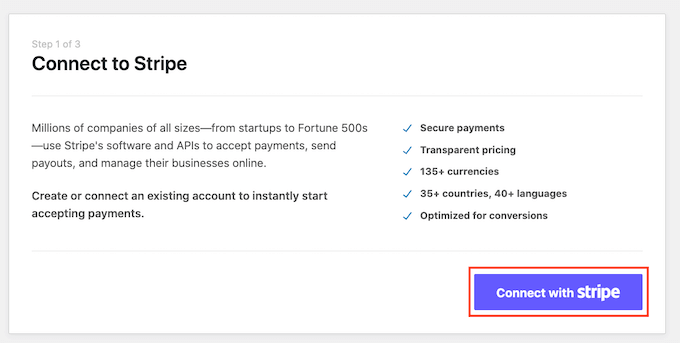
Log into your existing Stripe account or create a new one to establish the connection. Once connected, the setup wizard will prompt you to configure email notifications.
Toggle the appropriate switches to receive notifications for payment receipts, upcoming invoices, and payment confirmations. Enter the email address where you wish to receive these notifications, then click 'Save and Continue.'

You may now exit the setup wizard to create your SEPA payment form.
Step 3: Create a SEPA Direct Debit Payment Form
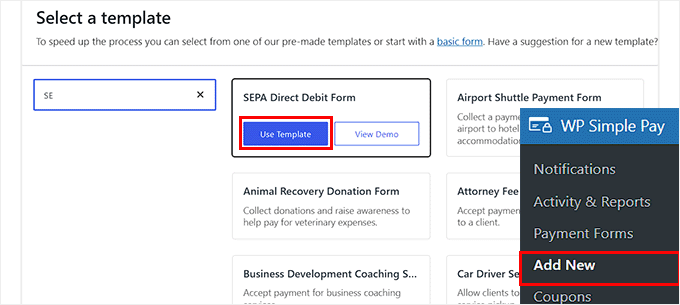
Navigate to WP Simple Pay » Add New from your WordPress admin sidebar. This will display the template selection screen featuring various pre-designed form templates.
Locate the SEPA Direct Debit Form template and click 'Use Template' beneath it.
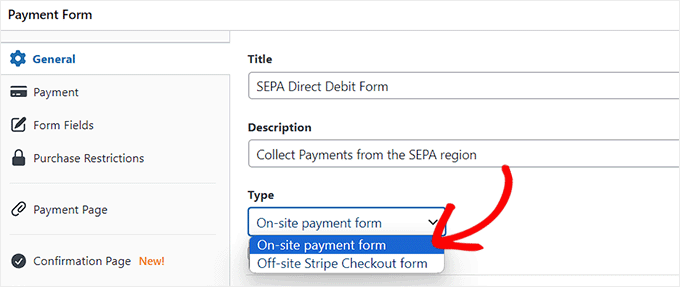
You'll be directed to the 'Add New Payment Form' page. Begin by adding a title and description for your form, then select 'On-site payment form' as your form payment type.
Step 4: Select SEPA as a Payment Option
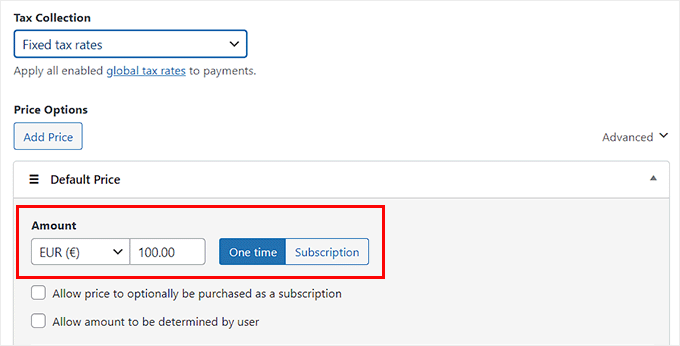
Switch to the 'Payment' tab in the left column. Here, you can optionally configure tax collection rates according to your business requirements.
Next, specify the price for your product or service under the 'Amount' option.
Scroll to the 'Payment Methods' section, where 'SEPA Direct Debit' should already be selected. If you wish to include additional payment gateways such as Klarna, Alipay, Affirm, or iDeal, check the corresponding boxes.

Method 2: Enabling SEPA Payments in WooCommerce via FunnelKit Stripe Payment Gateway
This alternative approach is specifically designed for WooCommerce store owners. The FunnelKit Stripe Payment Gateway plugin provides a free solution for integrating SEPA payments into e-commerce operations.
Experienced developers often recommend this method for WooCommerce implementations, as it seamlessly integrates with the platform's existing checkout system while maintaining security standards.
Step 1: Install and Activate FunnelKit Stripe Payment Gateway
Begin by installing and activating the FunnelKit Stripe Payment Gateway plugin on your WooCommerce installation.
Step 2: Configure Stripe Settings
After activation, navigate to WooCommerce » Settings » Payments. Locate the Stripe payment method and click 'Set up' to configure your connection.
You'll need to connect your Stripe account by following the authentication prompts. Ensure you have your Stripe API keys available for this process.
Step 3: Enable SEPA Direct Debit
Within the Stripe payment settings, locate the payment methods section. Enable SEPA Direct Debit by checking the corresponding option. You may also configure additional settings such as payment description, statement descriptor, and customer notifications.
Save your settings once configured. The SEPA payment option will now appear during checkout for customers with European bank accounts.
Common Questions About SEPA Payments
What countries support SEPA payments?
SEPA covers 36 European countries, including all European Union member states plus several non-EU countries like Switzerland, Norway, Iceland, and Liechtenstein.
How long do SEPA transfers take to process?
SEPA credit transfers typically complete within one business day, while SEPA direct debits may take 3-14 days depending on the banks involved and whether a mandate needs to be established.
Are SEPA payments secure?
Yes, SEPA payments utilize bank-level security protocols. Transactions are processed through authenticated banking channels with appropriate fraud protection measures.
Can I accept SEPA payments from non-European customers?
SEPA payments require European bank accounts. Customers outside the SEPA zone would need to use alternative payment methods.
What information do customers need to provide for SEPA payments?
Customers typically need to provide their IBAN (International Bank Account Number) and may need to authorize a direct debit mandate depending on the transaction type.