Two Practical Methods for AI-Powered Website Translation in WordPress
For numerous business owners, website translation often appears as an expensive undertaking that's difficult to justify.
Many experienced developers have faced this challenge firsthand when expanding their sites into multiple languages. The traditional approach to translation typically involves significant time investment and substantial costs.
However, modern artificial intelligence solutions now offer a more accessible alternative. These tools enable website owners to translate their WordPress content efficiently without requiring extensive technical knowledge or large budgets.
This guide provides step-by-step instructions for implementing AI translation, suitable for users at various experience levels.
Benefits of AI Translation for Websites
AI translation provides a cost-effective solution for creating multilingual websites while maintaining quality and consistency, particularly valuable for frequently updated content.
Traditional translation methods often require considerable time and resources. Professional translation services, while ensuring quality, can become expensive and challenging to manage effectively.
Many website owners turn to translation plugins as practical alternatives, though results can vary significantly. Some tools struggle with maintaining brand voice, appropriate tone, or technical terminology, potentially resulting in content that appears unnatural or inconsistent.
AI-powered translation addresses these limitations by learning from user corrections and adapting to specific brand guidelines. The following sections outline two distinct approaches:
- Method 1: Comprehensive Website Translation– Ideal for creating complete multilingual sites with language switching functionality
- Method 2: Targeted Page Translation– Suitable for translating specific pages like campaign landing pages
Method 1: Comprehensive AI Translation for Complete Websites
This approach utilizes advanced translation technology that learns from user interactions and brand-specific terminology to produce natural-sounding translations across entire websites.
The system improves over time as users make manual adjustments and add specialized vocabulary to their glossaries. This adaptive learning ensures translations increasingly reflect the brand's unique voice across all supported languages.
Step 1: Create a Translation Account
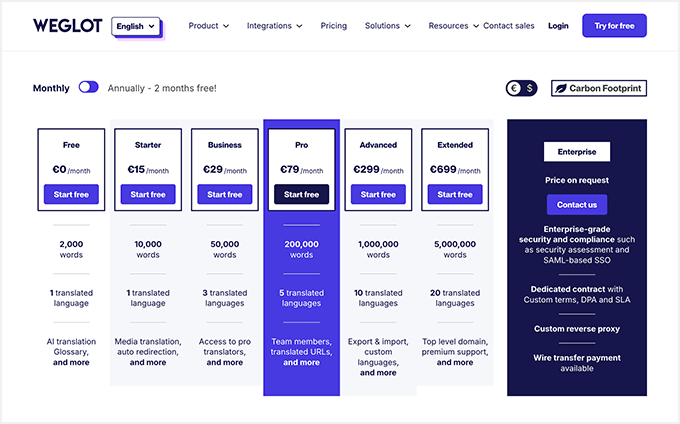
Begin by establishing an account with a translation service provider. While basic plans may offer limited functionality, advanced AI features typically require professional-tier subscriptions. Most providers offer trial periods for evaluation purposes.
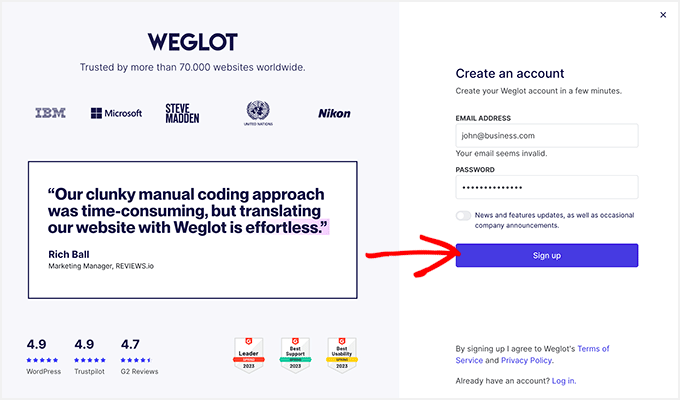
Registration typically requires providing an email address and creating a secure password. After completing the signup process, users access the service dashboard.
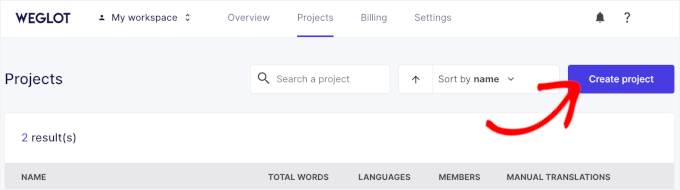
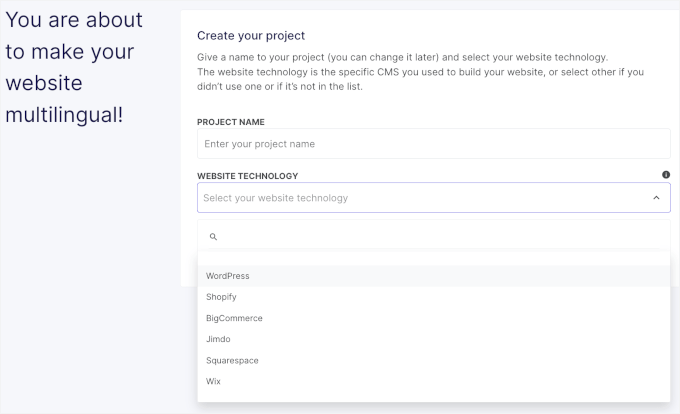
From the dashboard, initiate a new project by selecting the appropriate option. Choose a descriptive project name for organizational purposes and select WordPress as the platform when prompted.
During project setup, the system generates an API key necessary for connecting the translation service to the WordPress website. Keep this information accessible for the next configuration steps.
Step 2: Install the Translation Plugin
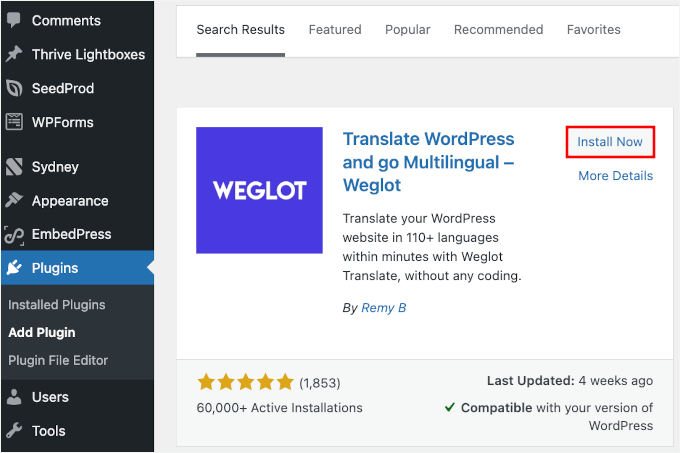
Navigate to the WordPress administration panel and access the plugin installation section. Search for the translation plugin by name and initiate the installation process.

After installation completes, activate the plugin to enable its functionality. Successful activation typically adds a new menu item to the WordPress administration sidebar for managing translation settings.
Step 3: Configure Account Connection
Access the translation plugin settings within WordPress and enter the API key obtained during account creation. This establishes the connection between the website and translation service.
Step 4: Establish Terminology Guidelines
Create a glossary of specialized terms, brand names, and industry-specific vocabulary to ensure consistent translation across all content. This step helps maintain brand identity and technical accuracy.
Step 5: Adjust AI Translation Parameters
Configure the AI translation settings according to specific requirements, including tone preferences, formality levels, and regional language variations where applicable.
Step 6: Implement Translations
Apply AI-generated translations to website content. The system typically processes content automatically while allowing manual review and adjustment of specific elements.
Step 7: Monitor and Refine Results
Regularly review translated content for accuracy and consistency. The AI system learns from manual corrections, improving translation quality over time with continued use.
Method 2: Targeted AI Translation for Specific Pages
This approach focuses on translating individual pages or sections using page builder integration, particularly useful for campaign-specific content or landing pages.
Step 1: Install Page Builder Software
Add the page builder plugin to WordPress through the standard installation process. Ensure the selected tool includes AI translation capabilities within its feature set.
Step 2: Create Page Content
Design the target page using the page builder interface, incorporating all necessary text, images, and layout elements before initiating translation.
Step 3: Translate Page Elements
Utilize the built-in AI translation functionality within the page builder to translate text elements. Most systems allow element-by-element translation with preview capabilities.
Step 4: Review and Publish
Carefully examine translated content for accuracy and contextual appropriateness before publishing. Make necessary adjustments to ensure the translated page maintains the original's effectiveness and messaging.
Common Questions About AI Website Translation
Many users inquire about translation accuracy, cost considerations, and implementation requirements. AI translation tools generally provide satisfactory results for most business applications, with costs varying based on feature requirements and content volume.
Additional AI Implementation Guidance
Beyond translation, artificial intelligence offers numerous applications for WordPress optimization, including content generation, SEO enhancement, and user experience improvement.


