3 Alternative Methods for Selling Products on WordPress Without Using WooCommerce
Many website owners automatically turn to WooCommerce when they decide to start selling online with WordPress.
However, after working with numerous users, experienced developers have discovered that WooCommerce isn't always the optimal choice—particularly for creators, digital product sellers, or beginners launching their first online venture.
What numerous WordPress users often overlook is that simpler alternatives exist for initiating sales without navigating the complexities of a comprehensive eCommerce platform.
Through extensive testing of various solutions over the years, three reliable methods have emerged that work exceptionally well for specific business models.
This guide will demonstrate precisely how to sell products on WordPress without relying on WooCommerce.
When Should You Consider Selling on WordPress Without WooCommerce?
WooCommerce represents an excellent ecommerce platform that's free to begin using, scalable, and highly flexible. Nevertheless, it may not be the ideal selection if you don't intend to sell multiple physical products.
For example, if your goal involves selling digital downloads such as ebooks, music files, or PDF documents, many WordPress experts recommend Easy Digital Downloads. This specialized WordPress plugin focuses specifically on selling downloadable products and offers a free version.
Similarly, if you plan to sell subscription-based products or services, WP Simple Pay often serves as a superior alternative. This tool enables you to create straightforward payment forms with subscription plans, manage and cancel subscriptions, and process recurring payments efficiently.
Alternatively, you might want to sell just one or two products on your website. Consider a food blog where you also intend to sell a couple of food supplements.
In such scenarios, implementing a complex ecommerce platform becomes unnecessary and potentially overwhelming. Instead, you could incorporate a user-friendly payment form using WPForms.
What Requirements Should You Address Before Launching a WordPress Store?
Before you begin selling products, you'll need to establish your website foundation. This process involves purchasing a domain name, which serves as the web address where visitors will locate your site.
Next, you'll need to acquire a hosting plan that provides the necessary resources for your website to function on the internet.
Once these foundational elements are in place, you can proceed to install WordPress, select an appropriate theme, and customize your website according to your preferences.
Now, let's explore how to sell products on WordPress without utilizing WooCommerce. This tutorial covers three distinct methods. You can use the following links to navigate directly to your preferred approach:
- Method 1: Selling Digital Downloads on WordPress
- Method 2: Selling Subscriptions on WordPress
- Method 3: Selling Limited Physical Products on WordPress
Method 1: How to Sell Digital Downloads on WordPress
If your objective involves selling digital goods through WordPress, this method provides an effective solution. You'll need Easy Digital Downloads, widely regarded as the premier ecommerce plugin for digital products.
Step 1: Install and Activate Easy Digital Downloads
Begin by installing and activating the Easy Digital Downloads plugin on your WordPress website.
Step 2: Configure Your Store Settings
After activation, navigate to the Downloads » Settings section within your WordPress dashboard. Here, you can start by entering your business information including name, type, address, city, country, and region. Then, select the 'Save Changes' button.
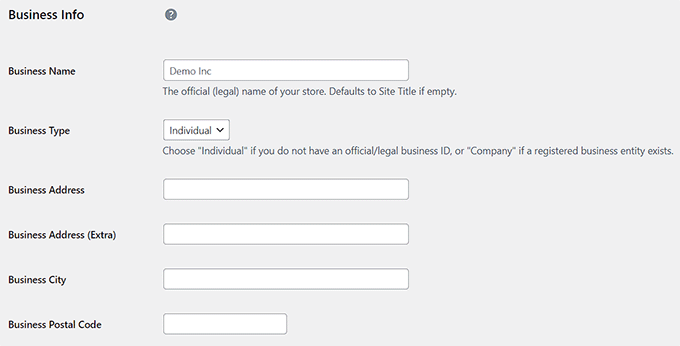
Next, switch to the 'Currency' tab to specify the currency you'll accept in your store.
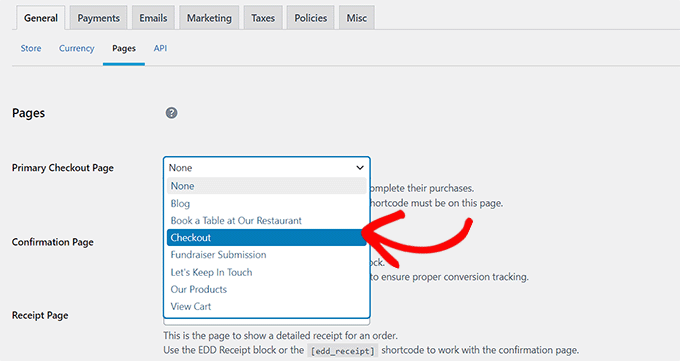
By default, EDD creates several essential pages for your online store. However, if you prefer to redirect users to previously created pages, navigate to the 'Pages' tab.
Here, utilize the dropdown menus to assign pre-existing pages for checkout, confirmation, receipts, and other functions.
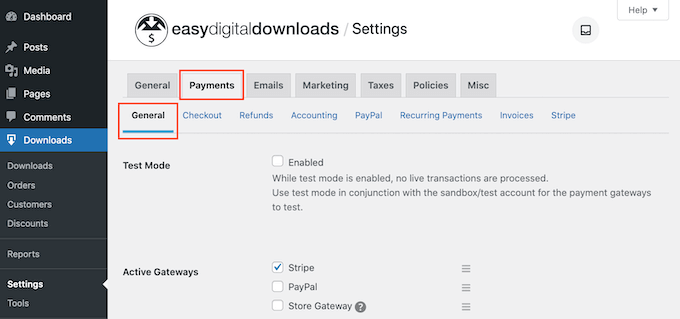
Now access the 'Payments' tab and select the payment gateways you wish to integrate with your site.
After making your selections, you'll need to enter your Stripe or PayPal account details to complete the integration. You can then designate a default gateway, configure checkout page options, and establish invoice settings according to your preferences.
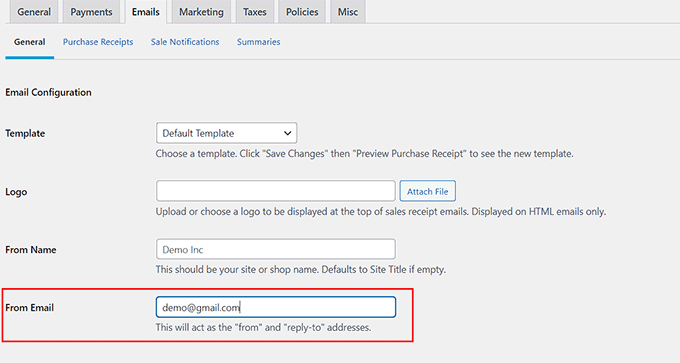
Proceed to the 'Emails' tab and specify the email address and sender name that will appear in communications with customers.
Finally, click the 'Save Changes' button to preserve your settings. You can adjust additional options according to your requirements or maintain the default configurations.
Step 3: Add Your Digital Product
Now visit the Downloads » Downloads section from your WordPress dashboard and select the 'Add New' button.
This action opens the block editor, where you should enter a name for your digital product. In the block panel on the right side, you can assign a category, include relevant tags, and embed an image representing your digital product.
You may also add a detailed product description as needed.

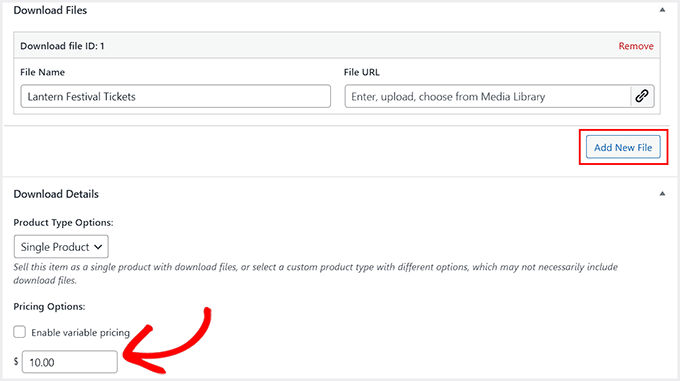
Next, scroll down to the 'Download Files' section and specify a name for the file. Click the 'Add New File' button and upload your PDF, music file, or ebook from your computer.
Once completed, navigate to the 'Pricing Options' section and establish a price for your product.
Finally, select the 'Publish' button to save your settings. Repeat this process to add additional products to your online store.
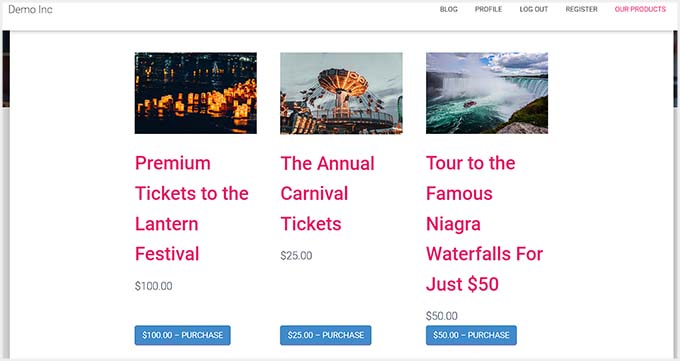
Visit your WordPress site to preview your ecommerce website in operation.
Method 2: How to Sell Subscriptions on WordPress
If you intend to sell subscriptions or personalized services, this approach offers a streamlined solution.


