3 Effective Strategies to Lower Stripe Payment Fees on Your WordPress Site
For online store owners, Stripe offers convenient payment processing for multiple payment types, but the associated transaction fees can accumulate and impact profitability over time.
Many WordPress merchants seek methods to minimize these costs while maintaining a smooth customer experience. This guide presents practical approaches to reduce Stripe transaction fees effectively.
Understanding the Impact of Stripe Transaction Fees
Stripe serves as a widely adopted payment gateway among WordPress users, providing seamless integration and support for various payment methods. The standard transaction fee structure typically involves 2.9% plus 30 cents per successful credit card transaction in most regions.
These fees can substantially affect businesses with significant sales volumes. For instance, a WordPress site generating $10,000 in monthly sales would incur approximately $290 plus additional per-transaction charges. When dealing with numerous small transactions, the cumulative costs become even more pronounced.
While individual fees might appear minimal, their collective impact can substantially reduce overall earnings, particularly for businesses selling lower-priced products or services. Implementing alternative payment methods enables cost reduction without compromising customer experience, allowing businesses to reinvest savings into marketing, software upgrades, or operational expansion.
Practical Methods to Reduce Stripe Transaction Fees
- Strategy 1: Implement ACH Payments for U.S. Customers
- Strategy 2: Utilize Bacs Direct Debit for UK Customers
- Strategy 3: Consider Premium Payment Plugin Solutions
- Additional Consideration: Passing Processing Fees to Customers
- Common Questions About Reducing Stripe Fees
Strategy 1: Implement ACH Payments for U.S. Customers
For businesses operating in the United States or serving U.S.-based customers, accepting ACH (Automated Clearing House) payments presents a cost-effective alternative. Unlike standard Stripe transactions with percentage-based fees, ACH payments typically involve a flat fee of $0.80 per transaction, capped at $5 regardless of transaction amount.
This approach proves particularly advantageous for high-value transactions. For example, a $1,000 purchase processed through standard credit card channels would incur approximately $29.30 in fees, while the same transaction via ACH would cost only $5, resulting in immediate savings of $24.30.
It's important to note that ACH payments typically require 3-5 business days to clear, unlike instant credit card transactions. Businesses should wait for payment confirmation before shipping products when using this method.
Creating WordPress Payment Forms with ACH Capability
For membership sites or businesses with limited product offerings using payment forms, specialized plugins can facilitate ACH payment integration. Many experienced developers recommend payment form solutions that include user-friendly builders, pre-designed templates, and comprehensive security features.
Step 1: Install and Configure Payment Plugin
Begin by installing and activating your chosen payment form plugin. After activation, a setup wizard typically appears to guide you through initial configuration.

Enter your license key if required, typically found in your plugin account area, then proceed with activation.

Step 2: Establish Stripe Connection
Connect your Stripe account with the payment plugin. Most solutions require this connection for proper functionality. Click the connection button and log into your Stripe account to establish the integration.
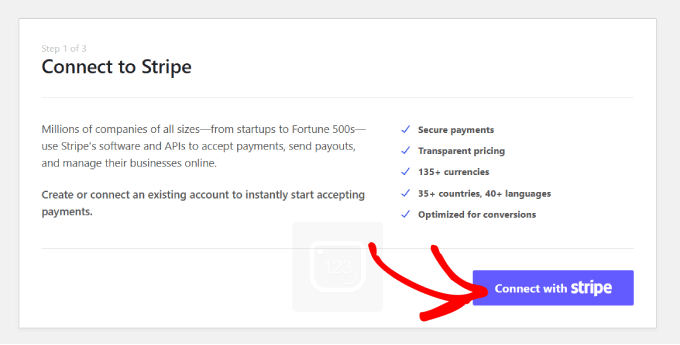
Complete any remaining setup wizard configurations according to your preferences.
Step 3: Develop New Payment Form
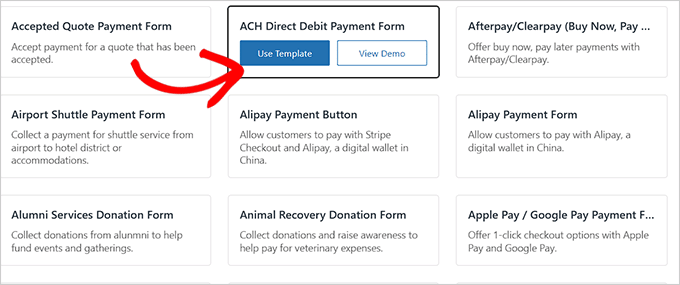
Navigate to the payment forms section within your WordPress dashboard and initiate form creation. You'll typically encounter a template selection screen with various pre-designed options.
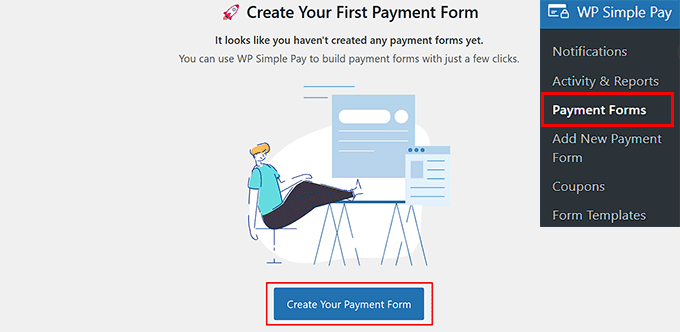
Locate and select the ACH Direct Debit Payment Form template, then proceed to customize your form.
On the form creation page, add appropriate titles and descriptions, then select "On-site payment form" as your form type.
 " alt="Add ACH payment form name and description" class="wp-image-325614 perfmatters-lazy" data-src="https://www.wpbeginner.com/wp-content/uploads/2025/01/add-ach-form-name-and-description.png" data-srcset="https://www.wpbeginner.com/wp-content/uploads/2025/01/add-ach-form-name-and-description.png 680w, https://www.wpbeginner.com/wp-content/uploads/2025/01/add-ach-form-name-and-description-300x131.png 300w" data-sizes="(max-width: 680px) 100vw, 680px">
Step 4: Configure Payment Settings
Access the payment configuration section and select your preferred tax collection rates from available options. Set pricing for your products or services, with subscription options available for recurring payment models.
Add subscription tiers as needed using the appropriate interface controls.