6 Practical Methods to Fix WordPress Database Issues
Maintaining a properly functioning WordPress database is essential for website stability and performance. When database corruption occurs, it can result in various problems including error messages, blank screens, and loss of site functionality.
Many WordPress administrators encounter database issues at some point, and knowing how to address these problems efficiently can save significant time and frustration. This guide presents several proven approaches to restore your database to optimal condition.
This comprehensive guide covers the following database repair techniques:
- Identifying Database Issues
- Common Causes of Database Problems
- Verify Database Credentials
- Using phpMyAdmin for Repairs
- Database Repair Plugins
- Built-in WordPress Repair Function
- Hosting Control Panel Solutions
- WP-CLI Database Commands
Identifying Database Issues
The WordPress database stores all critical website information including posts, pages, user accounts, media files, and configuration settings. When this database becomes compromised, several indicators may appear:
- White Screen Errors: A completely blank white page instead of your website content often signals database problems.
- Database Connection Errors: Messages like 'Error establishing a database connection' or 'Unable to select database' directly indicate database access issues.

- Missing or Malformed Content: When website content disappears or displays with incorrect formatting, database corruption may be the underlying cause.
- Plugin and Theme Failures: Unexpected malfunctions in previously working plugins or themes can sometimes trace back to database issues.
Common Causes of Database Problems
Understanding what typically damages WordPress databases helps with both prevention and repair. Several factors can contribute to database corruption:
Server-related problems such as power interruptions or hardware failures can corrupt database files. Security breaches targeting your website may also compromise database integrity.
Incorrect database credentials stored in the wp-config.php file frequently cause connection failures, particularly after website migrations. Additionally, exceeding PHP memory limits on your server can generate database errors and potential corruption.
1. Verify Database Credentials
Checking database connection settings represents one of the simplest initial troubleshooting steps. Incorrect usernames or passwords often cause database connection errors, especially following hosting changes or site migrations.
WordPress stores database credentials in the wp-config.php file. Access this file using FTP software or your hosting provider's file management tool. If you're unfamiliar with editing this file, consult documentation about modifying wp-config.php safely.
Within the file, locate these configuration lines:
// ** MySQL settings - You can get this info from your web host ** // /** The name of the database for WordPress */ define( 'DB_NAME', 'database_name_here' ); /** MySQL database username */ define( 'DB_USER', 'username_here' ); /** MySQL database password */ define( 'DB_PASSWORD', 'password_here' ); /** MySQL hostname */ define( 'DB_HOST', 'localhost' );
Confirm that the database name, username, password, and host information match exactly with what your hosting provider supplies. You can typically find this information in your hosting account's database management section.
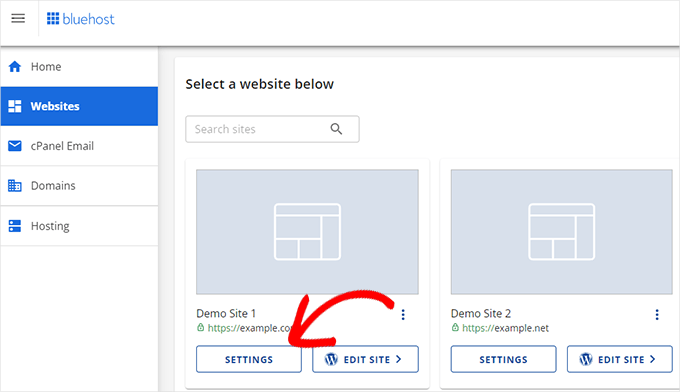
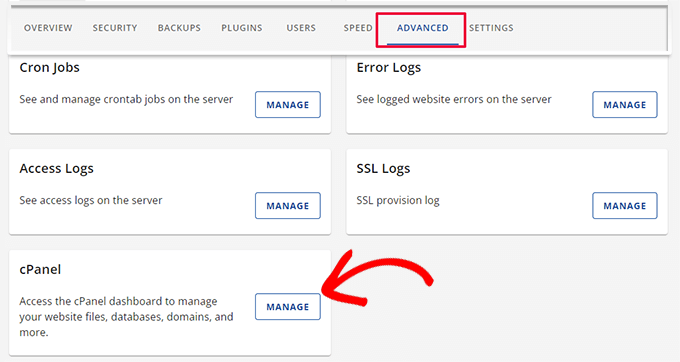
Navigate to the advanced settings area and locate the database management section. Select the management option to proceed.
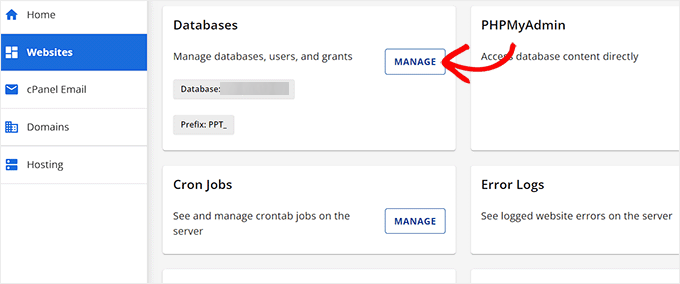
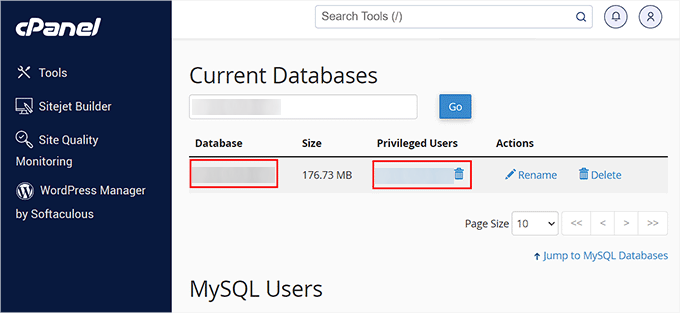
This action typically opens the MySQL database interface within your hosting control panel. Current database information appears in the appropriate section. If credentials require updating, temporarily copy them to a text file before inserting them into your wp-config.php file.
2. Using phpMyAdmin for Repairs
For users comfortable with database management, phpMyAdmin provides a web-based interface for MySQL database maintenance and repair operations.
Begin by accessing your hosting account dashboard and navigating to the control panel. Typically, you'll find database management tools in the advanced settings area.
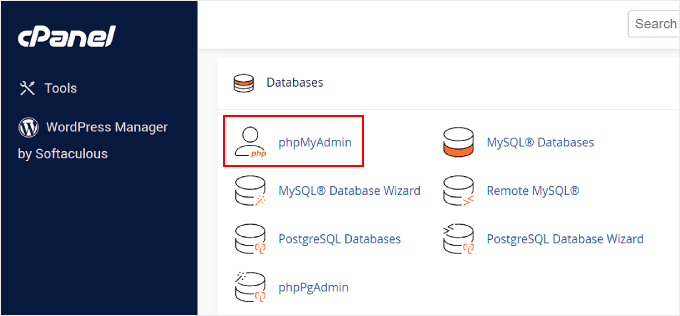
Once in the control panel interface, locate and select the phpMyAdmin option.
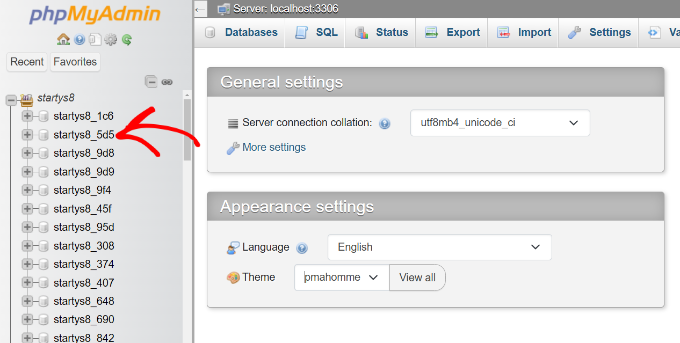
The phpMyAdmin interface will load. Select the database requiring repair from the navigation panel or use the database selection option at the top.
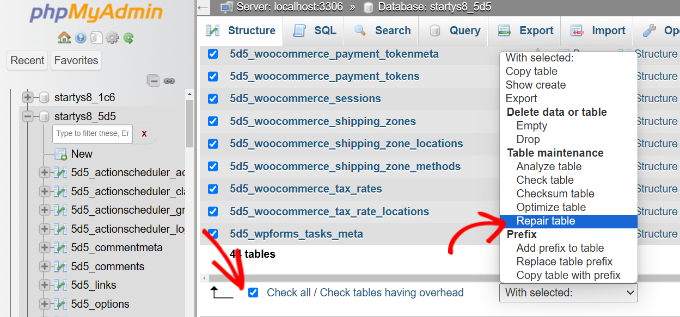
The database tables will display. Scroll through the list and choose the 'Check All' option to select every table.
Next, locate the action dropdown menu, typically labeled 'With selected,' and choose the 'Repair table' function.
3. Database Repair Plugins
Several WordPress plugins specialize in database maintenance and repair functions. These tools provide user-friendly interfaces for users who prefer not to work directly with database management systems.
Search the WordPress plugin repository for database optimization and repair solutions. Many experienced developers recommend specific plugins that include table repair functionality alongside optimization features.
Before installing any database plugin, ensure you have a complete website backup. While most reputable plugins operate safely, having a restoration point provides essential protection.
4. Built-in WordPress Repair Function
WordPress includes a built-in database repair capability that can address certain types of corruption. To activate this feature, add a specific line to your wp-config.php file.
Insert the following code above the line that says 'That's all, stop editing!':
define('WP_ALLOW_REPAIR', true);After adding this line, visit yourwebsite.com/wp-admin/maint/repair.php in your browser. You'll see options to repair or repair and optimize your database. This method works effectively for many common database issues.
Remember to remove or comment out this line after completing repairs to maintain security standards.
5. Hosting Control Panel Solutions
Many hosting providers include database repair tools within their control panel interfaces. These tools vary by provider but typically offer simplified database maintenance options.
Access your hosting account and navigate to the database management section. Look for options labeled 'Repair Database,' 'Optimize Tables,' or similar terminology. These tools often provide one-click solutions for common database problems.
Some hosting platforms include automated database repair as part of their maintenance routines. Check your hosting provider's documentation or support resources for specific instructions related to their database repair tools.
6. WP-CLI Database Commands
For advanced users comfortable with command-line interfaces, WP-CLI offers powerful database management commands. This method requires server access and command-line proficiency.
The basic database repair command in WP-CLI is:
wp db repair
This command attempts to repair all database tables. WP-CLI also provides additional database management commands including optimization, checking, and query execution capabilities.
Always execute command-line operations with caution and ensure you have current backups before making database modifications through WP-CLI.
These six methods provide comprehensive approaches to addressing WordPress database issues. The appropriate solution depends on your technical comfort level, the nature of the problem, and your hosting environment. Many WordPress professionals recommend beginning with credential verification before progressing to more advanced repair techniques.



