Step-by-Step Guide to Building a Professional Online Training Manual with WordPress
Many WordPress users frequently inquire about creating effective online training manuals using the platform. Numerous experienced developers have extensive expertise in helping organizations establish comprehensive training documentation systems.
Digital training manuals serve multiple valuable purposes, including onboarding new team members, distributing product specifications and usage guidelines, educating customers about services, and facilitating standardized processes. With appropriate WordPress solutions, you can seamlessly integrate training resources into your website.
This comprehensive guide will demonstrate how to construct a fully functional online training manual using WordPress.
The Value of Digital Training Manuals in WordPress
Despite some perceptions that training manuals are outdated, they remain essential tools for ensuring tasks are completed accurately and consistently.
Digital training manuals provide structured guidance and procedural information for performing specific jobs, processes, or activities. Whether managing remote teams or in-office staff, these resources effectively educate both employees and customers.
For instance, training manuals prove invaluable during employee onboarding, allowing new hires to learn company protocols, understand operational procedures, and master task execution methods.
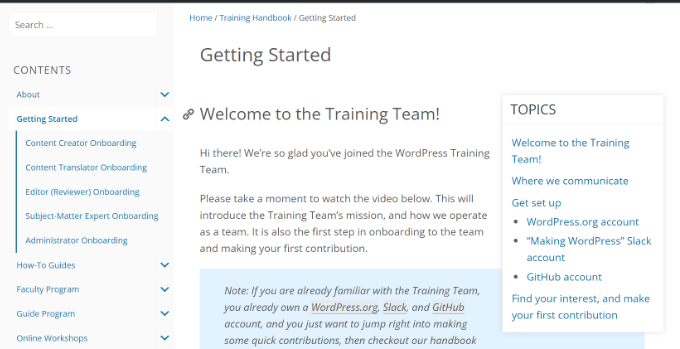
You can also develop specialized training manuals for particular projects or technical tasks, documenting all necessary steps to ensure proper completion.
Customer-facing training manuals help users correctly configure and utilize products through comprehensive online documentation.
Now let's explore the practical implementation of creating an online training manual within WordPress.
Configuring a WordPress Training Manual Plugin
The most efficient approach to building an online training manual involves utilizing specialized knowledge base plugins. Several premium solutions offer robust functionality for creating training documentation without requiring coding expertise.
These specialized plugins typically feature intuitive interfaces and comprehensive capabilities for delivering exceptional support resources. Common features include detailed knowledge base systems, support ticket management, FAQ integration, and response optimization tools.
First, you'll need to acquire a suitable knowledge base plugin from a reputable provider. The Heroic Knowledge Base plugin represents one such solution for creating training manuals.
After obtaining the plugin, download the installation files from your provider account dashboard.
Next, install the plugin on your WordPress website following standard plugin installation procedures.
Upon activation, you'll typically encounter a welcome screen where you can enter your license key and activate the plugin.
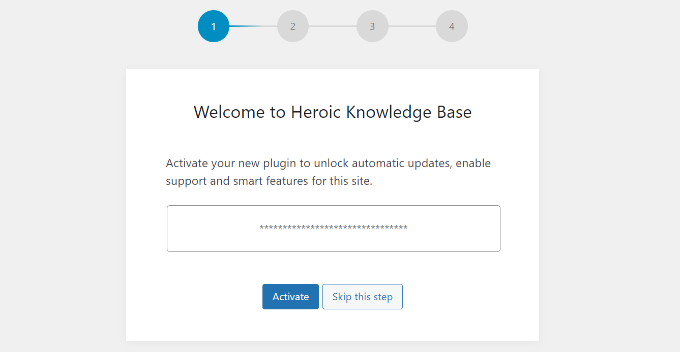
Proceed through the setup wizard to configure the plugin according to your requirements.
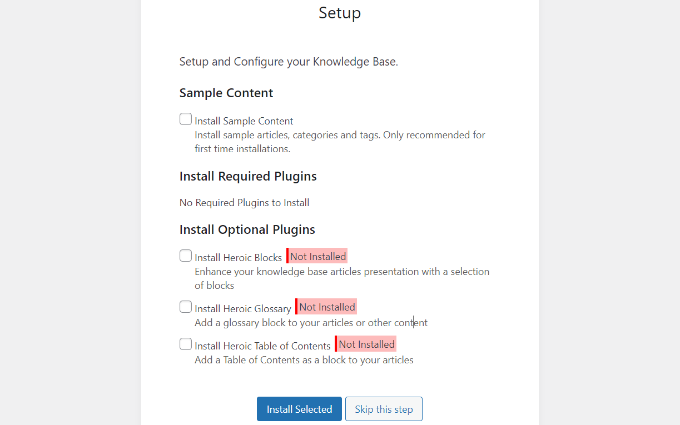
The wizard may prompt you to install sample content, categories, and tags. You can typically skip this step, as the plugin will automatically generate the basic knowledge base structure.
You may also have the option to install complementary plugins like content blocks, glossary systems, and table of contents generators. For comprehensive documentation, consider installing these additional components.
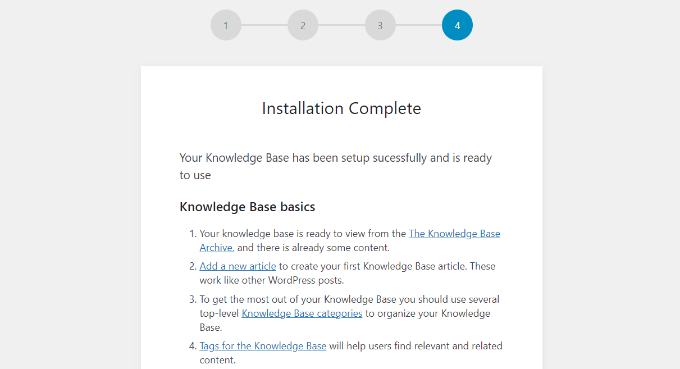
Once installation completes, the plugin will display confirmation and basic instructions for your knowledge base section.
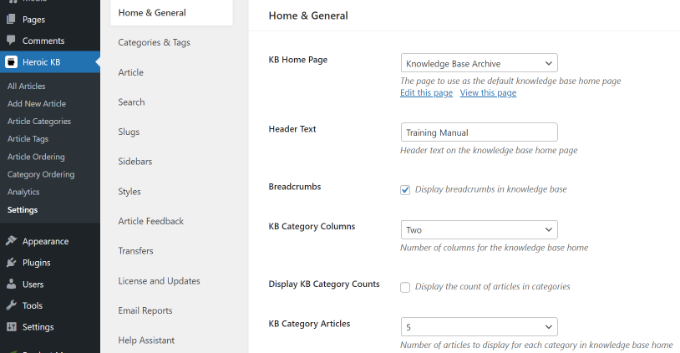
Navigate to the plugin settings section from your WordPress administration panel.
Within the general settings area, you can configure the knowledge base homepage, modify header text, adjust category column display, enable navigation breadcrumbs, and customize various display options.
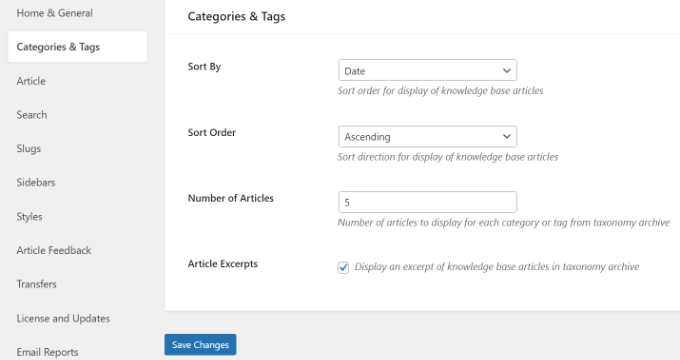
The categories and tags configuration section offers additional organizational settings.
Available options typically include category sorting methods (by date, title, comment count), display order preferences, article quantity settings, and excerpt visibility controls.
Proceed to the sidebar configuration section.
Here you can adjust sidebar positioning within your training manual and enable sticky sidebar functionality for improved navigation.
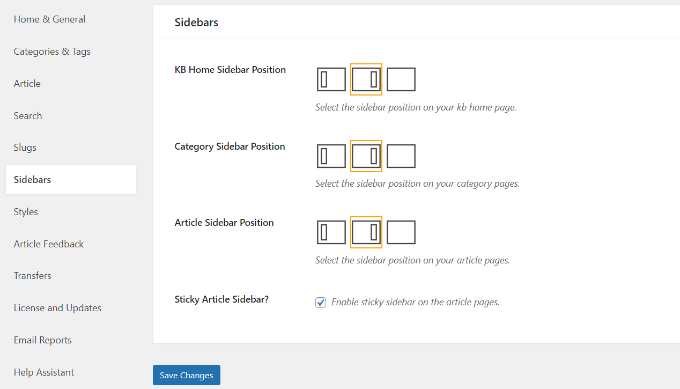
Finally, access the styling options section.
The plugin typically allows customization of manual width, link colors, heading styles, and various visual elements.
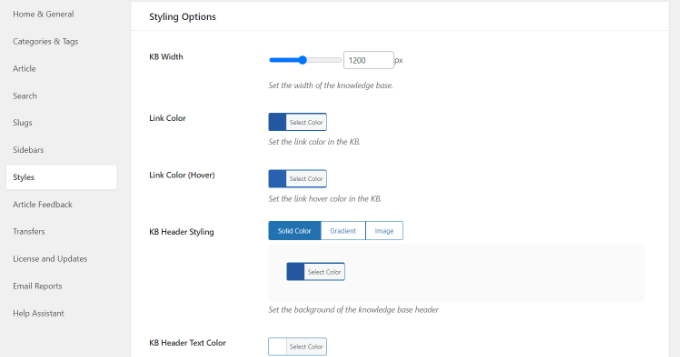
Remember to save all configuration changes before proceeding.
Most plugins offer additional advanced settings worth exploring according to your specific requirements.
With the plugin configured, you can now begin adding content to create your training manual.
Organizing Training Manual Categories
Begin by establishing a logical category structure for your training manual to ensure organized documentation.
Navigate to the article categories section within your knowledge base plugin administration area.
This interface allows you to create and manage different content categories for systematic organization.
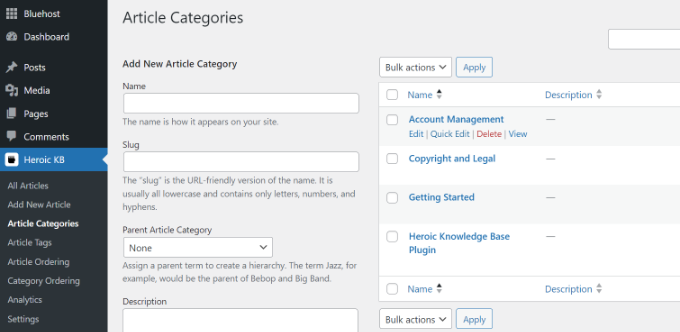
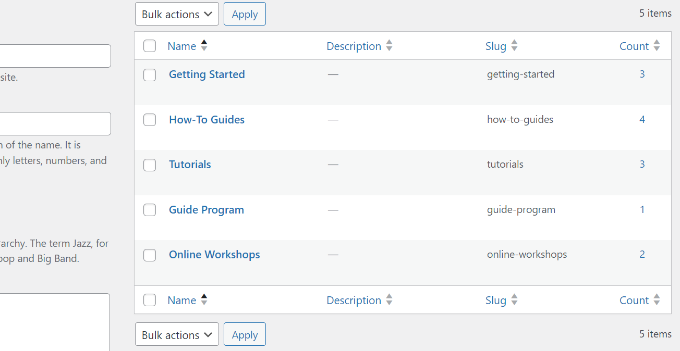
To create a new category, simply provide a descriptive name, establish a URL slug, designate parent categories for hierarchical organization if needed, and save the new category.
For demonstration purposes, we've created five distinct categories within the training manual structure.