
A Complete Beginner's Guide to Adding Forms to WordPress
Many website owners find that embedding forms into WordPress presents unexpected challenges. You might copy code from services like Microsoft Forms or Google Forms, only to encounter broken layouts or non-functional forms.
This leads to a common question among WordPress users:What is the proper method for integrating forms into a website?
The encouraging news is that with appropriate tools, this process becomes straightforward.
Whether you require a simple contact form, newsletter subscription, or more complex functionality, user-friendly solutions exist that work immediately.
This guide provides step-by-step instructions for tested methods, allowing you to implement functional WordPress forms quickly without experimentation.
Understanding WordPress Forms and Their Significance
A WordPress form serves as an instrument for gathering valuable information and insights from website visitors. It enables users to submit details such as names, email addresses, and feedback.
Forms have numerous applications.
For instance, you can develop contact forms for user communication, build email lists, create surveys for opinion collection, or design registration forms for events.
Forms also facilitate appointment scheduling, donation collection, and customer support management. Many organizations utilize forms for handling service requests.
Without forms, opportunities for visitor engagement may be missed. Therefore, incorporating forms represents a strategic decision for website management.
Methods for Integrating Forms into WordPress
The following sections provide detailed instructions for adding forms to your WordPress site.
If you have specific form requirements, you can navigate directly to relevant sections:
- Integrating WPForms into Your WordPress Site
- Implementing Donation Forms in WordPress
- Adding HubSpot Forms to WordPress
- Embedding Google Forms in WordPress
- Incorporating Zoho Forms into WordPress
- Adding Email Subscription Forms
- Implementing Payment Processing Forms
- Integrating Formidable Forms
- Adding Gravity Forms
- Embedding Microsoft Forms
- Implementing HTML Forms
- Common Questions About WordPress Form Integration
- Further Resources for WordPress Form Implementation
Let's begin the implementation process.
1. Integrating WPForms into Your WordPress Site
WPForms represents a comprehensive form-building solution widely adopted within the WordPress community. Many experienced developers recommend this tool for its versatility.
Numerous WordPress professionals utilize this plugin for contact forms, audience surveys, and site management requests. The platform has established itself as a reliable solution over time.
This tool provides access to numerous pre-designed, customizable templates for creating various form types.
Artificial intelligence capabilities allow for automated form generation. Simply describe your form requirements, and the system will create it accordingly.

Beyond contact forms, WPForms supports creation of various form types, including:
- Survey and feedback forms
- Online ordering systems
- Payment collection forms
- File submission forms
- Interactive conversational forms
- Multi-page form sequences
For WPForms integration, you can employ either a dedicated block or shortcode functionality.
Begin by installing and activating the WPForms plugin. If assistance is required, consult documentation on WordPress plugin installation.
Then follow established procedures for contact form creation in WordPress.
Using the WPForms Block for Form Integration
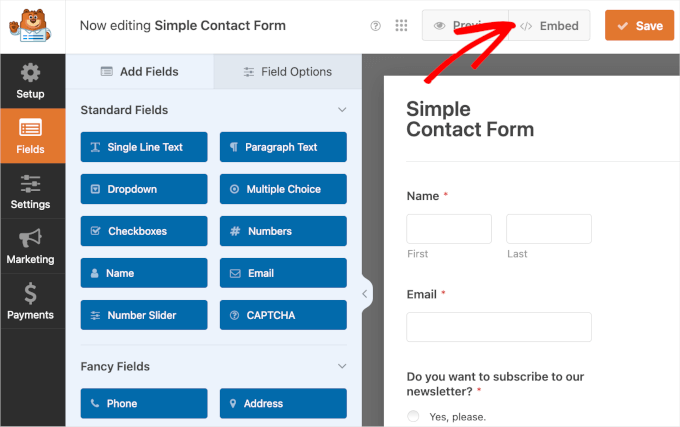
Once your form is prepared for publication, select the 'Embed' button within the form builder to add the form to your webpage using the WPForms block.
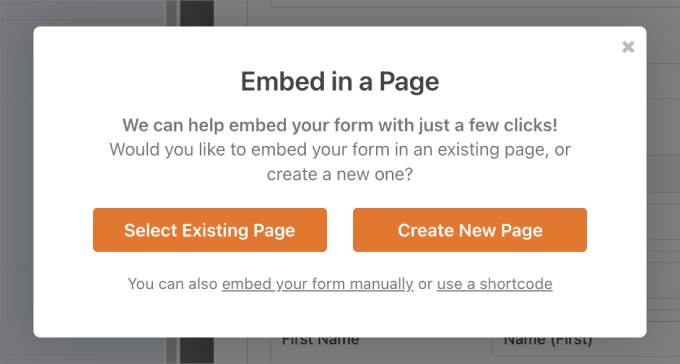
This action opens a dialog window where you can select an existing page or create a new page for form placement.
Choosing 'Select Existing Page' displays a dropdown menu with all available pages on your WordPress site. Selecting 'Create New Page' presents a field for naming your new page.
After selecting a page or naming your new page, proceed by clicking the appropriate confirmation button.
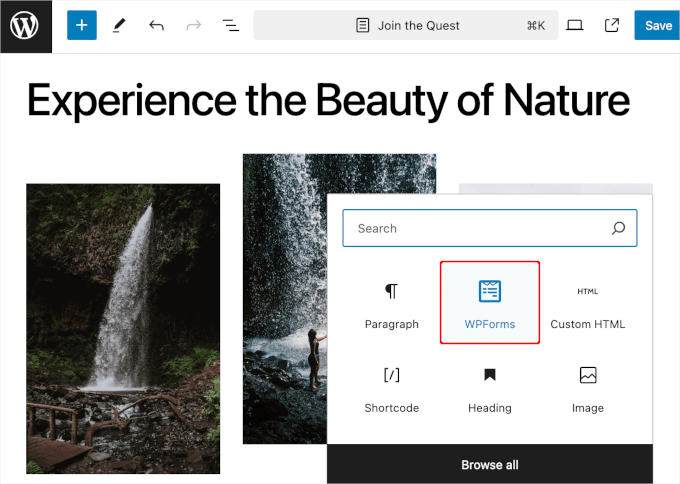
You will then be redirected to the page's block editor interface.
From this interface, select the addition button and search for the WPForms block.
The next step involves opening the dropdown menu within the WPForms block and selecting the specific form for embedding.
Upon form selection, WPForms will load it within the content editor.
You may then adjust 'Form Settings' in the right-hand panel according to your preferences.
By default, WPForms does not display form titles. You can enable the 'Form Title' option to provide contextual information for visitors. If you have prepared form descriptions, you can activate this option as well.
Additionally, you can apply styling themes to ensure form appearance aligns with your site's overall design aesthetic.

When satisfied with form appearance, proceed to save your changes.
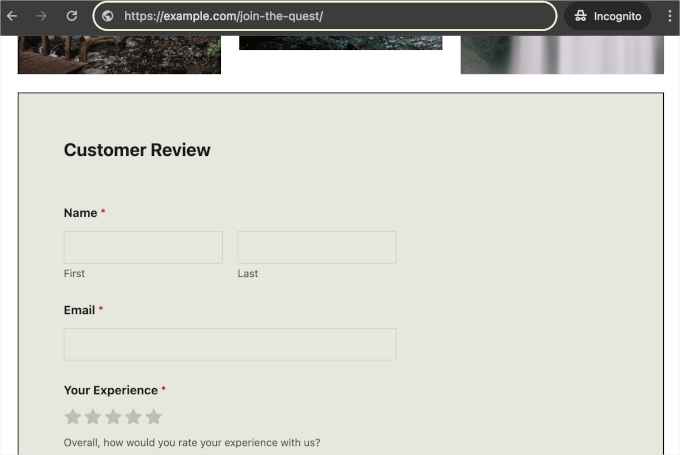
This completes the process of embedding WPForms using the dedicated block.
Utilizing Shortcodes for WPForms Integration
Shortcodes provide an alternative method for WPForms embedding.
To implement this approach, navigate to the forms management section and locate the 'Shortcode' column for each form.
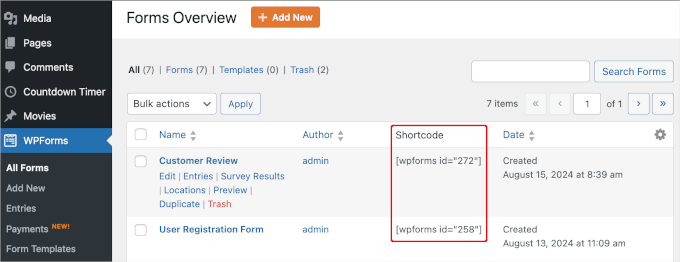
From this interface, copy the form's shortcode for implementation.


