A Comprehensive Guide to Transferring Your Website from Webflow to WordPress
Many website owners are considering moving away from Webflow due to its pricing structure and limitations in customization. This transition, while requiring careful planning, offers significant benefits in flexibility and control.
Migrating to WordPress provides a more cost-effective solution with extensive customization possibilities through thousands of themes and plugins, all without requiring coding expertise. The platform gives you complete ownership of your website's content and functionality.
Since the migration process involves several steps, this guide provides a systematic approach to help you transfer your content successfully. You'll learn how to establish your WordPress environment and move your Webflow content efficiently.
Here is an overview of the migration process you'll follow:
- Understanding the Benefits of WordPress Over Webflow
- Step 1: Select WordPress Hosting
- Step 2: Choose a WordPress Theme
- Step 3: Export Your Webflow Content
- Step 4: Export Blog Posts from Webflow
- Step 5: Recreate Pages in WordPress
- Step 6: Import Blog Content into WordPress
- Step 7: Transfer Images and Media
- Step 8: Configure Domain Settings
- Step 9: Set Up URL Structure
- Step 10: Install Recommended WordPress Plugins
- Additional Learning Resources
Understanding the Benefits of WordPress Over Webflow
Many users initially select Webflow for its visual design capabilities and straightforward website creation process. However, they often encounter limitations in customization options, integration possibilities, and pricing flexibility.
WordPress presents a compelling alternative that addresses these concerns. As the platform powering over 43% of websites globally, it offers several advantages:
- Cost Efficiency: WordPress itself is free and open-source, with numerous affordable hosting options available. This allows for better budget control compared to proprietary platforms.
- Customization Flexibility: The platform offers extensive design options through thousands of themes and page builders, plus over 59,000 plugins for adding functionality without coding.
- Integration Capabilities: WordPress supports integration with virtually any third-party service, including marketing tools, e-commerce solutions, and analytics platforms.
- Scalability: You can easily upgrade hosting resources as your website grows, paying only for what you need at each stage of development.
Transitioning to WordPress provides greater control over your website's management and long-term cost savings. Let's explore the practical steps to accomplish this migration.
Step 1: Select WordPress Hosting
The migration process begins with choosing a reliable WordPress hosting provider. Quality hosting ensures your website performs well and can accommodate visitor traffic effectively.
Many experienced developers recommend selecting hosting providers that specialize in WordPress environments. Several reputable companies offer competitive pricing and excellent performance for WordPress websites.
When evaluating hosting options, consider providers known for their WordPress expertise and customer support. The basic setup process is generally similar across most quality hosting services.
After selecting your hosting provider, you'll typically need to choose a plan that matches your website's requirements. Most providers offer tiered plans suitable for different stages of website growth.
During the signup process, you'll have the option to use an existing domain name or register a new one. If you're transferring an existing Webflow domain, you can specify this during setup.
Once your hosting account is active, most providers will automatically install WordPress for you. You'll receive login credentials to access your WordPress dashboard and begin the migration process.
Step 2: Choose a WordPress Theme
After WordPress installation, the next step involves selecting a theme that determines your website's visual presentation. WordPress offers thousands of both free and premium theme options.
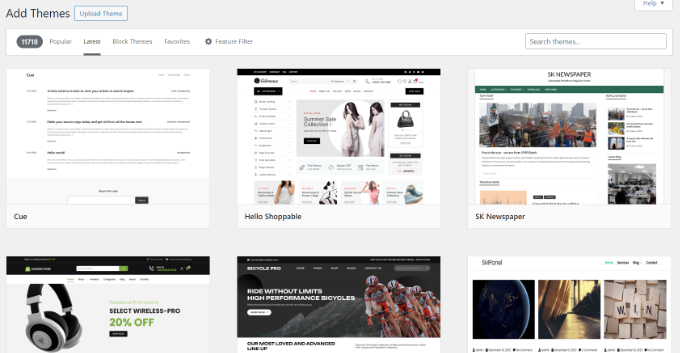
New users may find the variety of choices overwhelming. Many WordPress experts suggest starting with clean, minimal designs that prioritize user experience and professional appearance.
Remember that theme selection isn't permanent—you can change your WordPress theme at any time if you find a better option. The initial choice should focus on functionality and compatibility with your content.
Later in this guide, we'll discuss using page builders that provide additional design flexibility beyond what themes offer. For now, let's proceed with exporting your Webflow content.
Step 3: Export Your Webflow Website
Webflow allows limited content export capabilities depending on your subscription level. Understanding these limitations helps plan your migration strategy effectively.
Available export options typically include:
- Site Export containing HTML, CSS, JavaScript, and media files (available with Workspace plans)
- CMS content export for blog posts and dynamic content
Exporting Webflow Website Files
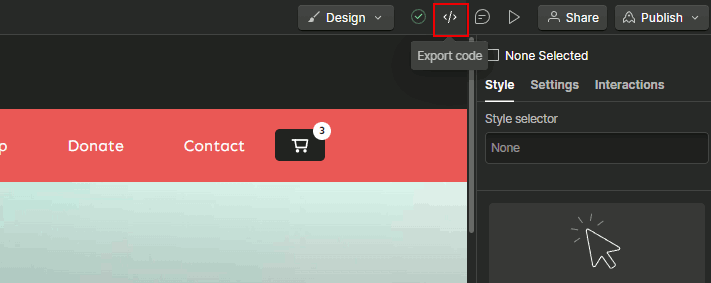
While you cannot directly import Webflow pages into WordPress, exporting your site files can serve as a reference during recreation. If you have a Workspace plan, you can use the Code Export feature.
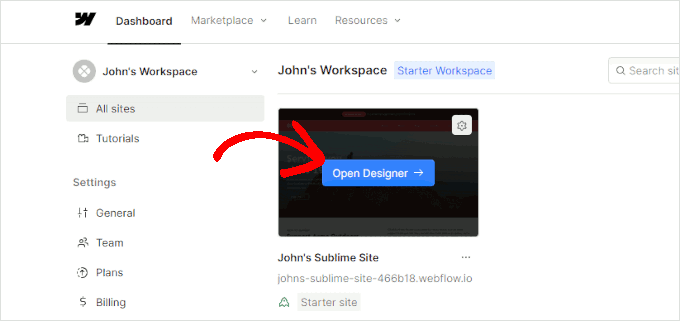
Access your Webflow account and open the Designer interface. Navigate to the top-right corner and select the 'Export code' option to download your website files locally.