Building a Private Online Community Using WordPress: A Comprehensive Guide
By WordPress Experts |
Social media platforms promise connection, yet many business owners, educators, and community organizers find them challenging. Content often fails to reach intended audiences, meaningful discussions disappear in crowded feeds, and engagement depends on algorithms that prioritize corporate profits over user experience.
This reality drives many organizations to establish their own dedicated spaces—environments where members feel valued, conversations develop organically, and external platforms don't dictate interaction patterns.
Fortunately, creating such a space is accessible. Significant financial investment or advanced technical skills aren't required. Using WordPress, you can develop a customized private community that aligns with your audience's specific needs and potentially becomes a valuable component of your brand ecosystem.
This guide provides a systematic approach to establishing your community. You'll learn setup procedures, engagement strategies, and methods for generating revenue while maintaining full control over your platform.
This guide covers the following key areas:
- Benefits of Establishing an Online Community with WordPress
- Step 1: Selecting WordPress Hosting
- Step 2: Implementing a WordPress Community Platform
- Step 3: Configuring Platform Settings
- Step 4: Choosing and Configuring a Theme
- Step 5: Monetization Through Subscriptions and Courses
- Step 6: Implementing Gamification for Enhanced Engagement
- Step 7: Expanding Reach with Mobile Applications
- Step 8: Strategies for Community Growth
- Common Questions About Private Community Creation
Benefits of Establishing an Online Community with WordPress
An online community serves as a dedicated digital environment where individuals with common interests can connect, exchange ideas, and provide mutual support. Imagine it as an exclusive gathering space specifically designed for your audience.
Developing such a community on your WordPress site resembles creating an inviting meeting place where participants congregate, share perspectives, and develop a sense of belonging. When executed effectively, it transforms occasional visitors into dedicated supporters who return regularly.
Private communities frequently generate authentic engagement. Many users seek spaces where they can interact without algorithmic interference. While mainstream social platforms often complicate this, WordPress provides complete control over your environment.
A purpose-built community enables members to communicate, share concepts, and feel appreciated. It extends beyond basic discussion functionality to become a foundation for developing genuine relationships.
Experienced community managers observe that engaged members often provide substantial peer support. They respond to inquiries, offer feedback, and assist one another, creating a largely self-sustaining ecosystem.
Additionally, communities can establish consistent revenue streams. Many successful communities offer premium content, membership tiers, or exclusive benefits that convert engagement into financial sustainability.
Advantages of WordPress
While numerous platforms exist for community building, WordPress provides exceptional flexibility and expandability.
Key benefits of selecting WordPress include:
- Customization Capabilities: Thousands of themes and plugins allow precise adaptation to your specific business requirements.
- Cost Efficiency: The WordPress software is freely available, requiring investment primarily in hosting services and any premium features you select.
- Accessibility: The platform is designed for ease of use, enabling content and configuration management without programming knowledge.
- Search Engine Optimization: WordPress incorporates SEO-friendly architecture, with available plugins that enhance search engine visibility.
Step 1: Selecting WordPress Hosting
Initial requirements include:
- A domain name (your website address)
- A web hosting account (service that stores website files and makes them accessible online)
- A WordPress community-building solution
Begin by registering a domain name and establishing a web hosting account. Web hosting provides the infrastructure where your website resides on the internet, while the domain name serves as the address users enter to access your community.
For community-focused websites, many developers recommend hosting solutions optimized for dynamic, interactive platforms. These specialized hosting environments typically offer enhanced performance for social features and user interactions.
After selecting a hosting plan, proceed with WordPress installation following standard procedures.
Step 2: Implementing a WordPress Community Platform
This tutorial utilizes a popular community platform solution for WordPress.
This platform ranks among the leading community-building solutions available, providing comprehensive features for creating engaging interactive spaces.
Key capabilities include:
- Transforming standard websites into social networking environments
- Incorporating discussion forums, activity streams, and social groups
- Enabling user connections and interactions
- Integration with learning management systems and membership plugins
- Additional community-focused functionalities
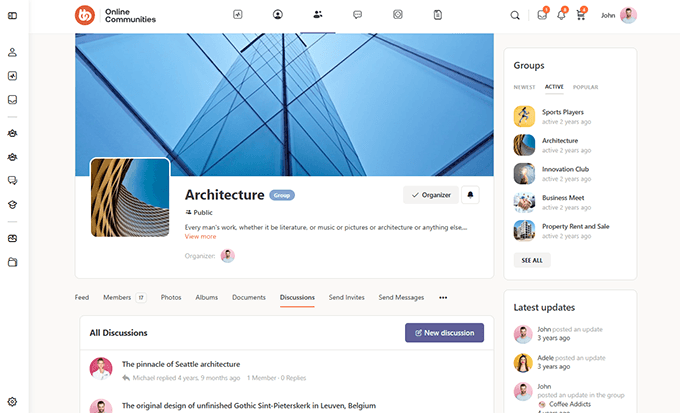
The following example demonstrates how an online community built with this platform might appear:
A basic version is available without cost, though feature limitations may apply. The professional version typically provides complete functionality. Visit the platform's official website for detailed information and registration.
After registration, download both the core and professional plugin versions to your website. Standard WordPress plugin installation procedures apply.
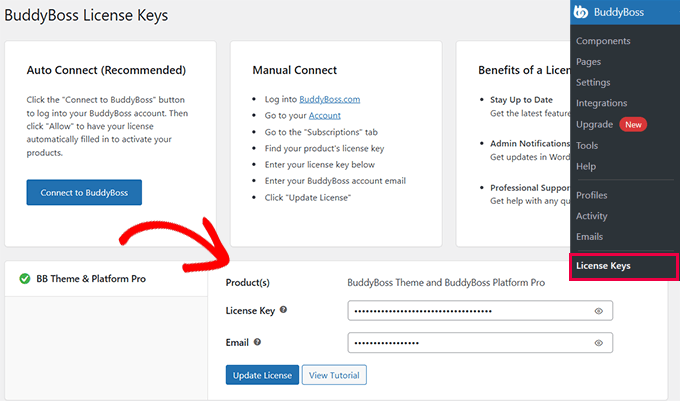
Following activation, enter your product license key, typically available within your account on the platform's website.
Step 3: Configuring Platform Settings
After installation, customize the platform according to your specific requirements.
Activate Platform Components
The platform includes numerous features organized as components, which you can enable or disable based on your needs.
Navigate to the platform's components section, where several components are typically enabled by default.
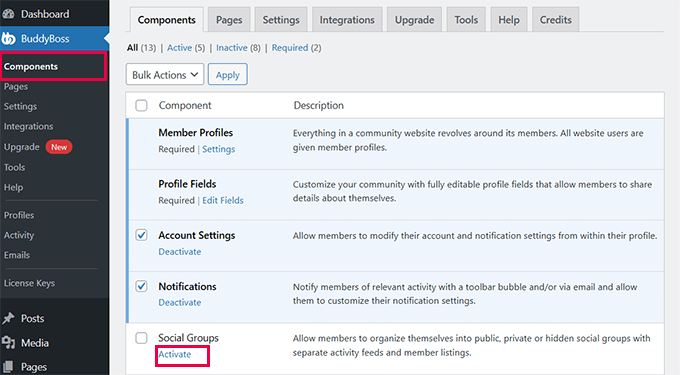
Review the component list and activate any additional components you wish to implement.
Available components typically include:
- User Profiles: Enables members to create and personalize profile pages
- Profile Fields: Customizes community experience with editable profile fields
- Account Settings: Allows members to modify account preferences and notification settings
- Notifications: Sends alerts to members regarding relevant activities
- Social Groups: Facilitates creation of social groups for member interaction
- Forums: Establishes structured discussion forums
- Activity Feeds: Provides streams displaying member activities
- Media Uploading: Permits members to upload and share photos, videos, and files
- Private Messaging: Enables direct messaging between members
- Member Connections: Allows members to establish connections with one another
- Email Invites: Permits members to send email invitations to non-members
- Moderation: Provides tools for content reporting and member blocking
- Network Search: Enables comprehensive network searching
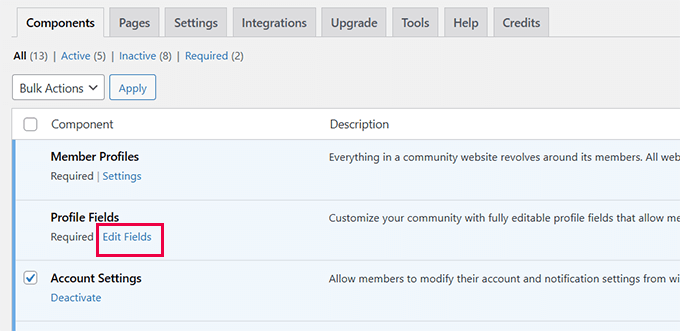
When activating components, configuration options often appear below the component title.
For example, the 'Profile Fields' component typically includes an option to edit field configurations.