
Building a Social Media Website with WordPress: A Step-by-Step Guide
By Editorial Team |
Developing a social media platform allows you to establish a digital space where users can exchange information, updates, and perspectives on diverse subjects. Such platforms foster community among individuals with common interests and enhance interaction through conversations and discussion boards.
Whether your goal is to build a specialized community or a comprehensive social network, creating a social media site has become increasingly straightforward with appropriate tools and guidance.
Many WordPress experts have assisted numerous website owners in harnessing the potential of social media. They've compiled lists of effective social sharing plugins, published guides on integrating advanced social functionalities, and developed premium social media extensions.
Now, we're advancing further by demonstrating how to construct your own social media website. Our straightforward directions are crafted to be accessible, even for those new to WordPress.
We'll address all essential aspects, from choosing the appropriate platform and tools to implementing fundamental features like user profiles, activity feeds, and privacy configurations. Let's begin!
Preparation: Essential Planning for Your Social Media Website
The remarkable aspect of building a social media site with WordPress is its exceptional flexibility and adaptability. You're essentially starting with a blank slate, capable of developing nearly any type of social platform you can envision. Nevertheless, you should commence by thoroughly planning the features and concepts you want your social platform to incorporate.
For instance, you might develop a photo-sharing platform similar to Instagram or a professional networking site like LinkedIn. You could also create a question-and-answer forum like Stack Exchange or a comprehensive social network resembling Facebook.
Once you've formulated your concept, you should complete the following checklist to establish a comprehensive plan for your website:
- Target Audience: Determine your intended audience based on demographic factors, geographic location, and behavioral patterns.
- Trends and Preferences: Analyze user trends within your selected niche and identify features that will appeal to your target users.
- Legal Compliance: Ensure your platform adheres to data protection regulations, intellectual property laws, and other applicable legal requirements. Consulting with legal professionals may be necessary.
- Professional Development: After completing your research, you might consider hiring a WordPress developer to construct your social media website.
However, if you prefer not to engage professional developers, you can also build a social media website independently without requiring coding knowledge.
With that established, let's examine how to create a social media website through straightforward, sequential steps:
- Step 1: Select a Website Platform
- Step 2: Choose Domain and Hosting for Your Social Media Platform
- Step 3: Establish Your WordPress Website
- Step 4: Choose a Theme for Your Social Media Platform
- Step 5: Configure Your Social Media Platform Using BuddyPress
- Step 6: Implement bbPress for Forum Creation (Optional)
- Step 7: Develop Navigation and Homepage Structure
- Step 8: Design a Custom Home Page
- Step 9: Integrate Contact Forms
- Step 10: Implement SEO Optimization for Better Visibility
- Additional Tools to Enhance Your Social Media Platform
Step 1: Select a Website Platform
Initially, you must choose the appropriate platform. While numerous website builders exist, WordPress distinguishes itself as a powerful and versatile option for creating sophisticated social platforms.
Being open-source software, it's completely free to utilize. Commercial website builders frequently include features oriented toward business websites and online stores, which may not be necessary for your social media platform. Why invest in features you don't immediately require?
Should you eventually need those capabilities, WordPress enables you to install extensions called plugins. These software components add supplementary functionality to your social media site.
The WordPress.org repository alone contains over 59,000 free plugins! This includes numerous plugins that incorporate social features into WordPress, such as user profiles, activity streams, messaging systems, and community forums.
Beyond cost considerations, WordPress ranks among the most popular website platforms globally, powering approximately 43% of all websites according to industry statistics. You're selecting a premium solution for your social platform.
However, note that two WordPress variants exist.
WordPress.com functions as a blog hosting service, while WordPress.org represents open-source, self-hosted software. For comprehensive comparison details, you can review differences between WordPress.com and WordPress.org.
For social media website creation, we recommend selecting WordPress.org because it permits installation of all social plugins and provides complete control over your website.
For thorough analysis of why WordPress receives consistent recommendation, please consult comprehensive WordPress evaluations.
Now that you've selected a website builder, you can proceed with website development.
Step 2: Choose Domain and Hosting for Your Social Media Platform
To establish a WordPress site, you must first acquire a domain name and hosting plan.
A domain name will serve as your social media platform's internet address. This represents what visitors will type into their browsers to access your website, such as www.socialplatform.com or www.communityhub.com.
Similarly, web hosting constitutes where your website resides online. To identify optimal web hosting for your social media site, you can examine complete listings of recommended WordPress hosting services.
You'll notice that although WordPress is free, expenses begin accumulating at this stage. Domain names typically cost approximately $14.99 annually, while hosting services start from $7.99 monthly.
This may represent significant expenditure for limited budgets or initial projects.
Fortunately, several hosting providers offer substantial discounts, frequently including complimentary domain names and SSL certificates. These companies rank among the largest global organizations and maintain official WordPress hosting partnerships.
To access discounted hosting, you can visit hosting provider websites directly.
This will direct you to the hosting provider's platform, where you should select the 'Get Started Now' option.
Following this action, you'll reach the pricing page, where you can choose a hosting plan matching your social media platform's requirements.
We suggest selecting 'Starter' or 'Business' plans, as they contain all necessary components for successful social media site creation.
Simply click the 'Choose Plan' button beneath your preferred plan.

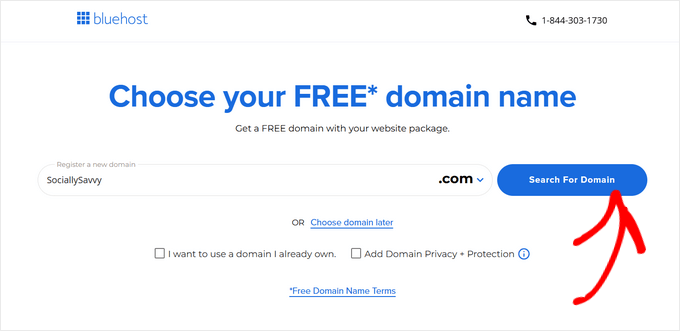
You'll now proceed to a new page where you must select a domain name for your social media platform.
We recommend choosing a name relevant to your niche that's simple to spell, pronounce, and remember. If you remain uncertain or haven't determined a platform name, you can utilize business name generators to develop suitable names.
After entering your preferred name, click the 'Search for Domain' button.
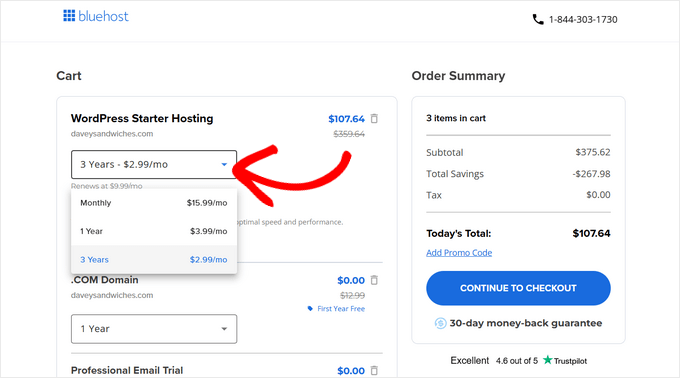
Once you've selected a domain name, you'll advance to the Cart page.
From this interface, you can specify your hosting plan duration. We recommend choosing the '3 Years' option for maximum savings. Subsequently, click 'Continue to Checkout.'
This progresses to the subsequent step, where you must provide account details, contact information, business email address, name, and country.
Next, enter payment information to complete your hosting plan purchase.

After brief processing, you'll receive email instructions for accessing your web hosting control panel. This dashboard enables management of your social media site, including email notification configuration and WordPress support requests.
Now proceed to WordPress installation.
Step 3: Establish Your WordPress Website
When registering with hosting providers, WordPress typically installs automatically on your domain name. Allow several minutes for loading completion, then select the 'Edit site' button to proceed with setup.



