
Implement SEPA Payment Processing in WordPress: Two Practical Methods
Many WordPress experts have recognized the financial benefits SEPA payments offer European businesses compared to conventional credit card processing.
Transactions through the Single Euro Payments Area typically incur substantially lower costs than those processed by standard credit card companies. This can translate to significant annual savings for businesses operating in euros.
Fortunately, integrating SEPA payment acceptance into a WordPress website is straightforward. Various reliable solutions have been tested and proven effective for European commerce.
This guide presents two distinct approaches to enable SEPA payments on your WordPress platform.
Both methods are secure and relatively simple to configure. They allow you to accommodate European customers' preferred payment methods while reducing transaction expenses.
Advantages of SEPA Payments for WordPress Sites
The Single Euro Payments Area represents a European Union initiative designed to streamline payment transactions across 36 participating nations.
This framework establishes a unified market for euro-denominated payments, enabling direct acceptance of funds from customer bank accounts.
The primary benefit of SEPA lies in reduced operational costs. Credit card processing fees can substantially diminish profit margins, particularly for high-value transactions. SEPA fees are considerably more economical.
Below is a comparative overview of standard credit card processing versus SEPA direct debit:
| Feature | Credit Card Payments | SEPA Direct Debit |
|---|---|---|
| Transaction Fees | 1.4% – 2.9% + €0.25 | 0.8% + €0.25 (Capped at €5) |
| Payment Speed | Instant | 3-14 Days |
| Failure Rate | Higher (expired cards, limits) | Lower (direct bank connection) |
The potential savings are considerable. For membership platforms or online stores, these reduced fees can preserve thousands of euros annually.
Additionally, SEPA integration provides access to an extensive European customer base where bank transfers often surpass credit cards in popularity.
Now let's examine practical methods for implementing SEPA payments in WordPress. The following sections detail different approaches:
- Method 1: Process SEPA Payments Using WP Simple Pay
- Method 2: Enable SEPA Payments in WooCommerce via FunnelKit Stripe Payment Gateway
- Additional Payment Integration: PayPal for WordPress and WooCommerce
- Common Questions Regarding SEPA Payments
Method 1: Process SEPA Payments Using WP Simple Pay
This approach works particularly well for membership sites, donation platforms, or smaller online stores where payment forms suffice without full shopping cart functionality.
WP Simple Pay serves as a comprehensive Stripe integration plugin that facilitates online payments without requiring complex cart systems.
Testing reveals this solution provides an intuitive form builder, template options, secure processing, and SEPA payment support.
Step 1: Install and Activate WP Simple Pay
Begin by installing and activating the WP Simple Pay plugin through the standard WordPress plugin installation process.
Step 2: Configure the Setup Wizard
After activation, the setup wizard will appear. Click the introductory button to proceed.

Proceed to the next screen where you'll enter your license key and activate the plugin.
This information is available through your WP Simple Pay account.

Next, connect the plugin to your Stripe account, a widely-used payment gateway for online transactions.
Click the connection button to initiate this process.
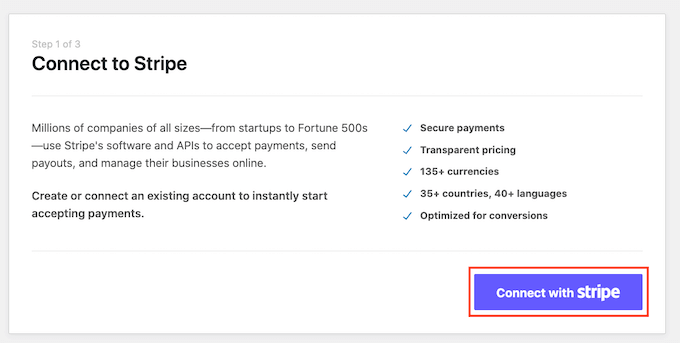
Log into your existing Stripe account or create one if necessary to enable SEPA payment processing.
After establishing the connection, configure email notification preferences within the setup wizard.
Toggle relevant switches to receive notifications for payment receipts, upcoming invoices, and transaction alerts. Specify the email address for these communications.
Complete this step by saving your settings.

Exit the setup wizard to begin creating your SEPA payment form.
Step 3: Create a SEPA Direct Debit Payment Form
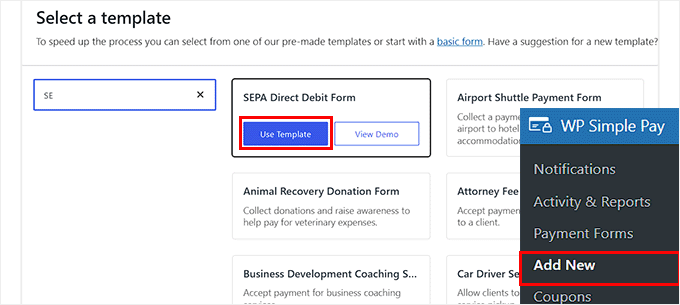
Navigate to the WP Simple Pay creation page from your WordPress admin panel.
This displays a template selection screen with multiple pre-designed form options.
Locate and select the SEPA Direct Debit Form template.
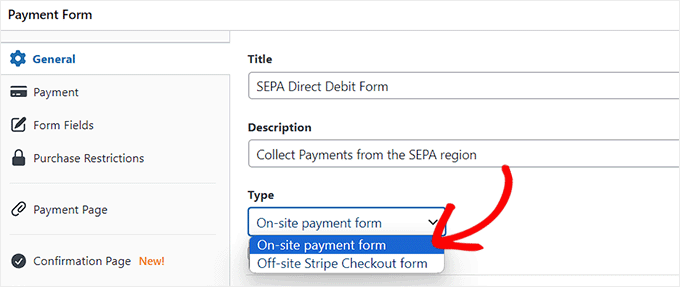
You'll now access the payment form editor where you can add a title and description for your form.
Select 'On-site payment form' as your form payment type.
Step 4: Select SEPA as a Payment Option
Switch to the payment configuration tab. Here you can optionally configure tax collection settings according to business requirements.
Specify the product or service price in the amount field.
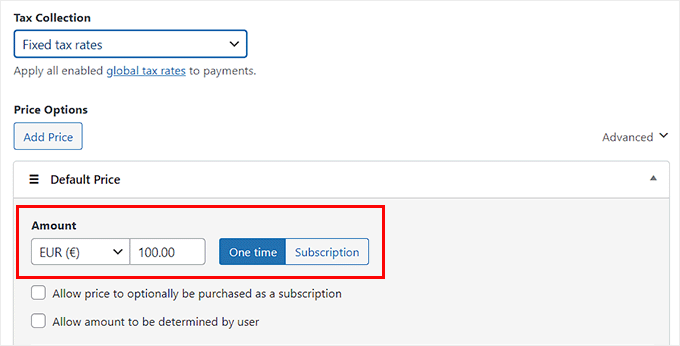
Scroll to the payment methods section where SEPA Direct Debit should already be selected.
You can enable additional payment gateways like Klarna, Alipay, Affirm, or iDeal by checking their respective boxes.