
Implementing SEPA Payment Processing in WordPress: Two Practical Methods
Many WordPress experts have recognized the financial advantages SEPA payments offer European businesses compared to conventional credit card transactions.
Transactions through the Single Euro Payments Area (SEPA) typically incur substantially lower costs than those processed by standard credit card companies. This can result in significant annual savings for businesses operating within Europe.
The integration of SEPA payment acceptance into WordPress platforms is more straightforward than many anticipate. Various approaches have been evaluated to identify reliable solutions suitable for European enterprises.
This guide presents two distinct methods for enabling SEPA payment acceptance on WordPress websites.
Both approaches feature straightforward implementation processes and maintain security standards. They enable businesses to accommodate European customer payment preferences while reducing transaction expenses.
Advantages of SEPA Payment Integration for WordPress Sites
The Single Euro Payments Area represents a European Union initiative designed to streamline payment processes across 36 participating nations.
This framework establishes a unified market for Euro-denominated transactions, allowing direct acceptance of payments from customer bank accounts.
The primary benefit of SEPA implementation involves cost reduction. Credit card processing fees can substantially impact profitability, particularly for high-value transactions. SEPA transaction costs remain notably lower.
Below is a comparative overview of standard credit card processing versus SEPA direct debit:
| Feature | Credit Card Payments | SEPA Direct Debit |
|---|---|---|
| Transaction Fees | 1.4% – 2.9% + €0.25 | 0.8% + €0.25 (Capped at €5) |
| Payment Speed | Instant | 3-14 Days |
| Failure Rate | Higher (expired cards, limits) | Lower (direct bank connection) |
The potential savings are considerable. For membership platforms or e-commerce stores, these reduced fees can translate to thousands of euros in annual savings.
Additionally, SEPA integration provides access to an extensive European customer base. Many European consumers demonstrate preference for bank transfer payments over credit card transactions.
With these considerations established, let's examine practical methods for implementing SEPA payment acceptance in WordPress. The following sections detail different approaches, with quick navigation available below:
- Method 1: WordPress SEPA Payment Processing Using WP Simple Pay
- Method 2: WooCommerce SEPA Integration via FunnelKit Stripe Payment Gateway
- Additional Payment Option: PayPal Integration for WordPress and WooCommerce
- Common Questions Regarding SEPA Payment Implementation
Method 1: WordPress SEPA Payment Processing Using WP Simple Pay
This approach proves particularly suitable for membership websites, donation platforms, or small-scale online stores, as it facilitates payment collection through simplified payment forms.
This method utilizes WP Simple Pay, a WordPress Stripe integration plugin that enables online payment acceptance without requiring full shopping cart implementation.
Evaluation has demonstrated that this solution provides an intuitive payment form builder, pre-designed templates, secure transaction processing, and SEPA payment compatibility.
Step 1: WP Simple Pay Installation and Activation
Begin by installing and activating the WP Simple Pay plugin through the standard WordPress plugin installation procedure.
Step 2: Configuration of Setup Wizard
Following activation, a setup wizard will automatically appear. Click the 'Let's Get Started' button to proceed.

The subsequent step requires entry of your license key followed by clicking the 'Activate and Continue' button.
This information is accessible through your WP Simple Pay account dashboard.

Next, establish connection between the plugin and your Stripe account. Stripe represents a widely-used payment gateway that simplifies online transaction processing.
Click the 'Connect with Stripe' button to initiate this connection.
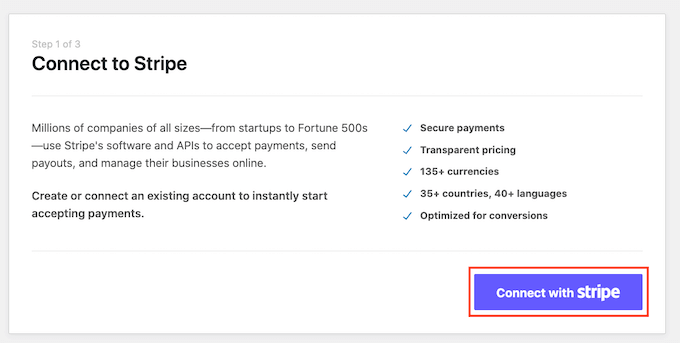
You will need to log into your existing Stripe account to complete the connection. New users must create a Stripe account to enable SEPA payment processing.
Following successful connection, the setup wizard will present email configuration options.
Toggle the appropriate switches to enable email notifications for payment receipts, upcoming invoices, and payment confirmations. Enter the email address where these notifications should be delivered.
Complete this step by clicking the 'Save and Continue' button.

You may now exit the setup wizard to begin creating your SEPA payment form.
Step 3: Development of SEPA Direct Debit Payment Form
Navigate to the WP Simple Pay » Add New page from your WordPress administration sidebar.
This action will display the template selection screen, featuring numerous pre-designed form templates suitable for website implementation.
Locate the SEPA Direct Debit Form template and click the 'Use Template' button associated with it.
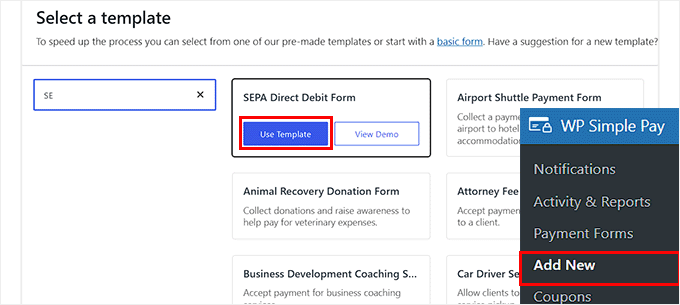
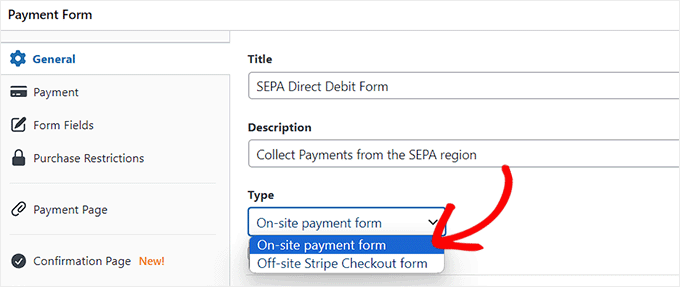
You will be directed to the 'Add New Payment Form' page, where you can begin by entering a title and description for your payment form.
Next, select 'On-site payment form' as your form payment type.
Step 4: SEPA Payment Method Selection
Proceed to the 'Payment' tab in the left column. Here you may configure tax collection rates according to your business requirements.
Following this configuration, specify the product or service price within the 'Amount' field.
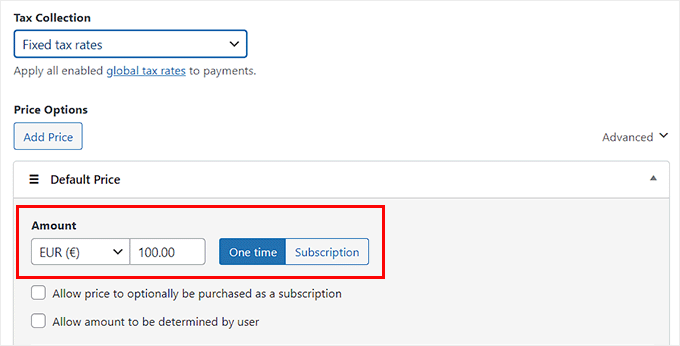
Scroll to the 'Payment Methods' section, where 'SEPA Direct Debit' will already be selected.
Should you wish to incorporate additional payment gateways such as Klarna, Alipay, Affirm, or iDeal, you may select the corresponding checkboxes.