Resolving CSS Issues in the WordPress Admin Interface: A Comprehensive Guide
By WordPress Experts |
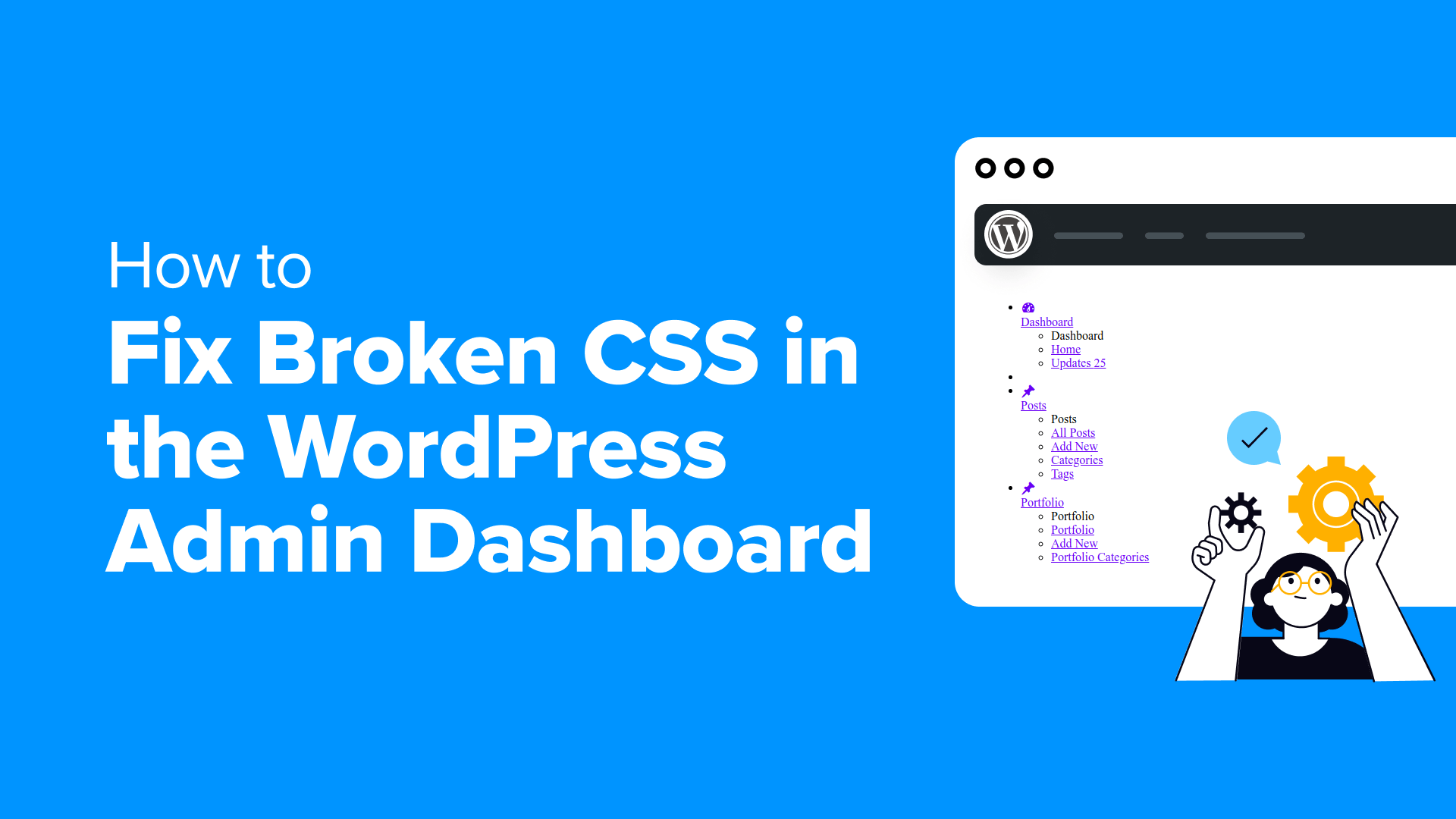
Few experiences are as disheartening as accessing your WordPress dashboard only to encounter a chaotic display of misaligned text and dysfunctional links. The familiar, organized interface vanishes, replaced by a seemingly unusable layout.
Before concern sets in, remember that many WordPress professionals have encountered this exact scenario numerous times. Typically, the solution proves simpler than the problem appears.
This issue commonly stems from plugin incompatibilities or caching irregularities. We've compiled a systematic troubleshooting checklist to help you efficiently identify and resolve the underlying cause.
Primary Solutions for Admin CSS Problems
CSS malfunctions within the WordPress admin panel frequently originate from plugin conflicts, caching complications, or HTTPS/SSL configuration errors. Resolution involves a methodical elimination process: deactivate plugins, clear all cached data, and verify your website's URL configurations.
This guide will walk you through each diagnostic step to restore your admin interface to its proper state, allowing you to resume normal operations.
Below is a summary of the topics and diagnostic procedures covered in this article:
- Common Origins of CSS Problems in the WordPress Admin Panel
- Addressing CSS Issues in the WordPress Admin Panel
- Step 1: Identify Plugin Conflicts
- Step 2: Address Insecure File Loading on HTTPS
- Step 3: Examine Theme Interference
- Step 4: Resolve Caching Problems
- Step 5: Correct CDN Configuration Issues
- Step 6: Adjust Incorrect File Permissions
- Step 7: Restore Corrupted Files
- Step 8: Investigate Browser Extensions
- Diagnostic Recommendations
- Commonly Asked Questions (FAQ)
Common Origins of CSS Problems in the WordPress Admin Panel
Based on extensive troubleshooting experience, CSS display issues within the WordPress admin interface typically originate from several predictable sources. While frustrating, recognizing these common causes represents the initial phase of resolution.
| Frequent Cause | Impact on CSS Display |
|---|---|
| Plugin Incompatibilities | Plugins with suboptimal coding may load custom stylesheets that disrupt or override default WordPress admin styling. |
| HTTP/HTTPS Configuration Errors | When a site operates on HTTPS but certain resources attempt to load via insecure HTTP, browsers will block these resources, resulting in styling failures known as "mixed content" errors. |
| Theme-Related Conflicts | Certain themes may incorrectly load their CSS within the admin area. Custom admin themes can also introduce styling conflicts. |
| Caching Complications | Your browser or caching plugins might serve outdated CSS file versions, leading to display irregularities. |
| CDN Misconfigurations | An improperly configured Content Delivery Network (CDN) can deliver obsolete CSS files, causing missing or broken styles. |
| Inaccurate File Permissions | CSS files with incorrect permissions may prevent server access, hindering proper loading. |
| File Corruption | Core WordPress CSS files can occasionally become corrupted or disappear during updates or file transfers. |
| Browser Extension Interference | Ad blockers and security-focused browser extensions sometimes disrupt CSS loading and rendering processes. |
Understanding these potential causes will assist in diagnosing why your WordPress admin panel experiences CSS display problems, enabling effective resolution.
Addressing CSS Issues in the WordPress Admin Panel
Follow these sequential instructions to diagnose and resolve CSS problems within your WordPress admin interface.
Step 1: Identify Plugin Conflicts
Many experienced developers find that poorly optimized WordPress plugins frequently cause CSS disruptions in the admin area. Occasionally, even well-developed plugins may encounter compatibility issues with specific WordPress installations or server environments.
Here's how to detect and address plugin conflicts.
Deactivate All Plugins
Begin by navigating to your WordPress admin dashboard and accessing the Plugins » Installed Plugins section.
Select all plugins, choose 'Deactivate' from the 'Bulk actions' dropdown menu, then click 'Apply.'
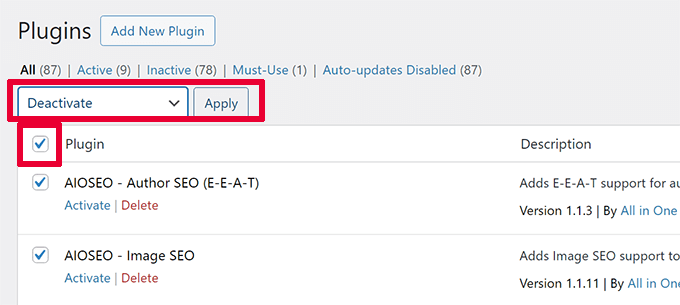
Afterward, refresh your admin interface to determine if the CSS problem resolves. If normal styling returns, the issue likely involves one of your plugins.
Reactivate Plugins Individually
To pinpoint the problematic plugin, reactivate each one separately by clicking the 'Activate' link beneath each plugin.
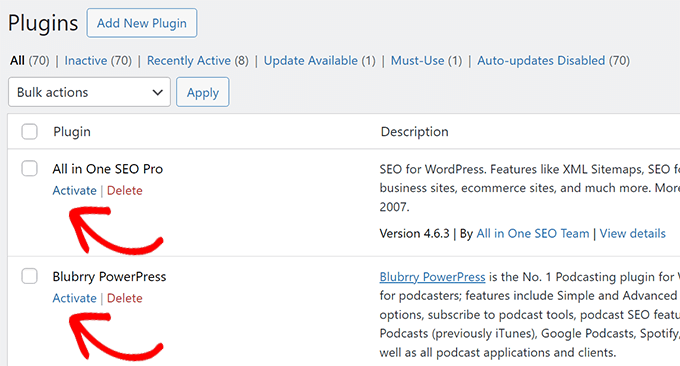
Following each activation, refresh the admin area to check for recurring CSS issues.
This systematic approach will help identify the specific plugin causing the conflict.
Seek Alternatives or Update the Plugin
Once you've identified the conflicting plugin, check for available updates. If updating doesn't resolve the problem, consider finding a replacement plugin or contacting the plugin developer for assistance.
Step 2: Address Insecure File Loading on HTTPS
Another frequent cause of CSS problems involves improperly configured secure URLs, leading to mixed content errors.
This occurs when your website uses HTTPS protocol, but CSS resources load via HTTP or insecure connections.
Modern browsers like Google Chrome automatically block insecure resources, resulting in broken CSS within your WordPress admin panel.
You can confirm this issue using your browser's Inspect tool. Navigate to the Console tab to view any Mixed Content error messages.
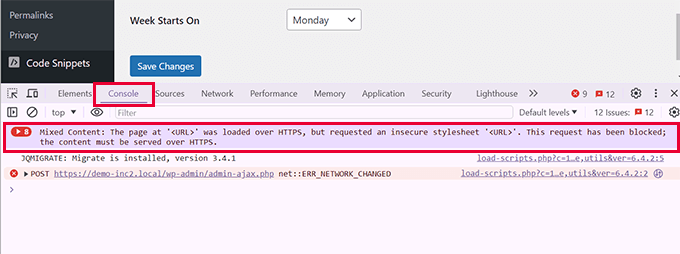
To resolve this, first verify that your WordPress settings contain correct URLs.
Access the Settings » General page and ensure both WordPress Address and Site Address include HTTPS in their URLs.
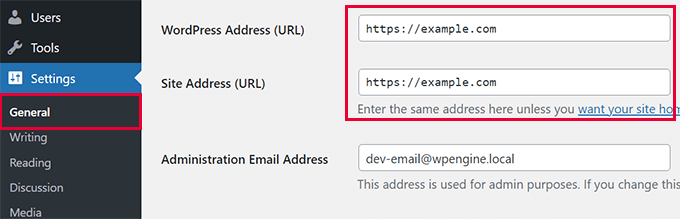
If HTTPS already appears in both URLs, you can manually enforce WordPress to use secure connections.
Edit your wp-config.php file and add the following code. This snippet instructs WordPress to consistently use secure connections for the admin area and assists servers in correctly identifying that secure connection, often resolving the issue.
define('FORCE_SSL_ADMIN', true); if (strpos($_SERVER['HTTP_X_FORWARDED_PROTO'], 'https') !== false) { $_SERVER['HTTPS'] = 'on'; }Alternatively, you can utilize plugins designed to enforce HTTPS for all URLs.
Step 3: Examine Theme Interference
Unnecessary theme interference represents another common source of CSS problems within the WordPress admin interface.
Here's how to identify and address theme-related issues.
Switch to a Default Theme
To determine if your WordPress theme causes CSS disruptions, first switch to a default WordPress theme.
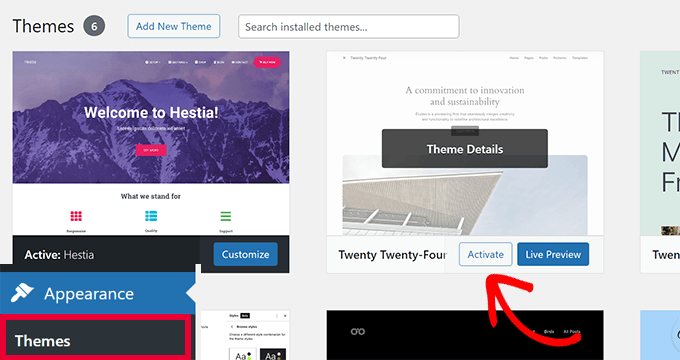
Navigate to your WordPress dashboard and access the Appearance » Themes page.
Here, activate a default WordPress theme, such as Twenty Twenty-Four.