Step-by-Step Guide to Accepting Cash App Payments on Your WordPress Site
By WordPress Experts |
Operating a WordPress website requires adapting to the payment preferences of your audience. Many site administrators have successfully integrated various payment options, with Cash App emerging as a particularly popular choice, especially for businesses appealing to younger customers.
The integration of Cash App payments into WordPress can be accomplished with relative ease. After evaluating multiple approaches, experienced developers have identified the most efficient methods that accommodate varying technical skill levels.
This comprehensive guide demonstrates practical methods for accepting Cash App payments through your WordPress site, covering both straightforward manual approaches and automated solutions.
Benefits of Accepting Cash App Payments in WordPress
For online stores and service providers, incorporating Cash App as a payment option can significantly improve conversion rates by reducing friction for customers who favor mobile payment solutions.
Key advantages of implementing Cash App payments include:
- Connect with Younger Customers: Cash App enjoys substantial popularity among younger demographics who frequently choose digital wallets over conventional credit cards.
- Streamlined Checkout Process: Customers can complete transactions quickly by scanning QR codes, eliminating the need to enter lengthy card numbers or billing information.
- Enhanced Privacy Protection: Users appreciate not having to share banking details directly with websites, increasing their sense of security.
- Reduced Cart Abandonment: Providing a preferred and convenient payment method helps prevent customers from abandoning purchases due to complicated checkout procedures.
This tutorial presents two primary methods for collecting Cash App payments in WordPress. You can navigate directly to your preferred approach using the links below.
- Method 1: Accept Cash App Payments Using WP Simple Pay (Recommended Approach)
- Method 2: Integrate Cash App Payments with WooCommerce
- Additional Method: Collect Payments Through Formidable Forms
- Common Questions About Cash App Payment Integration
Method 1: Accept Cash App Payments Using WP Simple Pay (Recommended Approach)
This method is ideal for adding Cash App payment functionality without establishing a complete eCommerce store. It works well for nonprofit organizations, membership sites, service providers, or anyone requiring a straightforward online payment collection system.
WP Simple Pay, a leading Stripe payments plugin for WordPress, provides an excellent solution for this purpose. After thorough testing across various scenarios, many WordPress professionals consider it the most reliable option for accepting Cash App payments with minimal configuration.
The plugin features an intuitive form builder, secure payment processing, recurring payment capabilities, and built-in Cash App integration.
Step 1: Install and Activate WP Simple Pay
Begin by installing and activating the WP Simple Pay plugin on your WordPress site.
Step 2: Configure the Setup Wizard
After activation, a setup wizard will appear on your screen. Click the 'Let's Get Started' button to proceed.

The next step requires entering your plugin license key, which you can obtain from your WP Simple Pay account. After entering the key, click 'Activate and Continue.'

Next, connect your Stripe account with WP Simple Pay. Stripe serves as a widely-used payment gateway that facilitates online transactions. The plugin requires this connection to function properly. Click 'Connect with Stripe' to proceed.
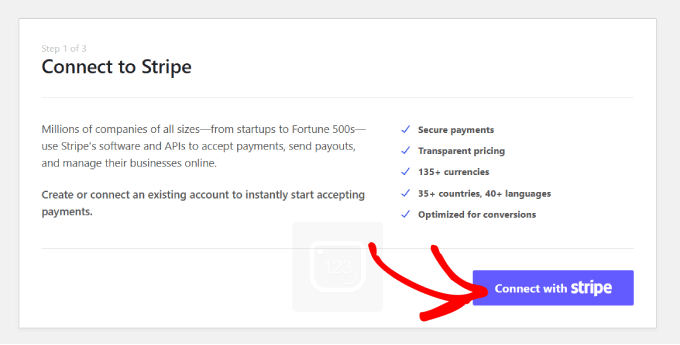
Log into your Stripe account to complete the connection. Once successfully connected, the setup wizard will prompt you to configure email notifications.
Enable options to receive email alerts for payment receipts, upcoming invoices, and payment confirmations. Specify the email address where these notifications should be sent, then click 'Save and Continue.' Complete any remaining steps before exiting the setup wizard.

Step 3: Create a Payment Form
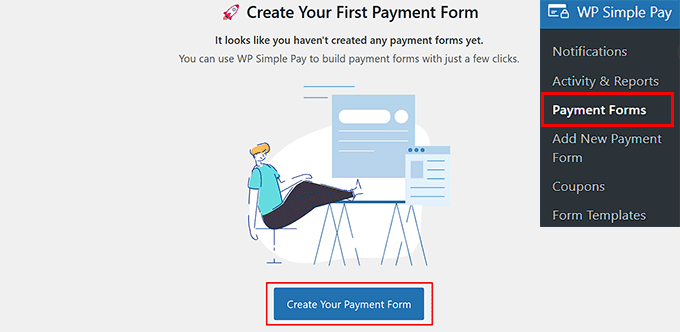
Navigate to the WP Simple Pay » Payment Forms section from your WordPress dashboard. Click the 'Create Your Payment Form' button.
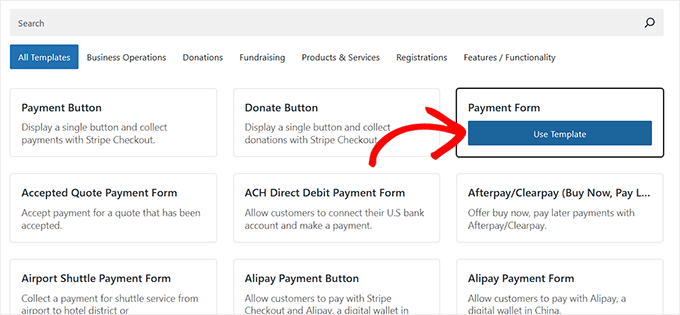
You will be directed to the template selection screen, where you can choose from several premade templates. Select an appropriate template by clicking 'Use Template' beneath it. For demonstration purposes, we will use the basic Payment Form template.
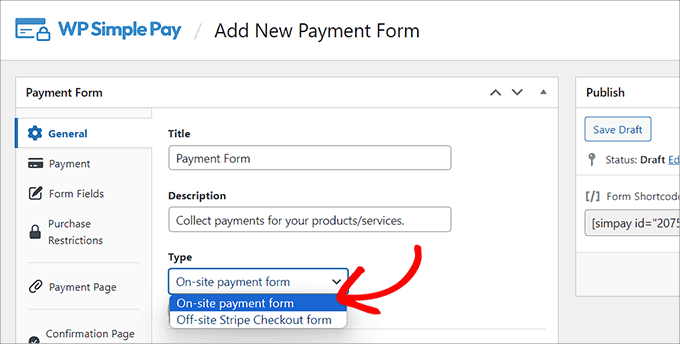
Proceed to the 'Add New Payment Form' page, where you can assign a title and description to your form. Choose 'On-site payment form' as your form type.
Step 4: Select Cash App as a Payment Option
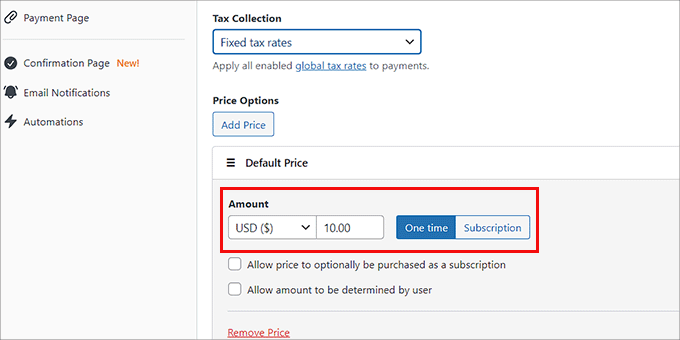
Switch to the 'Payment' tab in the left column and select your preferred tax collection rates from the dropdown menu under 'Tax Collection.'
Next, specify the price for the product or service you intend to sell through this form. For subscription-based offerings, select the 'Subscription' option and add subscription tiers by clicking 'Add Price.'
Scroll down to the 'Payment Methods' section and choose the 'All' option.


