Step-by-Step Guide to Implementing Order Bumps in WooCommerce
Many online store owners initially focus solely on their primary products, overlooking opportunities to increase revenue through strategic add-ons. This was a common oversight until the implementation of order bumps became widespread.
If your WooCommerce store hasn't yet incorporated order bumps, you're missing a straightforward method to enhance sales. Similar to impulse items positioned near physical store checkouts, order bumps are strategically placed offers that customers can add to their purchase with minimal effort during the checkout process.
This comprehensive guide demonstrates how to create effective order bumps within WooCommerce. The instructions are designed to be accessible, requiring no advanced technical knowledge.
Understanding Order Bumps
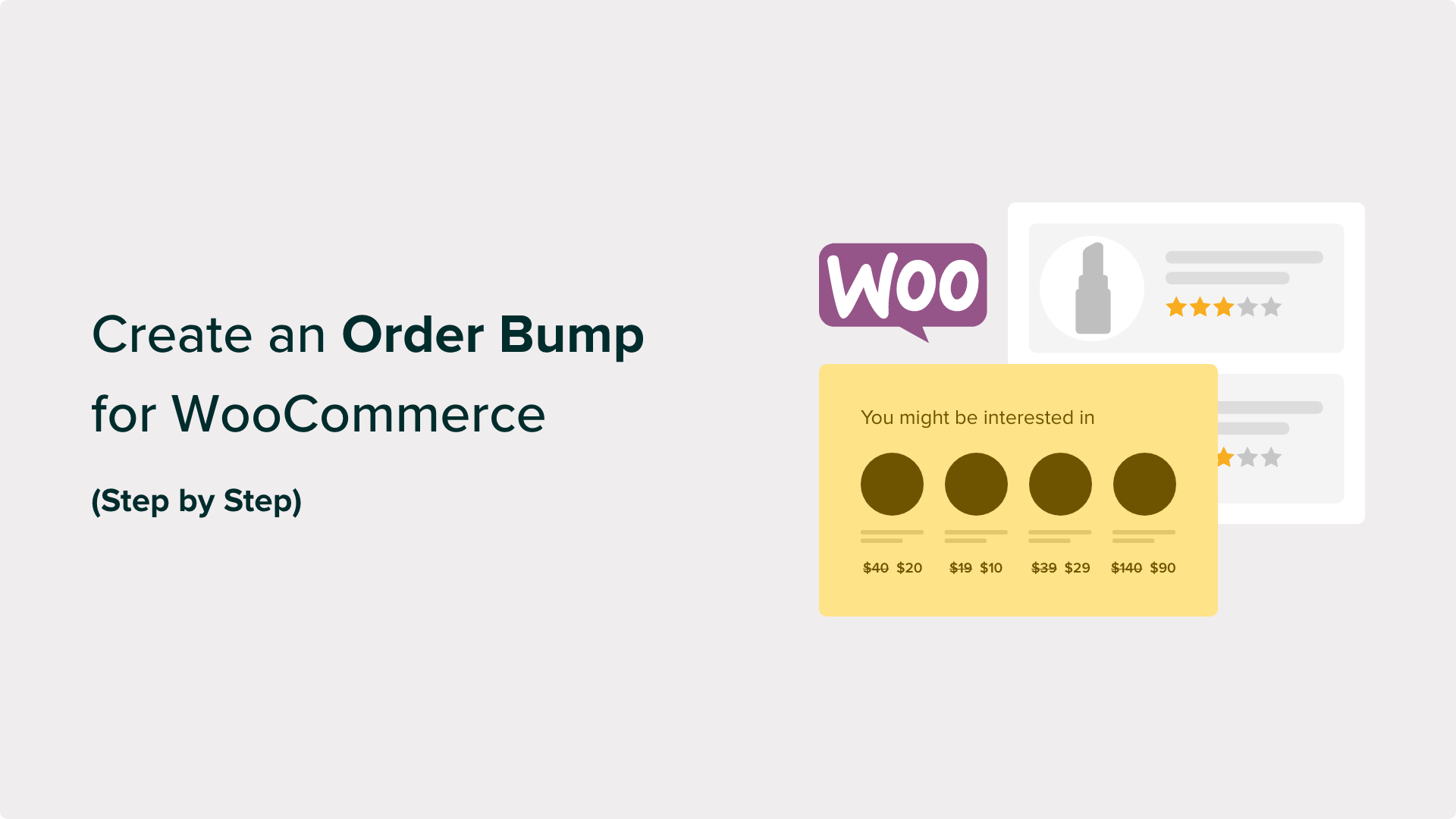
An order bump is a sales technique that presents additional products to customers on the checkout page. It functions similarly to the familiar "Would you like fries with that?" prompt in fast-food restaurants, but adapted for digital storefronts.
When shoppers reach the WooCommerce checkout, they encounter a simple offer for a complementary product. This allows them to effortlessly include another item in their purchase with a single click.
Store operators sometimes confuse order bumps with upsells and cross-sells. Although all three strategies aim to increase average order value, they operate differently:
- Order Bump: A small, relevant addition offered directly on the checkout page before payment completion. For example, suggesting a screen protector when someone purchases a smartphone.
- Upsell: An invitation to upgrade to a premium version of a product, typically presented after the initial purchase. An example would be offering an enhanced software package for a modest additional fee.
- Cross-sell: Recommendations for related products displayed on product pages or within the shopping cart. This often appears as a "Customers Also Bought" section showcasing complementary items.
Benefits of Using Order Bumps in WooCommerce
Properly implemented order bumps can significantly increase sales without disrupting the checkout experience.
However, selecting appropriate products for order bumps requires strategic consideration. Here are recommendations for creating successful offers:
- Choose products that naturally complement items already in the shopping cart.
- Price order bumps lower than the primary purchase to encourage easy addition.
- Maintain simplicity and clarity in your offer—one compelling product typically outperforms multiple options.
- Position your order bump where it's visible without obstructing the checkout flow.
WooCommerce doesn't include native functionality for order bumps, but numerous plugins provide this capability. The following tutorial utilizes a popular solution that accommodates users of varying experience levels.
This guide covers these implementation steps:
- Step 1: Install the Required Plugin
- Step 2: Customize Your Checkout Page
- Step 3: Add an Order Bump to Your Checkout
- Step 4: Customize the Order Bump Text and Image
- Step 5: Customize the Order Bump Design
- Step 6: Set Up Your Order Bump Discount
- Step 7: Set the Rules to Trigger the Order Bump
- Step 8: Monitor and Optimize Your Order Bump Conversions
- Frequently Asked Questions About WooCommerce Order Bumps
- Additional Resources to Improve Your Order Bump Performance
Let's begin the implementation process.
Step 1: Install the Required Plugin
After evaluating multiple order bump solutions, many developers recommend using a specialized funnel builder plugin for its straightforward approach. This type of plugin enables checkout optimization and sales funnel creation with minimal configuration.
This solution is particularly effective because it offers extensive customization options, responsive design templates, and compatibility with various WooCommerce product types.
Additionally, this plugin provides customizable checkout templates to enhance conversions, cart abandonment recovery features, and analytical dashboards to track store performance.
The premium version includes order bump functionality, though a free version is available for basic checkout feature exploration.
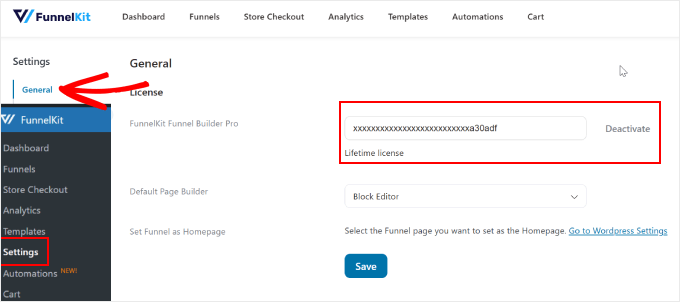
After obtaining the plugin, install it following standard WordPress plugin installation procedures. Then activate your license by navigating to the plugin's settings section, locating the license area, and entering your activation key.
Step 2: Customize Your Checkout Page
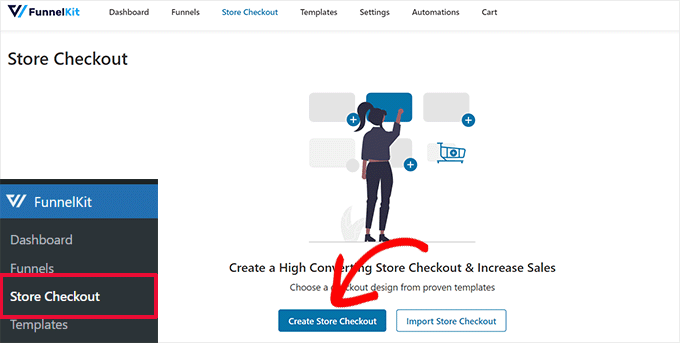
With the plugin activated, proceed to configure your WooCommerce checkout page. Navigate to the plugin's main menu and select the store checkout option. Then access the store checkout section and choose to create a new checkout configuration.
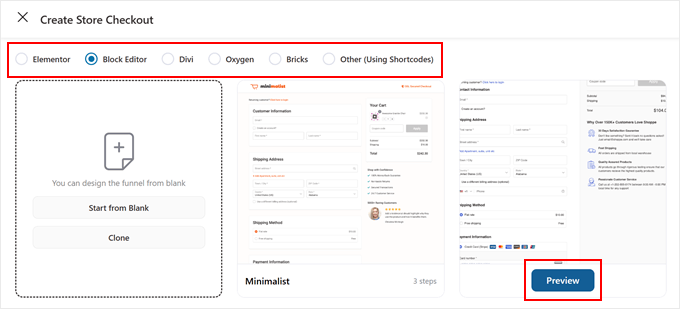
The plugin offers multiple checkout templates designed to improve sales performance. These can be customized using standard block editors or compatible page builder platforms.
Select your preferred editing platform at the top of the interface, then preview available checkout templates.
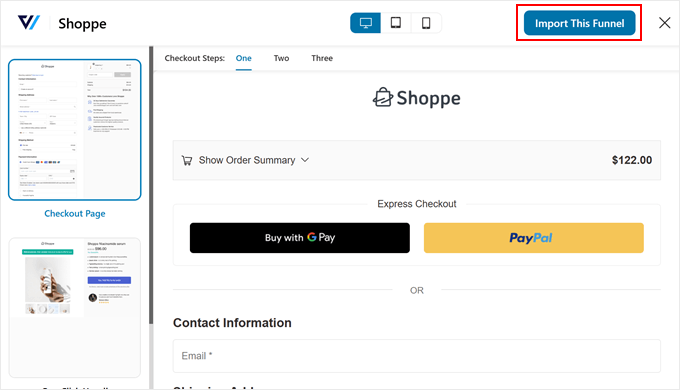
Most templates include three essential pages: a checkout page, an upsell page, and a thank you page.
If a template meets your requirements, proceed to import it into your store.
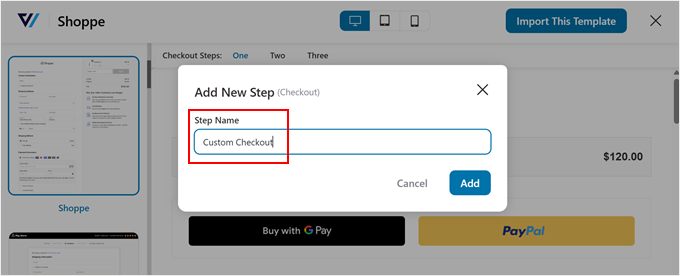
Assign a descriptive name to your checkout funnel, which is particularly useful if you plan to create multiple funnels. After naming, confirm the creation.
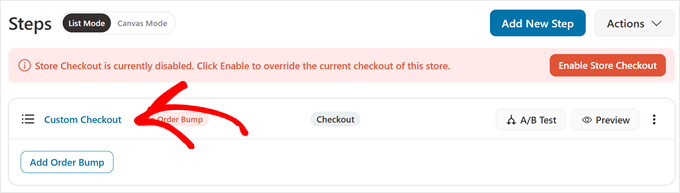
To begin customization, select the checkout name displayed above the order bump addition option. This reveals various settings for your checkout page configuration.
Within the design section, choose the option to edit the block editor template for customization using your selected editing platform.
For comprehensive customization guidance, consult documentation on WooCommerce checkout page modification.