
Two Effective Methods for Setting Up Redirects in WordPress
Encountering a "Page Not Found" error when clicking links on your own website can be frustrating for visitors and detrimental to your search engine rankings. Many WordPress experts have managed numerous website migrations and content updates, and while setting up redirects might seem technical, it doesn't have to be complicated.
This guide will walk you through two practical approaches for handling redirects in WordPress. These are the same streamlined techniques that experienced developers use to maintain smooth website operations and positive user experiences.
Why Implement Redirects on Your WordPress Site?
Numerous websites experience traffic loss and ranking declines due to broken links and missing pages. Proper URL redirects are therefore essential for maintaining website integrity.
Redirects become necessary during various scenarios: migrating to a new domain, altering URL structures, merging multiple posts or pages, removing outdated content that still attracts visitors, restructuring website navigation, or creating temporary promotional landing pages.
These situations occur more frequently than many site owners anticipate, and establishing a solid redirect strategy can prevent significant problems later.
Broken links negatively impact website performance beyond just search engine rankings. They can diminish user trust, reduce conversion rates, waste advertising budgets, and increase bounce rates.

This creates a poor user experience and can adversely affect your SEO efforts.
Fortunately, you can monitor 404 errors and redirect those URLs to existing pages.
Let's explore how to redirect pages or URLs in WordPress using two different methods:
- Creating Redirects Using an SEO Plugin
- Creating Redirects Manually by Editing .htaccess (Advanced)
- Frequently Asked Questions About WordPress Redirects
Method 1: Creating Redirects Using an SEO Plugin
The simplest approach to redirect pages and URLs in WordPress involves using a comprehensive SEO plugin. Many popular SEO plugins include redirection management features that simplify the setup process.
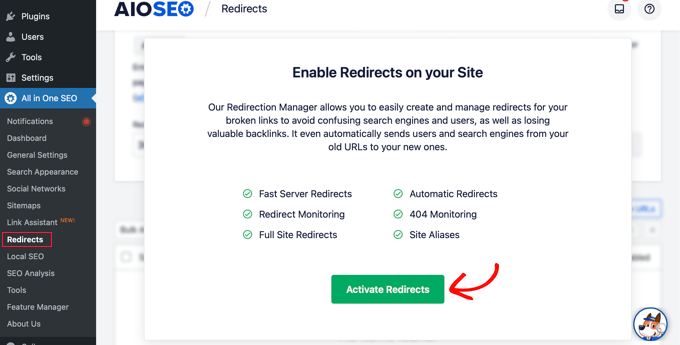
First, install and configure your chosen SEO plugin on your website. After installation, navigate to the redirects section within the plugin's settings and activate the redirection functionality.
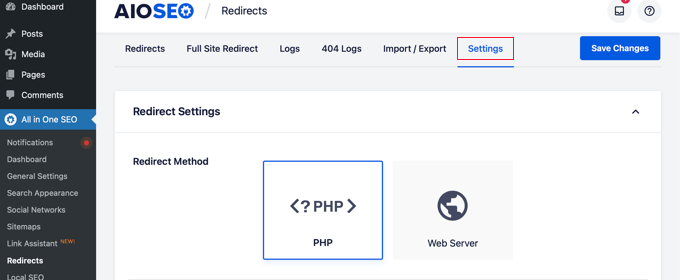
Next, access the settings tab to select your preferred redirect method. The PHP option is often recommended for its simplicity, as it doesn't require technical server configuration.
Now you're ready to redirect your WordPress pages. You can accomplish this through the plugin's redirection manager or directly from the WordPress content editor.
Creating a Redirect From the Plugin's Redirection Manager
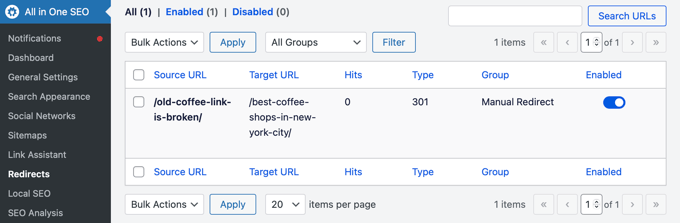
Navigate to the redirects section within your SEO plugin. This interface allows you to manage existing redirects and create new ones.
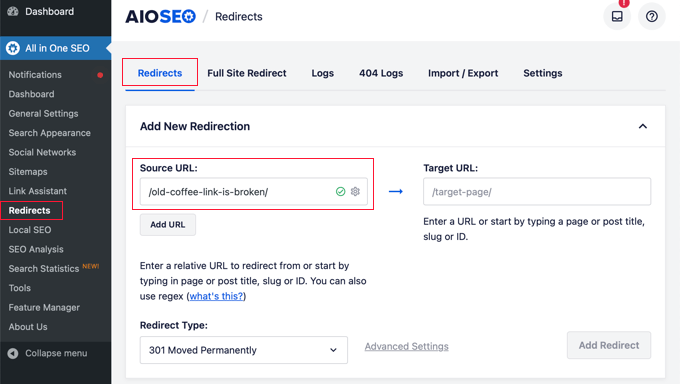
To add a new redirect, enter the post slug of the non-working URL in the 'Source URL' field. The slug represents the portion of the URL following your domain name.
Consider this example URL:
https://example.com/old-coffee-link-is-broken/
In this case, the post slug is:
/old-coffee-link-is-broken/
Enter this post slug into the 'Source URL' field as shown:
Next, input the post slug of the destination page in the 'Target URL' field.
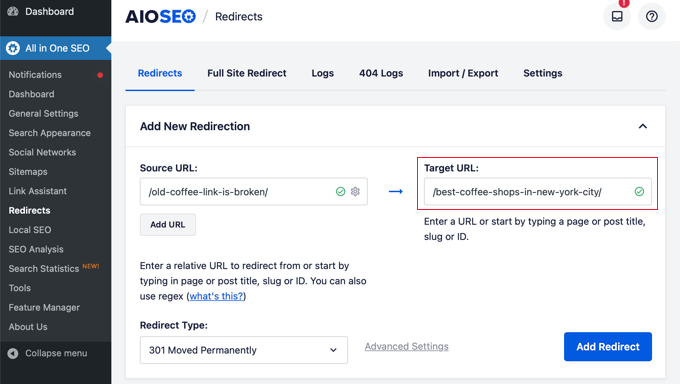
Alternatively, you can type part of the page's title, and the plugin will display matching posts and pages for selection.

The final step involves selecting a redirect type. Ensure '301 Moved Permanently' is selected, then click the 'Add Redirect' button.

You can now scroll down to view your redirect log. The 'Hits' column displays visitor counts for redirected links, and toggle options allow you to enable or disable individual 301 redirects.
Creating a Redirect From the WordPress Content Editor
You can also establish redirects for published posts or pages directly from the WordPress editor. Scroll to the bottom of the editor to find the SEO plugin's settings section, then click the 'Redirects' tab.
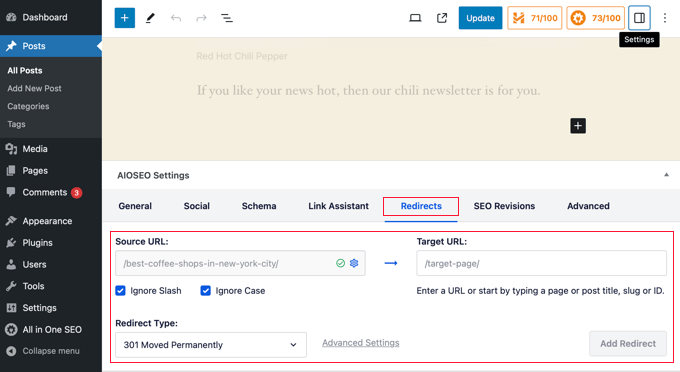
Here you'll find the same redirection options discussed earlier. The source URL is typically pre-filled, and you need to add the target URL. Ensure '301 Moved Permanently' is selected, then click 'Add Redirect.'
Method 2: Creating Redirects Manually by Editing .htaccess
You can also redirect pages or URLs without using plugins by manually adding code to your website's .htaccess file. This method is not recommended for beginners, as errors can potentially break your website.
Before proceeding, create a backup of your .htaccess file. You can then modify the file using your SEO plugin's editor tool or directly through FTP or your hosting provider's file manager.



