
Two Effective Methods to Establish a Shared Gmail Inbox for Your WordPress Website
By Editorial Team |
Implementing a shared email inbox can significantly streamline how your team manages communications for your WordPress site. This approach allows multiple team members to view and respond to messages from a centralized location, ensuring no inquiry goes unanswered.
Fortunately, establishing a shared Gmail inbox can be accomplished through either a dedicated WordPress plugin or Google's own tools. This guide will walk you through both approaches to help you select the best solution for your needs.
Benefits of a Shared Email Inbox for WordPress Sites
Business websites often require a collaborative email system to handle customer inquiries, support requests, and partnership opportunities efficiently. A shared inbox enables teams to coordinate responses, maintain consistent communication, and track conversations without duplicating efforts.
Many WordPress experts utilize shared professional email systems to manage high volumes of daily messages. This collaborative approach helps teams stay aligned and respond promptly to all incoming communications.
Similarly, numerous e-commerce and service-based websites employ shared inboxes to consolidate customer questions and support tickets, facilitating quicker response times and improved customer satisfaction.
Does Gmail Provide Native Shared Inbox Functionality?
Gmail does not include a built-in shared inbox feature. While some users consider sharing login credentials for a single Gmail account, this practice presents significant security concerns, including unauthorized access and difficulty monitoring individual user activity.
Additionally, password sharing exposes all team members to potentially sensitive information without proper access controls. Google Groups offers an alternative free solution for creating a shared email address, but many find it lacks the advanced features needed for efficient team collaboration and email management.
For these reasons, this tutorial presents two practical solutions for implementing a shared Gmail inbox with your WordPress site. Use the quick links below to navigate to your preferred method:
- Method 1: Create a Shared Gmail Inbox Using a WordPress Plugin
- Method 2: Create a Shared Gmail Inbox With Google Groups (Free)
Method 1: Create a Shared Gmail Inbox Using a WordPress Plugin
For integrating a shared inbox directly within your WordPress dashboard, specialized help desk plugins provide comprehensive solutions. These tools connect your website with Gmail, create collaborative workspaces, and enable team member invitations for seamless email management.
Step 1: Install and Configure the Plugin
Begin by selecting and purchasing a suitable help desk plugin from a reputable developer. After completing your purchase, you should receive account details, download links, and license information via email.
Download the plugin files and navigate to your WordPress admin area to install them. If you need assistance with plugin installation, consult WordPress documentation for step-by-step guidance.
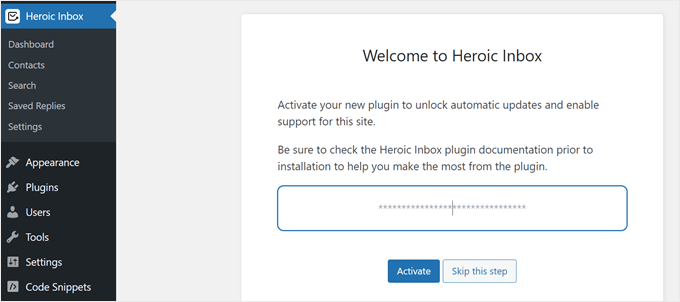
Once activated, locate the license activation section within the plugin settings. Enter your license key and activate it to unlock full functionality.
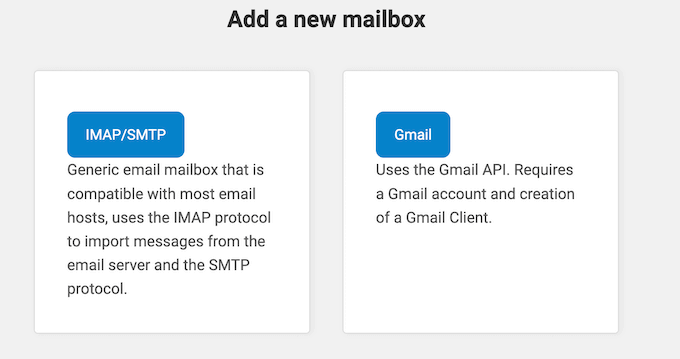
The plugin interface will typically present options for adding email inboxes. Select the Gmail integration option to proceed with connecting your Google account.
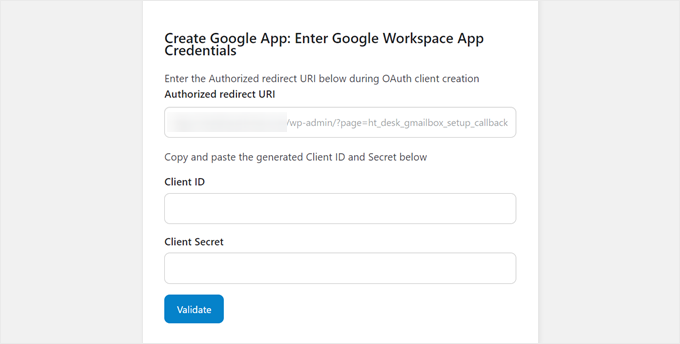
Next, you'll encounter a screen requesting Google Workspace application credentials. The plugin will provide an Authorized Redirect URI that must be entered during Google app configuration. This URI serves as a secure endpoint for authentication responses between your WordPress site and Google's servers.
Step 2: Configure Google Workspace Application
Navigate to the Google Cloud Console website and sign in with your Google Workspace account credentials. Click the project selection menu located in the top-left corner of the interface.
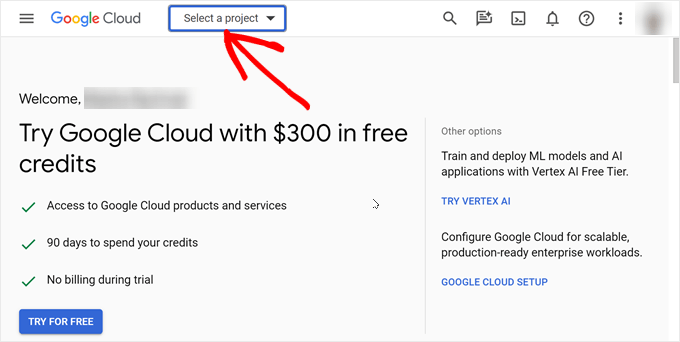
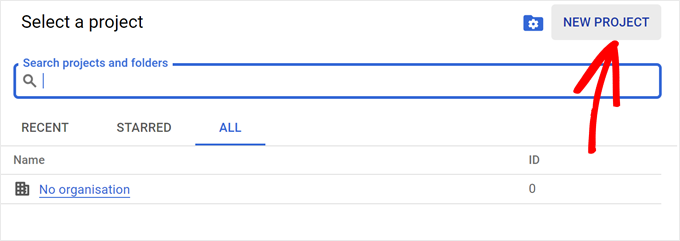
A dialog box will appear prompting you to choose a project. Since you're creating a new application for your WordPress plugin integration, select the option to create a new project.
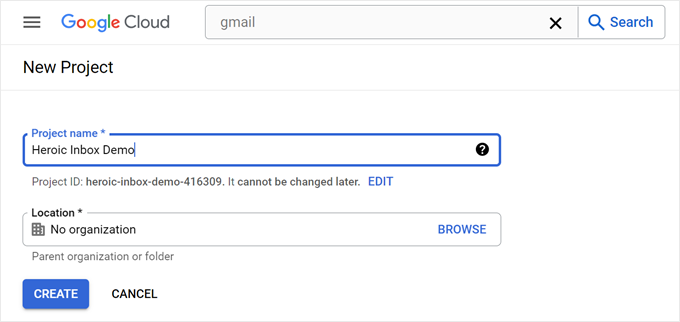
Assign a descriptive name to your project that will help you identify it later, such as "WordPress Shared Inbox Integration." Select your preferred storage location within Google Cloud, then proceed with project creation.
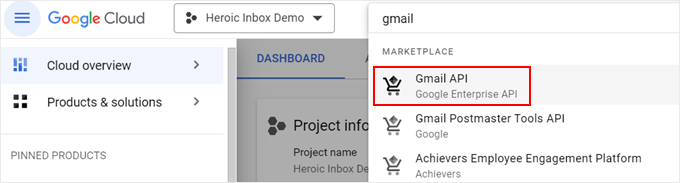
Using the search functionality within the console, locate and select the Gmail API. This API enables external applications to send and receive emails through Gmail accounts.
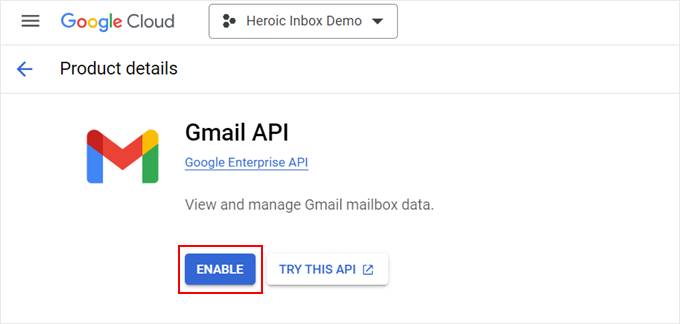
On the Gmail API overview page, click the enable button. This authorization allows the WordPress plugin to interact with Gmail on behalf of your account.
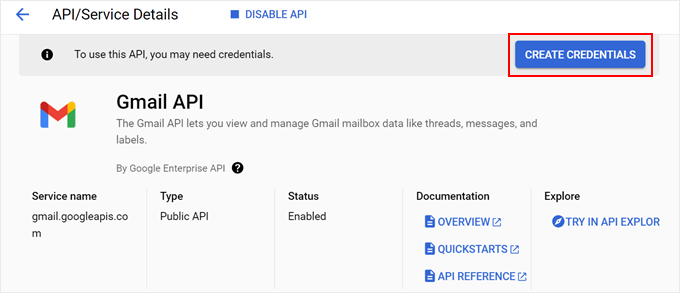
After enabling the API, you must establish connection credentials. Click the button to create new credentials for your application.
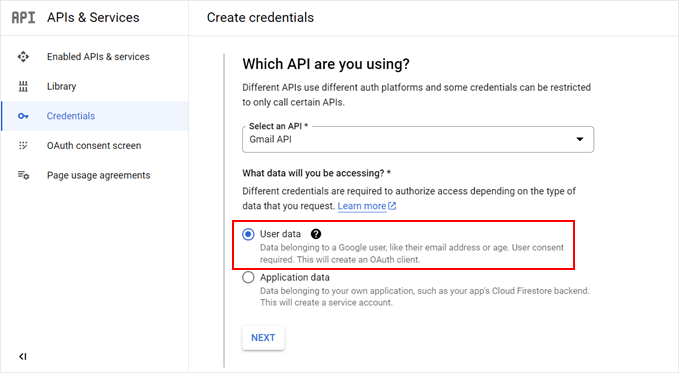
Select Gmail API as your service type and choose user data as your data category. These settings ensure proper authentication for your shared inbox functionality.
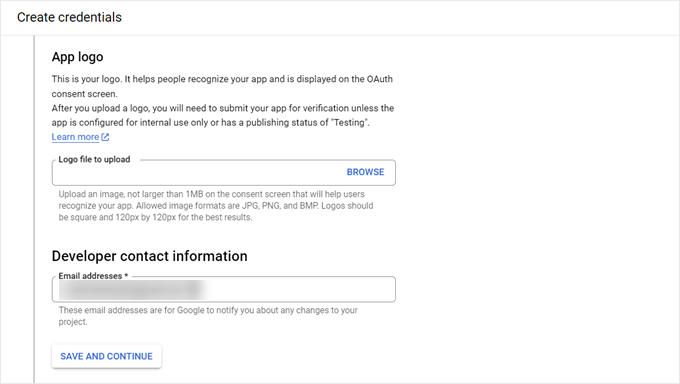
Configure your application's consent screen by optionally uploading a logo and providing developer contact information. Use a professional email address associated with your Google Workspace account for contact details.
The permission scopes configuration is typically optional for basic functionality. Many experienced developers recommend accepting the default settings unless specific advanced permissions are required for your use case.



